Dell Premier Software Reports
Summary: Dell Premier: Discover easy-to-use reports relating to your current and past purchases of software volume licenses (only available in the United States).
This article applies to
This article does not apply to
This article is not tied to any specific product.
Not all product versions are identified in this article.
Instructions
Table of Contents
To access your reports, click "Account" located in the top-left corner of your Premier home page. Next, click "Reports" (visible to users with reporting access). Alternatively, you can navigate to the "Reports" module available on the Account home page. (Figure 1)
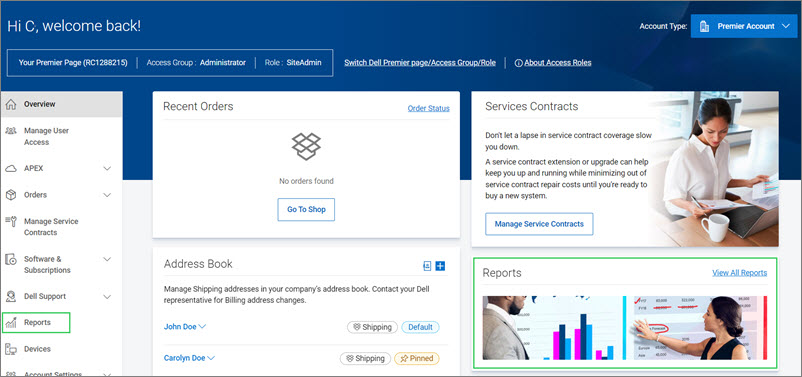
Figure 1: Access Software Volume Licensing Reports
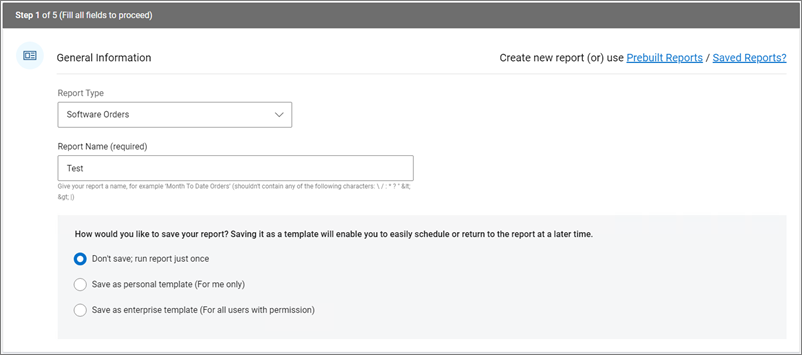
Figure 2: Build your Own Report - Create Report
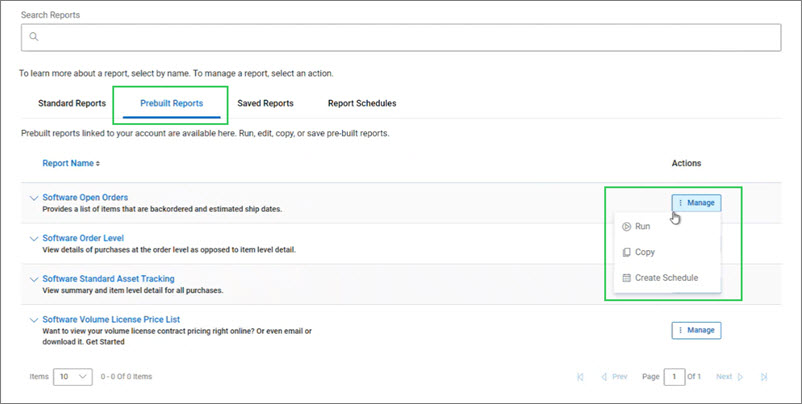
Figure 3: Access and view pre-built reports
When accessing pre-built reports, click 'Manage' (Figure 3) to
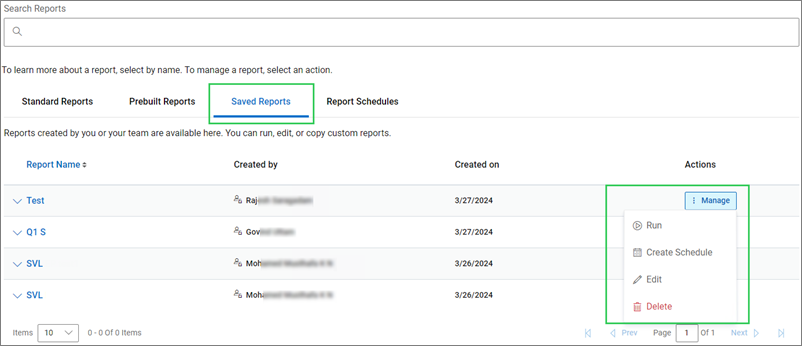
Figure 4: Access and view saved reports
Go to the 'Saved Reports' tab (Figure 4)
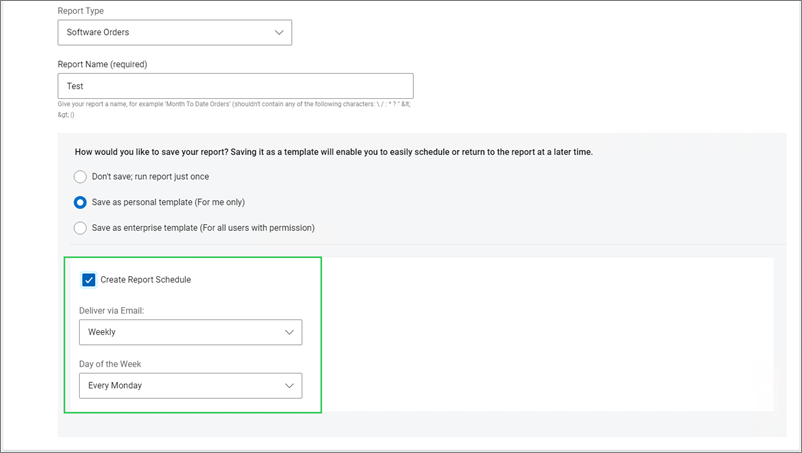
Figure 5: Create Report Schedule
Manage all your scheduled reports effortlessly under the "Report Schedules" tab - edit, pause, or delete schedules with ease (Figure 6).
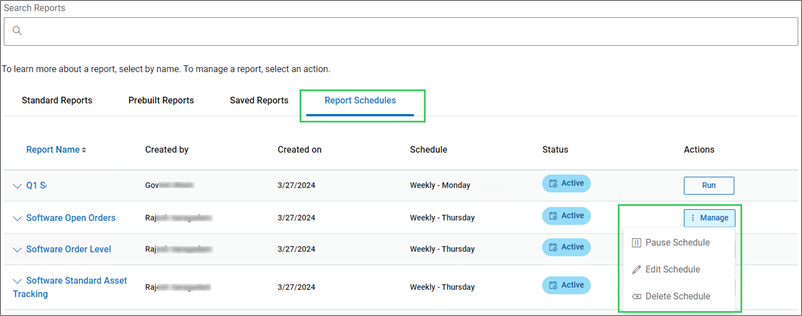
Figure 6: Manage Report Schedules
If you have questions or need assistance, engage the Dell Premier Support Teams
Americas | Europe, Middle East, Africa | Asia Pacific, China
Figure 1: Access Software Volume Licensing Reports
Build your Own Report
Premier users can create their own software report based on their individual preferences.
Figure 2: Build your Own Report - Create Report
- Select "Software Orders" as a report type, give your report a name and choose to run or save the report (Figure 2). Reports can be run once, saved as a personal template, or saved as an enterprise template (visible to all users with permission). The saved reports are then available under 'Saved Reports'.
- Define the date range.
- Select the desired report fields within "Order Details", "Product Details", "Billing Details” and "Shipping Details" and finalize the report.
Pre-Built Software Reports
Premier users can run, copy to edit, or schedule pre-built reports related to open orders, order level information, item level details, and contract price lists. To schedule a price list report, you must first save the report, and then navigate to "Saved Reports" to schedule.
Figure 3: Access and view pre-built reports
When accessing pre-built reports, click 'Manage' (Figure 3) to
- View the selected report (Run)
- Copy the selected report, make edits (change name, apply desired time period,…) and save it as a custom report.
- Create report schedules to receive tailored reports directly by email
Saved Reports
Premier users can quickly retrieve previously saved reports and get their software purchase history anytime.
Figure 4: Access and view saved reports
Go to the 'Saved Reports' tab (Figure 4)
- When created by you, the report is editable and can be deleted
- When created by other users of the access group (Enterprise template), the report is a read-only view (Run)
Report Schedules
When choosing to save the report as a personal template, Premier users can schedule weekly, monthly, quarterly, or yearly report delivery (Figure 5). The scheduled report is delivered by email, ensuring you always have the insights you need, when you need them.
Figure 5: Create Report Schedule
Manage all your scheduled reports effortlessly under the "Report Schedules" tab - edit, pause, or delete schedules with ease (Figure 6).
Figure 6: Manage Report Schedules
Americas | Europe, Middle East, Africa | Asia Pacific, China
Article Properties
Article Number: 000223607
Article Type: How To
Last Modified: 20 May 2026
Version: 5
Find answers to your questions from other Dell users
Support Services
Check if your device is covered by Support Services.