Windows SモードおよびSE for Educationの導入中に、監査モードでエラー メッセージが表示される
Summary: この記事では、教育用Windows 10 Sモード、Windows 11 Sモード、およびWindows 11 SEの導入中に監査モードに表示されるエラー メッセージについて説明します。
This article applies to
This article does not apply to
This article is not tied to any specific product.
Not all product versions are identified in this article.
Symptoms
影響を受けるプラットフォーム:
- Latitude 3120
- Latitude 3140
- Latitude 3190
- Inspiron 3880
- Inspiron 3891
- Inspiron 3910
- Inspiron 5301
- Inspiron 5402/5409
- Inspiron 5405
- Inspiron 5502/5509
- Inspiron 5505
- Inspiron 13 5310
- Inspiron 13 5320
- Inspiron 14 5410/5418
- Inspiron 14 5415
- Inspiron 14 5420
- Inspiron 14 5425
- Inspiron 14 5406 2-in-1
- Inspiron 14 5410 2-in-1
- Inspiron 14 7415 2-in-1
- Inspiron 14 7420 2-in-1
- Inspiron 14 7425 2-in-1
- Inspiron 15 3501
- Inspiron 15 3502
- Inspiron 15 3505
- Inspiron 15 3510
- Inspiron 15 3511
- Inspiron 15 3515
- Inspiron 15 3520
- Inspiron 15 3521
- Inspiron 15 3525
- Inspiron 15 5510/5518
- Inspiron 15 5515
- Inspiron 16 5620
- Inspiron 16 5625
- Inspiron 16 7610
- Inspiron 16 7620 2-in-1
- Vostro 5301
対象オペレーティング システム:
- Windows 10 Sモード
- Windows 11 Sモード
- 教育向けWindows 11 SE
デバイスにWindows 10 Sモード、Windows 11 Sモード、またはWindows 11 SEがインストールされている場合に、同じオペレーティング システムを再インストールしようとすると、次のエラーで失敗します。
Windowsは無人応答ファイルを解析または処理できませんでした[C:\Windows\Panther\Unattend.xml]
Cause
デフォルトでは、SモードとSEではコマンドの実行は許可されません。これはオペレーティング システム レベルの制限です。この制限により、unattend.xmlによって呼び出されたバッチスクリプトを実行すると、このエラーメッセージが表示されます。
Resolution
BIOSでセキュア ブートを無効にしてSモードまたはSEをインストールすると、インストールは正常に完了します。デル・テクノロジーズでは、セキュア ブートを無効にすることは推奨していません。セキュア ブートを有効にして、同じ手順をもう一度繰り返します。
セキュア ブートが有効になっているデバイスを回復するには、次の手順に従います。
- SモードまたはSEが含まれる USBキー を接続します。
- デバイスの電源を入れます。
- F2キーを数回押して、UEFIファームウェア設定を起動します(Dellのロゴが画面に表示されたらF2キーを押します)。
- [UEFI Firmware]設定>[Boot Configuration]>[Secure Boot]>オフにします。
- [ 適用 ]をクリックしてUEFIファームウェア設定を 終了します (このプロセスによりデバイスが再起動されます)。
- Dellのロゴが表示されたら F12 キーを押して、[ Boot device selection]画面を表示します。
- USBキーを選択し、Enterキーを押します(これにより、USBキーからの起動が開始されます)。
- 画面の指示に従って導入を開始します。
- デバイスがOOB(購入時)になったら、電源ボタンを5秒間押してデバイスをシャットダウンします。
- デバイスの電源を入れます。
- F2キーを数回押して、UEFIファームウェア設定を起動します(Dellのロゴが画面に表示されたらF2キーを押します)。
- [UEFI Firmware]設定で、[Boot Configuration]>[Secure Boot]>[Secure Boot]>をオンにします。
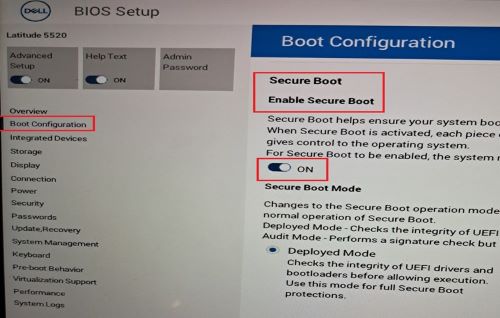
- [ 適用 ]をクリックしてUEFIファームウェア設定を 終了します (このプロセスによりデバイスが再起動されます)。
- Dellのロゴが表示されたら F12 キーを押して、 起動デバイスの選択メニューを表示します。
- USBキーを選択し、Enterキーを押します(これにより、USBキーからの起動が開始されます)。
- 画面の指示に従って、オペレーティング システムの導入を開始します。
- デバイスがOOBになったら、画面の指示に従ってデスクトップにログインします。
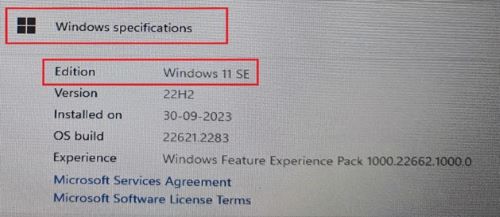
- システムのプロパティを開き、オペレーティング システムがS-ModeまたはSEであることを確認します。
- スタート メニューでWindowsアイコンを右クリックし>[System]をクリックして>[About]をクリックします
- [Windows の仕様] で、エディションは次のように表示されます。
- Windows 10 Sモード
- Windows 11 Sモード
- Windows 11 SE
Affected Products
Inspiron 5301, Inspiron 13 5310, Inspiron 13 5320, Inspiron 5402/5409, Inspiron 5405, Inspiron 5406 2-in-1, Inspiron 14 5410 2-in-1, Inspiron 14 5410/5418, Inspiron 5415, Inspiron 14 5420, Inspiron 14 5425, Inspiron 7415 2-in-1
, Inspiron 14 7420 2-in-1, Inspiron 14 7425 2-in-1, Inspiron 3501, Inspiron 3502, Inspiron 3505, Inspiron 15 3510, Inspiron 15 3511, Inspiron 15 3515, Inspiron 15 3520, Inspiron 15 3521, Inspiron 15 3525, Inspiron 5502/5509, Inspiron 5505, Inspiron 15 5510/5518, Inspiron 5515, Inspiron 16 5620, Inspiron 16 5625, Inspiron 16 7610, Inspiron 16 7620 2-in-1, Inspiron 3880, Inspiron 3891, Inspiron 3910, Latitude 3120, Latitude 3140, Latitude 3190, Vostro 5301
...
Article Properties
Article Number: 000223620
Article Type: Solution
Last Modified: 15 Apr 2025
Version: 5
Find answers to your questions from other Dell users
Support Services
Check if your device is covered by Support Services.