Der vises en fejlmeddelelse i overvågningstilstand under implementering af Windows S-tilstand og SE for Education
Summary: Denne artikel indeholder oplysninger om en fejlmeddelelse, der vises i overvågningstilstand under implementering af Windows 10 S-tilstand, Windows 11 S-tilstand og Windows 11 SE til uddannelse. ...
This article applies to
This article does not apply to
This article is not tied to any specific product.
Not all product versions are identified in this article.
Symptoms
Berørte platforme:
- Latitude 3120
- Latitude 3140
- Latitude 3190
- Inspiron 3880
- Inspiron 3891
- Inspiron 3910
- Inspiron 5301
- Inspiron 5402/5409
- Inspiron 5405
- Inspiron 5502/5509
- Inspiron 5505
- Inspiron 13 5310
- Inspiron 13 5320
- Inspiron 14 5410/5418
- Inspiron 14 5415
- Inspiron 14 5420
- Inspiron 14 5425
- Inspiron 14 5406 2-i-1
- Inspiron 14 5410 2-i-1
- Inspiron 14 7415 2-i-1
- Inspiron 14 7420 2-i-1
- Inspiron 14 7425 2-i-1
- Inspiron 15 3501
- Inspiron 15 3502
- Inspiron 15 3505
- Inspiron 15 3510
- Inspiron 15 3511
- Inspiron 15 3515
- Inspiron 15 3520
- Inspiron 15 3521
- Inspiron 15 3525
- Inspiron 15 5510/5518
- Inspiron 15 5515
- Inspiron 16 5620
- Inspiron 16 5625
- Inspiron 16 7610
- Inspiron 16 7620 2-i-1
- Vostro 5301
Påvirkede operativsystemer:
- Windows 10 i S-tilstand
- Windows 11 i S-tilstand
- Windows 11 SE til uddannelse
Hvis enheden har Windows 10 S-tilstand, Windows 11 S-tilstand eller Windows 11 SE installeret og derefter forsøger at geninstallere det samme operativsystem, mislykkes det med følgende fejl:
Windows kunne ikke analysere eller behandle den ubemandede svarfil [C:\Windows\Panther\Unattend.xml]
Cause
Som standard tillader S-Mode og SE ikke at køre nogen kommando, det er en begrænsning på operativsystemniveau. På grund af denne begrænsning forårsager kørsel af et batchscript, der kaldes af unattend.xml, denne fejlmeddelelse.
Resolution
Hvis du installerer S-tilstand eller SE ved at deaktivere Sikker start i BIOS, kan installationen lykkes. Dell Technologies fraråder deaktivering af sikker start. Gentag de samme trin igen med Secure Boot aktiveret.
Følg nedenstående trinvise proces for at gendanne enheden med sikker opstart aktiveret:
- Tilslut USB-nøgle , som har S-tilstand eller SE på.
- Tænd for enheden.
- StartUEFI-firmwareindstillingen ved at trykke på F2-tasten et par gange (tryk på F2-tasten , når Dell-logoet vises på skærmen).
- I UEFI-firmwareindstilling>, Startkonfiguration,>Sikker opstart>, Slå fra.
- Klik på Anvend og afslut UEFI-firmwareindstillingen (denne proces genstarter enheden).
- Tryk på F12-tasten , når Dell-logoet vises, for at åbne Boot device selection menu.
- Vælg USB-nøgle , og tryk på Enter-tasten (dette starter opstart fra USB-nøgle).
- Startimplementeringen ved at følge vejledningen på skærmen.
- Når enheden kommer til OOB (Out of Box Experience), skal du lukke enheden ned ved at trykke på tænd/sluk-knappen i fem sekunder.
- Tænd for enheden.
- StartUEFI-firmwareindstillingen ved at trykke på F2-tasten et par gange (tryk på F2-tasten , når Dell-logoet vises på skærmen).
- I UEFI-firmwareindstilling>, Startkonfiguration,>Sikker opstart>, Tænd TIL.
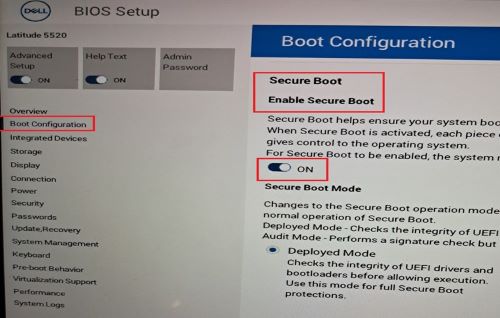
- Klik på Anvend og afslut UEFI-firmwareindstillingen (denne proces genstarter enheden).
- Tryk på F12-tasten , når Dell-logoet vises, for at åbne menuen til valg af opstartsenhed.
- Vælg USB-nøgle , og tryk på Enter-tasten (dette starter opstart fra USB-nøgle).
- Starteimplementeringen af operativsystemet i henhold til vejledningen på skærmen.
- Når enheden kommer til OOB, skal du følge instruktionerne på skærmen og logge ind på skrivebordet.
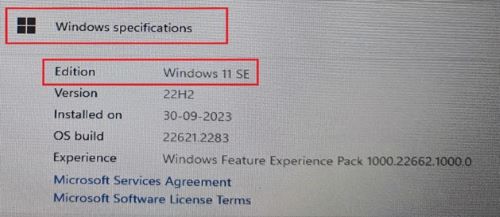
- Åbn systemegenskaber , og bekræft, at operativsystemet er S-Mode eller SE.
- Højreklik på Windows-ikonet i startmenuen> Klik på System> Klik på Om
- Under Windows-specifikationen skal udgaven vises som:
- Windows 10 i S-tilstand
- Windows 11 i S-tilstand
- Windows 11 SE
Affected Products
Inspiron 5301, Inspiron 13 5310, Inspiron 13 5320, Inspiron 5402/5409, Inspiron 5405, Inspiron 5406 2-in-1, Inspiron 14 5410 2-in-1, Inspiron 14 5410/5418, Inspiron 5415, Inspiron 14 5420, Inspiron 14 5425, Inspiron 7415 2-in-1
, Inspiron 14 7420 2-in-1, Inspiron 14 7425 2-in-1, Inspiron 3501, Inspiron 3502, Inspiron 3505, Inspiron 15 3510, Inspiron 15 3511, Inspiron 15 3515, Inspiron 15 3520, Inspiron 15 3521, Inspiron 15 3525, Inspiron 5502/5509, Inspiron 5505, Inspiron 15 5510/5518, Inspiron 5515, Inspiron 16 5620, Inspiron 16 5625, Inspiron 16 7610, Inspiron 16 7620 2-in-1, Inspiron 3880, Inspiron 3891, Inspiron 3910, Latitude 3120, Latitude 3140, Latitude 3190, Vostro 5301
...
Article Properties
Article Number: 000223620
Article Type: Solution
Last Modified: 15 Apr 2025
Version: 5
Find answers to your questions from other Dell users
Support Services
Check if your device is covered by Support Services.