How to View Dell Trusted Device Events in Windows Event Viewer
Summary: Learn how to use the Event Viewer in Windows to monitor Dell Trusted Device statuses for BIOS Events & Indicators of Attack, BIOS Verification, and more.
This article applies to
This article does not apply to
This article is not tied to any specific product.
Not all product versions are identified in this article.
Instructions
Dell Trusted Device is part of the Dell SafeBIOS product portfolio. Dell Trusted Device is an application that provides the security status of the local endpoint and recommended actions for security monitoring. Dell Trusted Device includes the following features:
- BIOS Verification
- BIOS Events & Indicators of Attack
- BIOS Image Capture
- Intel ME verification
- Secured Component Verification (On Cloud)
- Common Vulnerabilities and Exposures (CVE)
- Security Risk Protection Score
- Dell Event Repository and security information and event management (SIEM) integration
Affected Product:
- Dell Trusted Device
Affected Versions:
- Dell Trusted Device version 6.1 and later
Affected Platforms:
- Windows 10
- Windows 11
Affected Hardware:
- Latitude
- OptiPlex
- Precision
- XPS
To view Dell Trusted Device Events in the Windows Event Viewer, Open the Windows Event Viewer. From there, you can review BIOS Events & Indicators of Attack (IoA), BIOS Verification, Intel Management Engine Verification (Intel ME), Secured Component Verification (SCV), and Common Vulnerabilities and Exposures (CVE).
Note: By default, the Windows Event Viewer sorts data by date and time. You can change the sorting of this data by clicking the column headers Level, Date and Time, Source, Event ID, or Task Category to quickly locate events of interest.
Open Windows Event Viewer
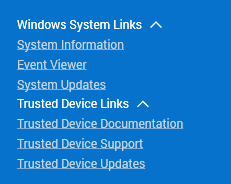
- From the Dell Trusted Device Local Console, under the Windows System Links, click Event Viewer.
- From Event Viewer, expand Applications and Services Logs and then select Dell Trusted Device.

- The source column can be used to filter event messages by category types. The below sections of this article help provide additional context of what these classifications mean.
BIOS Events & Indicators of Attack (IoA)
BIOS Events & Indicators of Attack enables administrators to analyze events in the Windows Event Viewer that may indicate bad actors targeting the BIOS on enterprise endpoints. Bad actors change BIOS attributes to gain access to enterprise computers locally or remotely. These attack vectors can be monitored and then mitigated through the BIOS Events & Indicators of Attack features' ability to monitor BIOS attributes. The Dell Trusted Device agent collects BIOS attributes after installation and every 12 hours by default. BIOS Events & Indicators of Attack data is retained for 200 days.
Dell Technologies recommends using a SIEM product to retrieve logs and events. Administrators should provide results to their security operations center (SOC) team to determine appropriate remediation strategies.
BIOS Verification
BIOS Verification compares the device’s current BIOS version to the latest available version. If an outdated version is present, BIOS Verification writes the following to the Windows Event Viewer:
| Action | Level | Event ID | Task Category |
|---|---|---|---|
| Verification Passed | Informational | 9 | 1 |
| Verification Failed | Error | 2 | 1 |
| Image Captured | Warning | 1 | 2 |
| Duplicate Image Captured | Warning | 2 | 2 |
| BIOS is out of date | Warning | 40 | 8 |
| BIOS Version Not Currently Supported | Error | 2 | 1 |
BIOS Verification runs every 24 hours by default.
Intel Management Engine Verification (Intel ME)
The Intel Management Engine (Intel ME) is an independent microcontroller that is built into Intel processor chipsets. Intel ME provides an interface between the operating system, hardware, and BIOS.
The Dell Trusted Device agent scans and verifies that Intel ME firmware is present and untampered after initial installation, startup, and every 24 hours.
Secured Component Verification (SCV)
Secured Component Verification (On Cloud) is a supply-chain assurance offering that enables you to verify the integrity of the components inside your Dell computer. Dell Trusted Device compares component details on your computer against an off-host certificate containing the unique system component IDs generated and signed by Dell during the factory-assembly process. Secured Component Verification (On Cloud) verifies the following components:
- Processor (CPU)
- Trusted Platform Module (TPM)
- Fixed Storage
- Onboard Networking
- Memory (RAM)
- Motherboard
- System Information
Dell Trusted Device performs component verification after installation and on every startup. For each component, Dell Trusted Device writes a timestamped pass or fail to the Windows Event Viewer.
| Action | Level | Event ID | Task Category |
|---|---|---|---|
| Verification Success | Informational | 41 | 9 |
| Verification Failed | Informational | 41 | 9 |
| Server Internal Error Network Error | Error | 43 | 9 |
| Unsupported Platform | Warning | 42 | 9 |
Note: Secured Component Verification (On Cloud) must be added to your Dell hardware at the time of purchase. For more information about adding this feature, contact your Dell Technologies sales representative.
Common Vulnerabilities and Exposures (CVE)
Dell Trusted Device is designed to identify and detect CVEs pertaining to BIOS. Upon booting up, Dell Trusted Device evaluates the current BIOS version of your device and compares it with the latest available version. It then analyzes the gap between these versions and identifies the Dell Security Advisories (DSAs) that have been resolved in the newer BIOS version. A DSA represents a collection of one or more CVEs.
| Action | Level | Event ID | Task Category |
|---|---|---|---|
| Success | Informational | 46 | 10 |
| Error: A network connection error occurred | Warning | 47 | 10 |
| Error: Tampering has been detected | Warning | 47 | 10 |
| Error: An unknown error has occurred | Warning | 47 | 10 |
| Error: Platform not currently supported | Warning | 47 | 10 |
Affected Products
OptiPlex, XPS, Latitude, XPS, Fixed Workstations, Mobile Workstations, Dell Trusted DeviceArticle Properties
Article Number: 000223952
Article Type: How To
Last Modified: 19 Apr 2025
Version: 4
Find answers to your questions from other Dell users
Support Services
Check if your device is covered by Support Services.