PowerProtect: DM5500 - How to change iDRAC password
Summary: DM5500 iDRAC users are not allowed to change the iDRAC password from the iDRAC UI.
This article applies to
This article does not apply to
This article is not tied to any specific product.
Not all product versions are identified in this article.
Instructions
DM5500 iDRAC users are not allowed to change the iDRAC password from the iDRAC UI, since users have limited privileges.
Procedure to Change the Password.
- Log in to the DM5500 management interface.
- Navigate to Administration > Access Control > iDRAC (TAB)
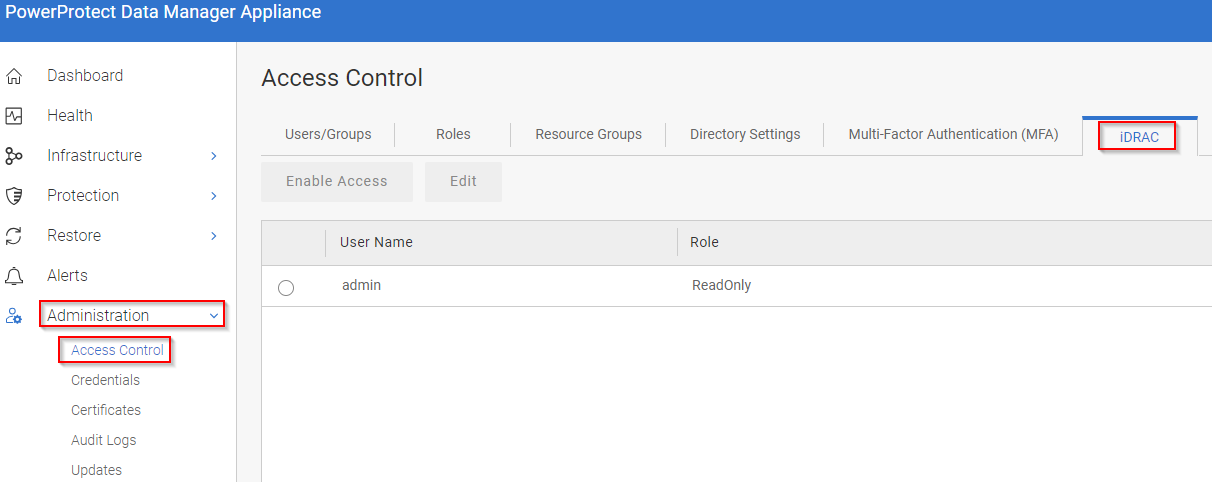
- Select the user and click Edit.
- Enter a new password and click Submit.
- The iDRAC user passwords have now been changed.
Note: This procedure changes admin and operator iDRAC user passwords. The admin user password is the password that was configured. The operator user password is the new password plus the DM5500 PSNID (serial number).
Affected Products
PowerProtect Data Manager ApplianceArticle Properties
Article Number: 000223981
Article Type: How To
Last Modified: 08 Aug 2025
Version: 3
Find answers to your questions from other Dell users
Support Services
Check if your device is covered by Support Services.