How to Manage Your Microsoft Subscription Management for Dell Cloud Solution Provider
Summary: This article provides instructions about how to manage your Microsoft license-based subscriptions through My Account.
This article applies to
This article does not apply to
This article is not tied to any specific product.
Not all product versions are identified in this article.
Instructions
Affected Products:
- Microsoft M365
Table of Contents:
- Manage Subscriptions - Landing Page
- Add Licenses
- Purchase Add-ons
- Upgrade
- Remove Licenses
- Accelerated Payment
- Cancel
- Scheduled Changes
- Managed Scheduled Changes
Manage your Dell Cloud Solution Provider (CSP) Microsoft licensed-based subscriptions through Dell My Account or Premier, under the Software & Subscriptions tab.
- Log in to begin
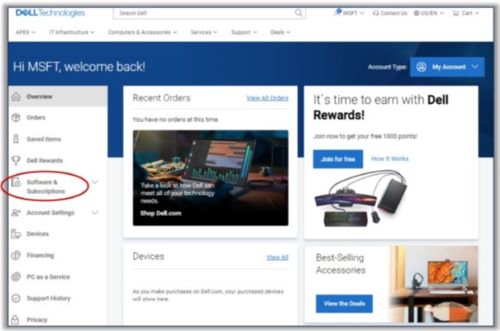
Figure 1: (English Only) Software & Subscriptions on Dell My Account
Note: Be sure to switch the Account Type to either My Account or Premier based on your organization’s Dell account.
- Confirm your Microsoft Tenant
- Confirm your Microsoft tenant under Subscription Settings.

Figure 2: (English Only) Subscription Settings
- Manage your Microsoft Subscriptions
- By clicking View Microsoft Subscriptions, you have visibility to your subscription landing page, which lists all subscriptions purchased using Dell Cloud Solution Provider (CSP) program.
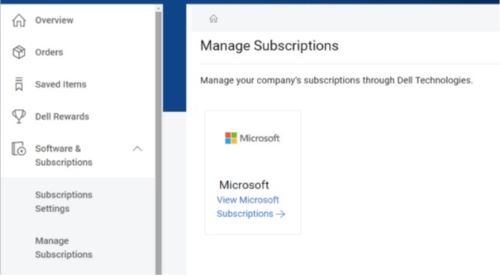
Figure 3: (English Only) Manage Subscriptions
- Select the Microsoft Tenant to Manage
- If you have multiple Microsoft Tenants associated to your login, you must select the tenant you wish to manage each time.

Figure 4: (English Only) Select the Microsoft Tenant to manage
Note: A Microsoft tenant can only be associated to one Dell Customer Number (DCN). You may only manage subscriptions associated to a single tenant at a time.
Manage Subscriptions - Landing Page
- Subscription Details
- View detailed subscription information.
- Activity Details
- Review subscription history and timelines.
- Granular Delegated Admin Privileges (GDAP)
- View partner relationship status; required for technical support.
- Actions
- Complete additional purchases and upgrades, license reductions and cancellations, and access the acceleration payment option.
- Renewal Details
- Manage renewal options including auto-renewal status and renewal preferences.
- Billing Details
- View and update account billing details.
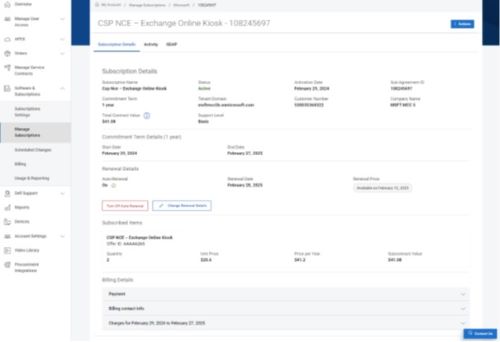
Figure 5: (English Only) Manage subscription
Note:
- License reductions and cancelations are only available within 7 days or purchase or renewal.
- Accelerated Payment is only available for Annual Commit, Monthly Bill subscriptions.
- Billing updates managed within a subscription are applicable to all subscriptions aligned to that Bill Plan.
Add Licenses
- Select when to add licenses
- Options: Now or Future Date

Figure 6: (English Only) Add Licenses
- Enter Quantity
- Enter the quantity of the licenses to be added at the confirmed date.
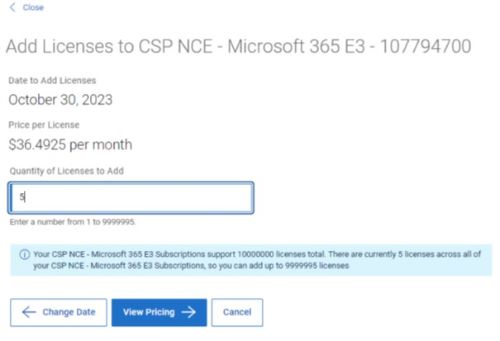
Figure 7: (English Only) Add Quantity
- Review Pricing
- Review the pricing estimation based on selections.
- Review and Accept the Terms & Conditions (T&C)
- Review your selections and accept the applicable T&C.
- Submit Order
- Click Submit to confirm the order.
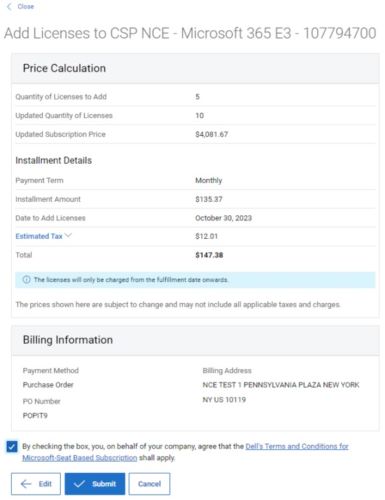
Figure 8: (English Only) Review Pricing
Purchase Add-ons
- Select eligible Add-ons
- A qualified base product is required before purchasing an Add-on.
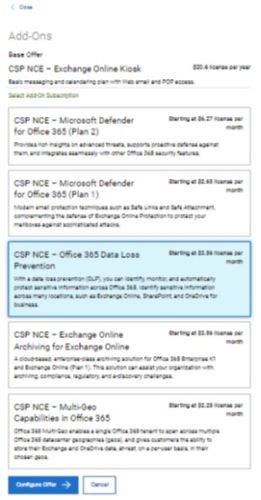
Figure 9: (English Only) Select Add-ons
- Configure the offer
- Select commitment term, billing cadence, quantity of licenses, and auto-renewal status.
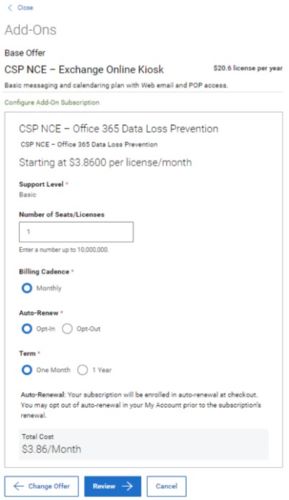
Figure 10: (English Only) Configure Offer
- Review and Accept T&C
- Review your selections and accept the applicable terms and conditions.
- Submit Order
- Click Submit to confirm the order.
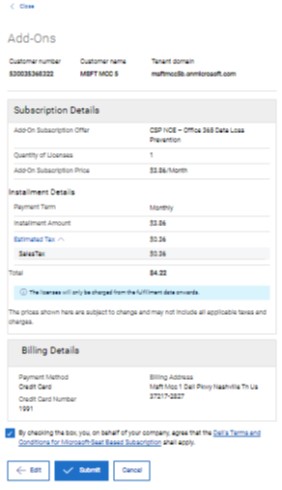
Figure 11: (English Only) Review and Submit Order
Upgrade
- Select when to upgrade licenses
- Options: Now or Future Date
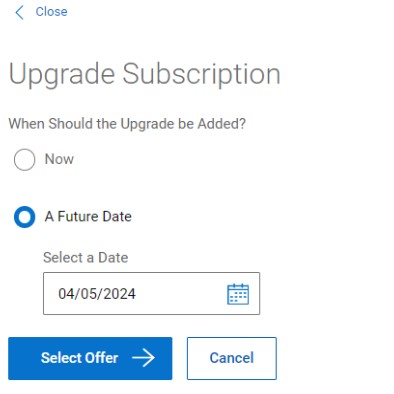
Figure 12: (English Only) Select when to upgrade licenses
- Select the upgrade offer
- Select the destination product for the upgrade.
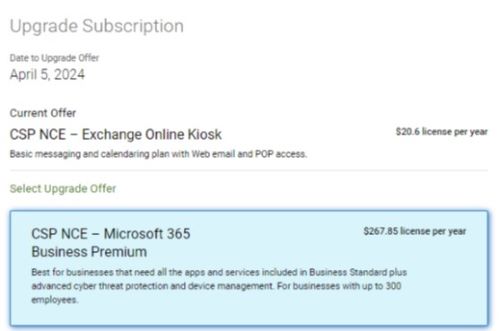
Figure 13: (English Only) Select the upgrade offer
- Enter Upgrade Quantity
- Enter the quantity of licenses to be upgraded (full or partial).
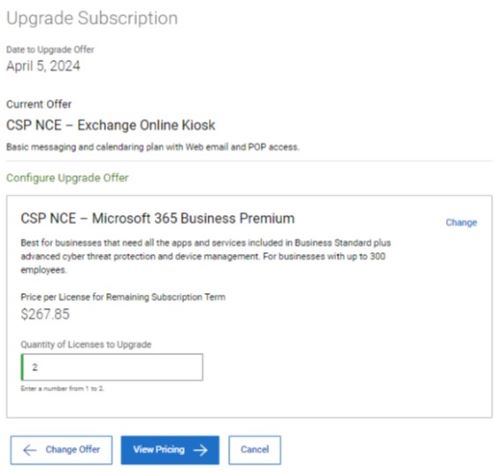
Figure 14: (English Only) Enter upgrade quantity
- Review Pricing
- Review the pricing estimation based on upgrade selections.
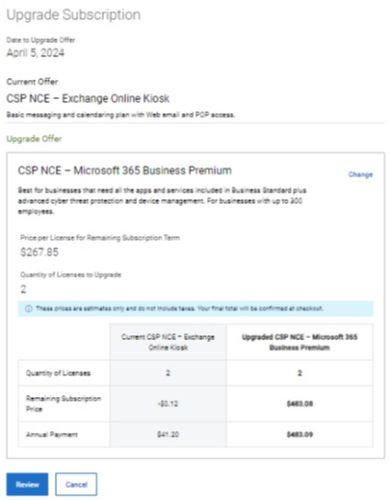
Figure 15: (English Only) Review Pricing
- Review and Accept T&C
- Review your selections and accept the applicable terms and conditions.
- Submit order
- Click Submit to confirm the order.
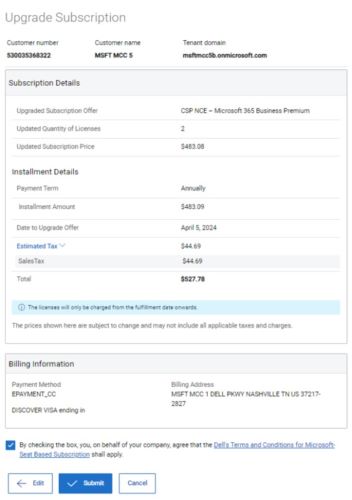
Figure 16: (English Only) Review and Submit order
Remove Licenses
You may only complete license reductions within 7 days of a new purchase or renewal.
There must be at least a quantity of one upon completing a reduction. To take the license count to zero, you must complete a cancellation instead of a reduction.
- Select the subscription to reduce
- Go to Subscription Details > Actions > Remove Licenses
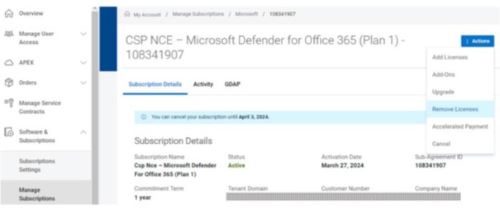
Figure 17: (English Only) Select the subscription to reduce
- Enter the quantity of licenses to remove
- Enter the license reduction quantity. One must remain for reduction.
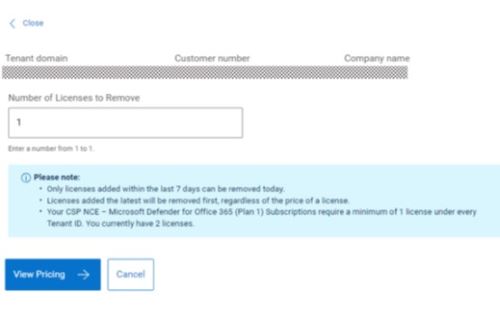
Figure 18: (English Only) Enter the quantity of licenses to remove
- Review and submit reduction
- Click Submit to confirm the reduction.
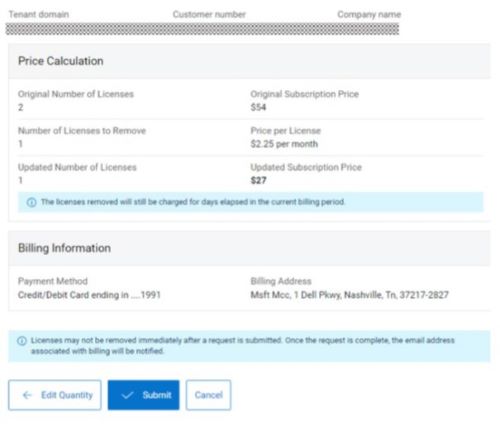
Figure 19: (English Only) Review and submit order
Accelerated Payment
An Accelerated Payment option is available for subscriptions that are configured with Annual Commitment or Monthly Billing terms.
You may choose to pay in advance for a fixed number of months within the subscription term. Accelerated payment is performed at the subscription level and is applicable to the quantity at the time of the payment.
- Select the subscription
- Go to Subscription Details > Actions > Accelerated Payment
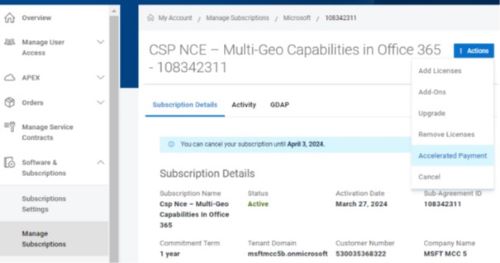
Figure 20: (English Only) Select Subscription
- Enter the number of months to pay
- Enter the number of months to pay in advance for the subscription.
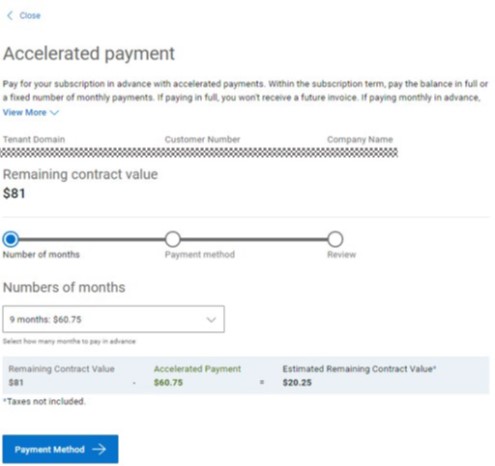
Figure 21: (English Only) Enter number of months to pay
- Payment method
- Review or update the payment method associated to the Accelerated Payment.
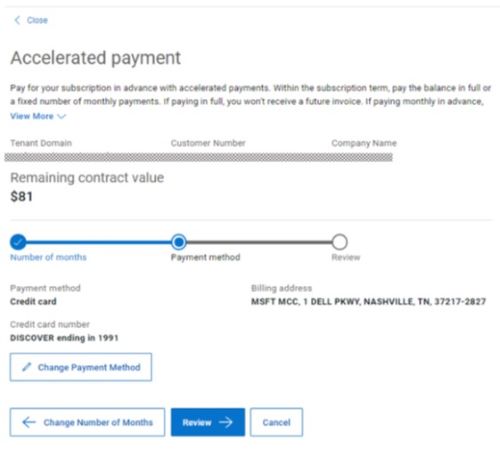
Figure 22: (English Only) Payment method
- Confirm and submit
- Accept the applicable terms and click Submit to place the order, which cannot be reversed
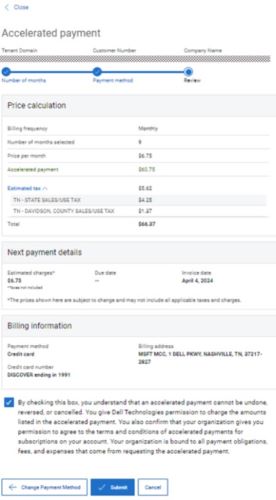
Figure 23: (English Only) Confirm and submit
Cancel
You may only complete license cancellations within 7 days of a new purchase or renewal.
Cancellations are required to take the license count to zero and available per the offer.
- Select the subscription to cancel
- Go to Subscription Details > Action > Cancel
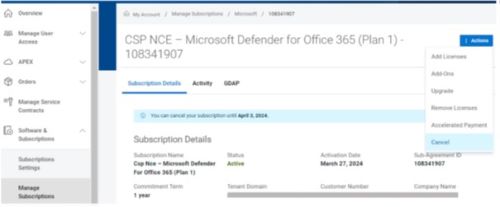
Figure 24: (English Only) Select subscription to cancel
- Provide a cancellation reason
- Select a reason for canceling and click Continue.
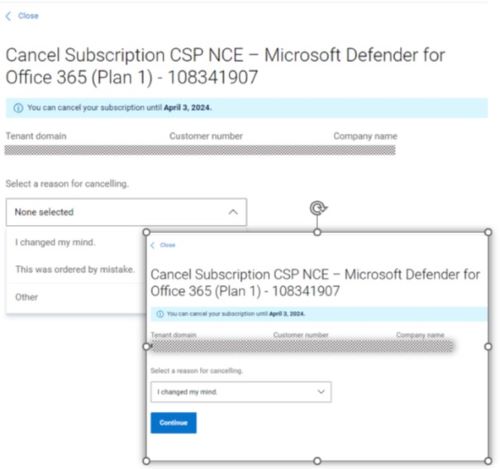
Figure 25: (English Only) Provide a cancellation reason
- Review and confirm cancellation
- Review and accept cancellation implications and click Cancel Subscription to confirm.
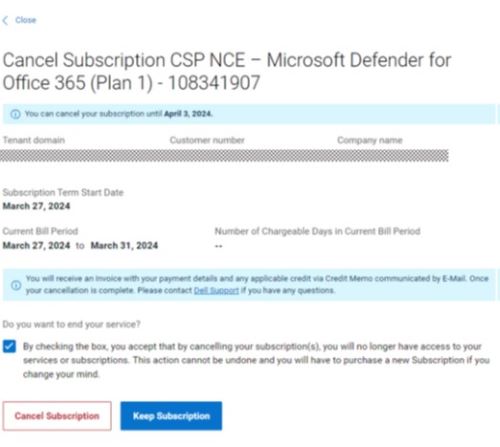
Figure 26: (English Only) Review and confirm cancellation
Scheduled Changes
Some activities can be scheduled to occur at future dates.
| Change Type | Where to facilitate |
|---|---|
| Add Licenses | Action drop down menu (per subscription) Available from the Manage Subscriptions landing page or through Subscription Details |
| Upgrades | Action drop down menu (per subscription) Available from the Manage Subscriptions landing page or through Subscription Details |
At Renewal
|
Subscription Details > Change Renewal Details |
Managed Scheduled Changes
To manage scheduled changes, go to:
Software & Subscriptions > Scheduled Changes > View
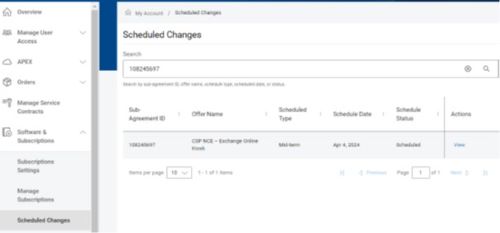
Figure 27: (English Only) Scheduled changes
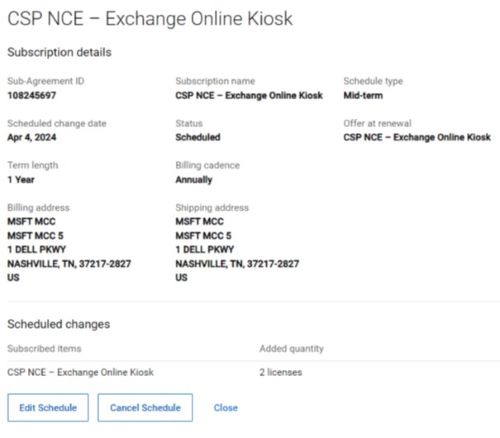
Figure 28: (English Only) Edit or Cancel Schedule
Affected Products
Microsoft 365 from DellArticle Properties
Article Number: 000225477
Article Type: How To
Last Modified: 26 Aug 2026
Version: 3
Find answers to your questions from other Dell users
Support Services
Check if your device is covered by Support Services.