IDPA: Configuration of remote logging from ESXi to remote server Syslog forwarding
Summary: This process configures an ESXi host to forward system logs to a remote server in IDPA. This is done by modifying the Syslog.global.logHost key value and adjusting the firewall settings to enable syslog. ...
This article applies to
This article does not apply to
This article is not tied to any specific product.
Not all product versions are identified in this article.
Instructions
-
Log in to the ESXi vSphere Web UI using root. Go to the Manage tab, then System > Advanced settings.
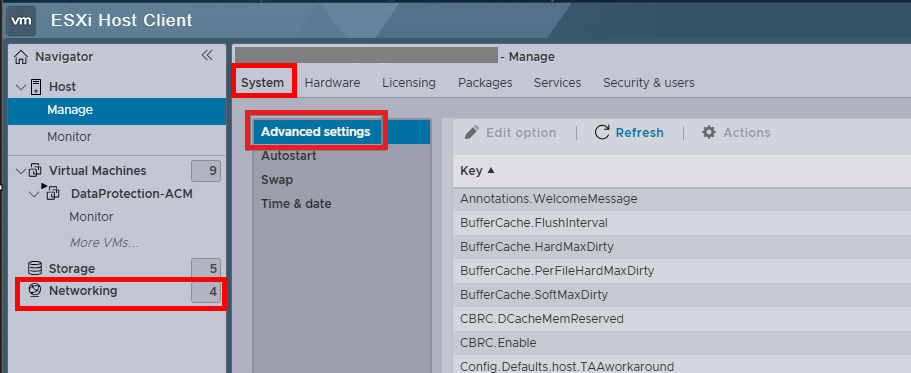
-
Search for the key value: Syslog.global.logHost and click the Edit option.

-
Enter your Syslog server IP in the format udp://<SYSLOG_SERVER_IP_ADDRESS>:514
Using 192.168.100.100 as an example, syslog server address should be used here.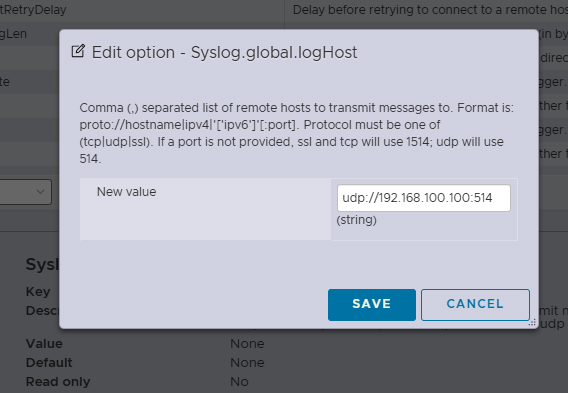
-
Go to the Networking tab and select Firewall rules.
-
Search for syslog. Click Action, and then click Enable.
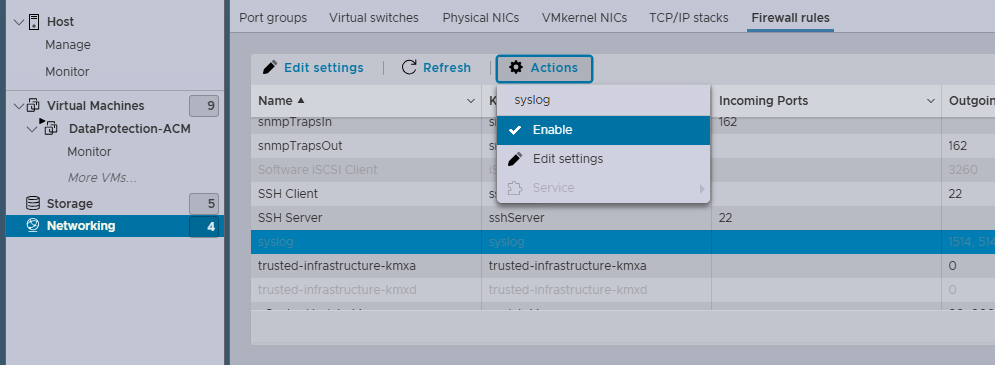
- Procedure complete.
Affected Products
Integrated Data Protection Appliance FamilyProducts
Integrated Data Protection Appliance SoftwareArticle Properties
Article Number: 000225857
Article Type: How To
Last Modified: 01 Feb 2025
Version: 2
Find answers to your questions from other Dell users
Support Services
Check if your device is covered by Support Services.