Avamar: Steps to validate HFSCHECK status
Summary: Steps to check HFSCHECK status on Avamar.
This article applies to
This article does not apply to
This article is not tied to any specific product.
Not all product versions are identified in this article.
Instructions
Steps to validate HFSCHECK status from Avamar User Interface (AUI)
-
Log in to the AUI
https://<AVAMAR_IP_ADDRESS>/auiasMCUser.
-
Review whether the checkpoint has Verified column checked for the latest checkpoint. If the latest checkpoint is successfully validated, it means that
HFSCHECKhas been completed successfully.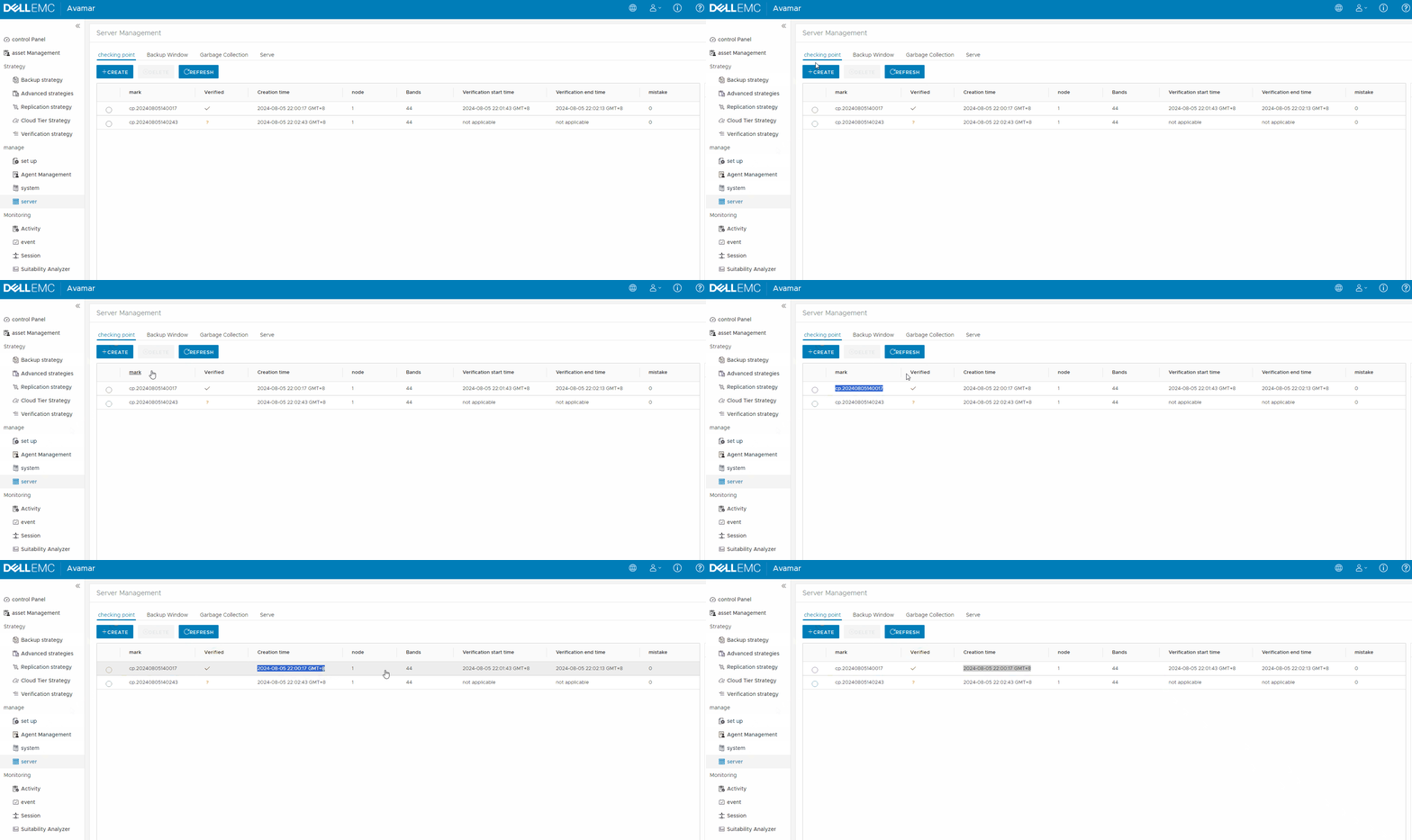
Recommended Action - Run a System Health-Check to validate HFSCHECK Status.
- Download the latest version of GoAV Utility from Dell Central (Version 1.83 or later ONLY).
- Open WinSCP File-Transfer Software and connect to Avamar Server using admin user.
- Transfer
goav.zipto Avamar Server under/tmplocation.
- Log in to the Avamar server using admin user.
- Switch to the root user using following command:
su - - Run the following command to initiate a system check:
/tmp/goav system status
Sample Output - Successful HFSCHECK
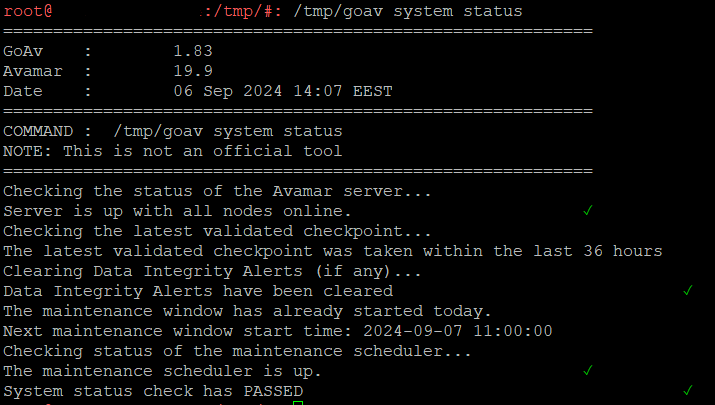
If the system shows HFSCHECK last checkpoint validation as failed, generate a support bundle, attach it to the service request and request for assistance on the Alert Response Form.
Avamar: How to run "getlogs" to gather Avamar server logs.
Additional Information
Optional - Manual Method to verify HFSCHECK Status.
Here are the steps to check HFSCHECK status from the command line:
-
Log in to the system as admin.
-
Run command
status.dpnandavmaint hfscheckstatus -
Check whether
hfscheckshows finished recently.
- Open an SSH session (For example putty) to Avamar Server and log in as admin. Run the following commands:
status.dpn
avmaint hfscheckstatus
- The following examples show a successful
hfscheck:
Last hfscheck: finished Mon Aug  5 09:02:29 2024 after 01m 53s >> checked 43 of 43 stripes (OK)

admin@hop-ave-116-v194-124:~/>: avmaint hfscheckstatus
<?xml version="1.0" encoding="UTF-8" standalone="yes"?>
<hfscheckstatus
  nodes-queried="1"
  nodes-replied="1"
  nodes-total="1"
  checkpoint="cp.20240805140017"
  status="completed"
  result="OK"
  type="rolling"
  checks="rolling+metadata:10:2"
  elapsed-time="113"
  start-time="1722866436"
  end-time="1722866549"
  check-start-time="1722866503"
  check-end-time="1722866543"
  generation-time="1722907964"
  stripes-checking="43"
  stripes-completed="43"
  offline-stripes="0"
  percent-complete="100.00">
  <hfscheckerrors/>
</hfscheckstatus>
For more information about status.dpn, check the following article:
Avamar: How to Understand the Output Generated by the 'status.dpn' Command.
If the system shows HFSCHECK as completed, the following actions must be taken to clear the events.
-
Run GoAV Utility to validate system status and clear the alert. Follow Instructions section and run GoAV system status check.
Affected Products
Avamar ServerArticle Properties
Article Number: 000226489
Article Type: How To
Last Modified: 03 Sep 2025
Version: 4
Find answers to your questions from other Dell users
Support Services
Check if your device is covered by Support Services.