Update Your Computer's BIOS Remotely Using Firmware Update Over the Air
Summary: Update your Dell computer's BIOS in 10-15 minutes with BIOSConnect Firmware Update Over the Air (FOTA). Easy instructions for all Dell models including troubleshooting tips. No Windows needed. ...
This article applies to
This article does not apply to
This article is not tied to any specific product.
Not all product versions are identified in this article.
Instructions
What you'll learn: How to update your Dell computer's system software (BIOS) remotely without starting Windows or your operating system.
What You Need to Know
What is BIOSConnect?
BIOSConnect is Dell's pre-boot connectivity framework, a network connection system that works before your operating system loads. It allows your computer to connect to the internet at startup to perform important tasks like updating firmware.
What is Firmware Update Over the Air (FOTA)?
Firmware Update Over the Air (FOTA) is a feature that uses BIOSConnect to update your BIOS remotely. You might also hear it called:
- Over-the-air update
- Remote BIOS update
- Remote firmware update
FOTA searches for the latest BIOS version available from Dell and allows you to download and install it directly, even when Windows won't start.
What you'll need
Before you start, make sure you have:
- Your computer's power adapter connected to an electrical outlet
- An active internet connection (wired Ethernet cable or Wi-Fi)
Note: Keep your computer plugged into the power outlet during the entire update process. Don't turn off your computer or unplug it while updating.
Check If Your Computer Supports FOTA
The easiest way to find out if your computer has FOTA is to look for it in your startup menu.
Quick check:
- Turn off your computer.
- Turn it back on and press F12 repeatedly when you see the Dell logo.
- Look for an option called "BIOS Flash Update - Remote" in the pre-boot tasks menu.

If you see this option: Your computer supports FOTA! Continue with the update steps below.
If you don't see this option: Your computer might not support FOTA. You can still update your BIOS using other methods:
Note: On some keyboards, you might need to press Fn + F12 instead of just F12. If you wait too long and Windows starts loading, restart your computer and try again.
How to Update Your BIOS Using FOTA
Step 1: Access the pre-boot tasks menu
- Press the power button to turn on your computer.
- When you see the Dell logo, immediately start pressing the F12 key repeatedly.
- Keep pressing F12 until the one-time boot menu appears.
What you'll see: A menu with several boot options.
Note: If you wait too long and Windows starts loading, restart your computer and try again. On some keyboards, you might need to press Fn + F12 instead of just F12.
Step 2: Select BIOS Flash Update - Remote
- Use the arrow keys to highlight BIOS Flash Update - Remote.
- Press Enter.
What you'll see: The FOTA screen will appear showing available wireless networks (if you're not using Ethernet).
Step 3: Connect to the internet
If you're using an Ethernet cable:
- FOTA will detect your wired connection automatically.
- Skip to Step 4.
If you're using Wi-Fi:
- A list of available wireless networks will appear.
- Select your network from the list.
- Signal strength: The blue bar in the wireless icon shows signal strength.
- Secure networks: A small lock icon on the upper right indicates password protection.
- Depending on your network type:
- For a secured network: Enter your Wi-Fi password and click Connect.
- For an unsecured network: Click Connect.
- For a hidden network: Enter the network name (SSID), select the authentication method, enter the password, and click Connect.
What you'll see: A confirmation once you're connected to the network.

Step 4: Start the BIOS update
- Click Update BIOS.
- FOTA will search for the latest BIOS version available from Dell.
- You'll see two version numbers displayed:
- Current BIOS version (what's installed now)
- Latest BIOS version (what will be installed)
- A confirmation message will appear asking if you want to update.
If both versions match: Your BIOS is already up to date. Click OK to restart your computer.
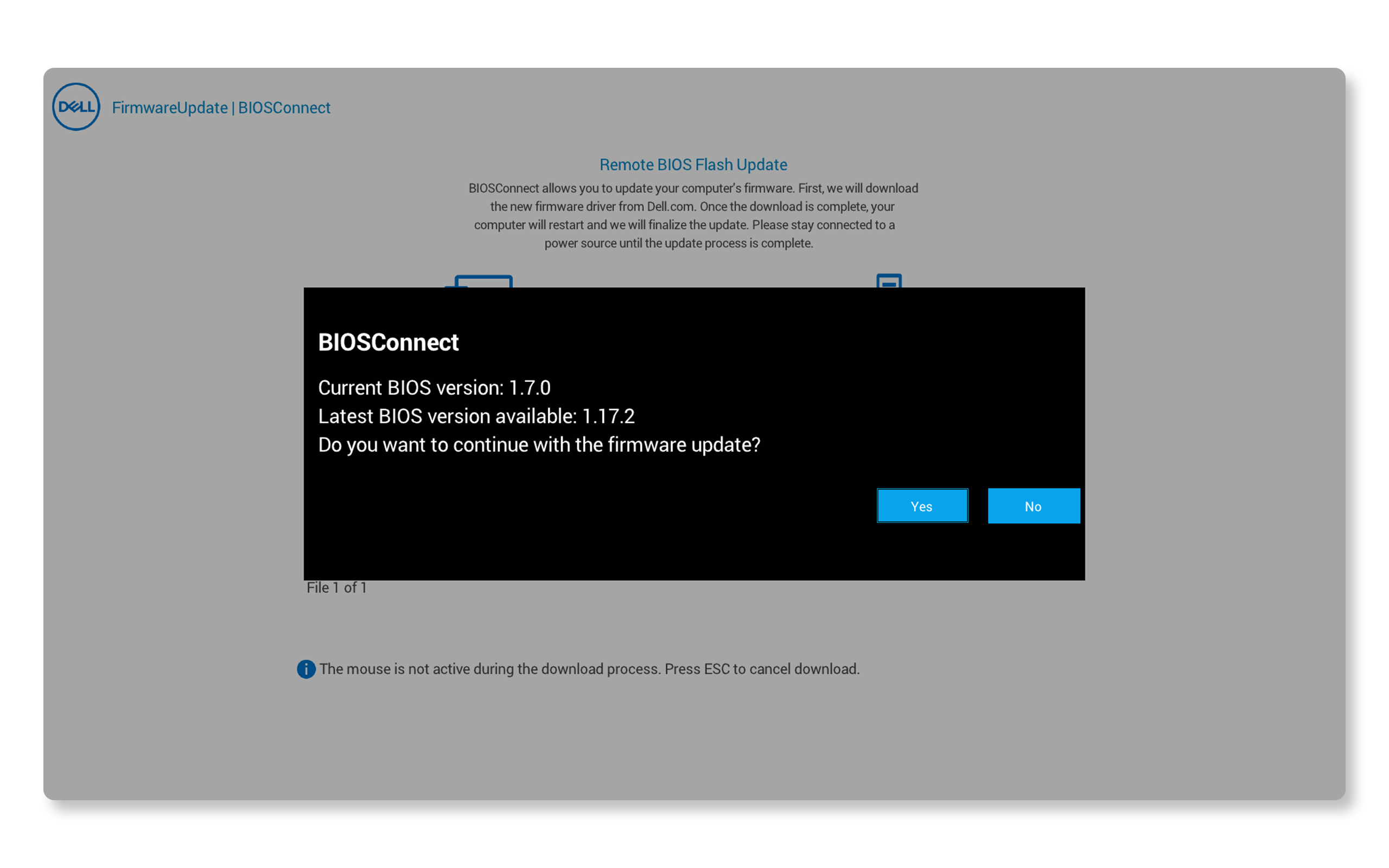
Step 5: Confirm and download the update
- Click Yes to proceed with the update.
- FOTA will download the latest BIOS image from Dell.
- Wait for the download to complete, don't interrupt this process.
What you'll see: A progress bar showing the download status.
To cancel: Click No if you decide not to update. The process will stop and you can restart your computer.

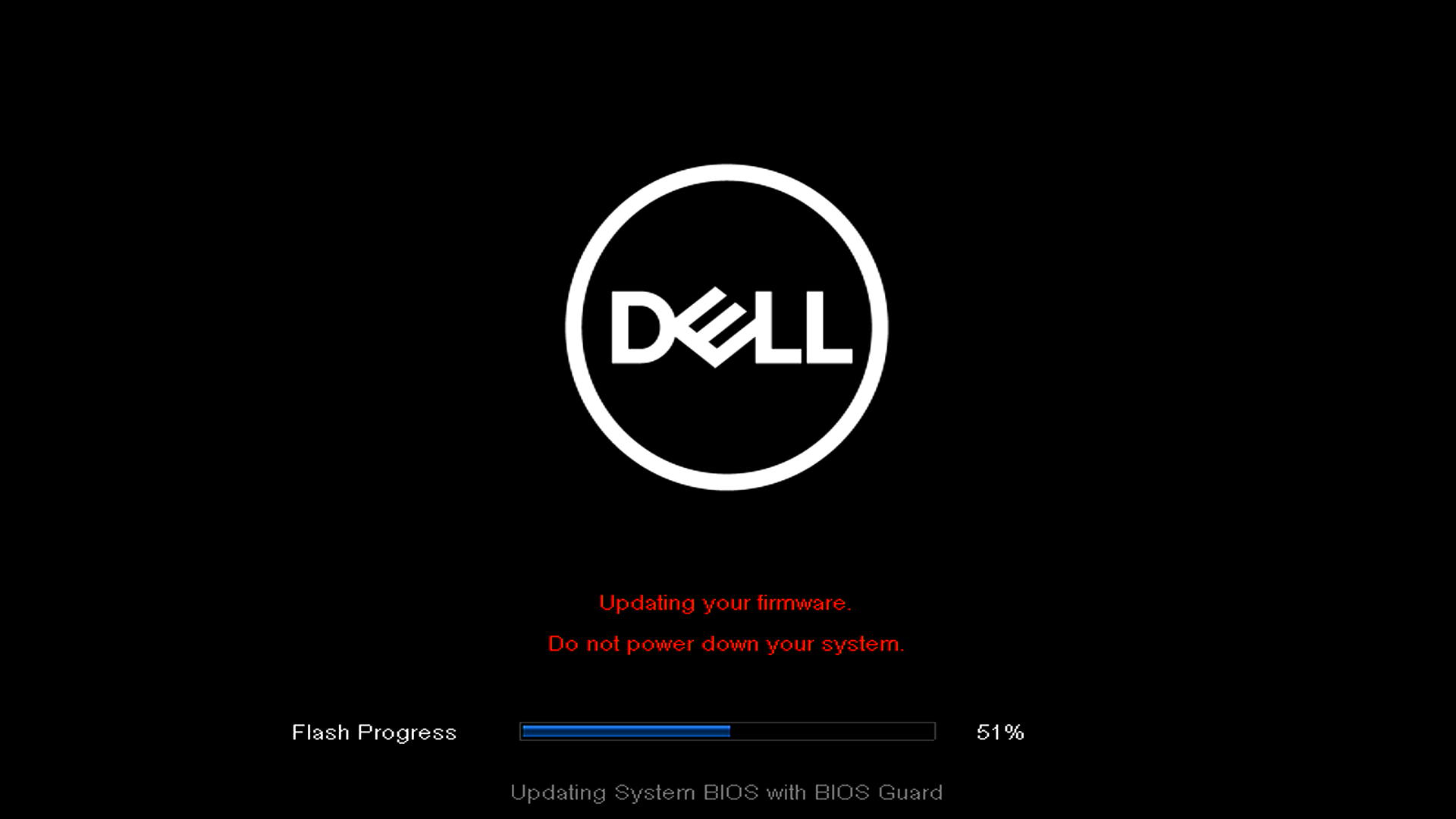
Step 6: Install the firmware update
- After the download completes, your computer will restart automatically.
- The BIOS firmware update will begin installing.
- Your screen may turn off and on during installation, this is normal.
- Don't turn off your computer or unplug the power adapter.
How long does this take? Usually 5-10 minutes, depending on your computer model.
Step 7: Complete the update
- When the firmware update is complete, you'll see a message: "Firmware update successful, rebooting your system."
- Your computer will restart automatically.
- You'll see the Dell logo, then your usual startup screen.
- Your computer will start normally into Windows or your operating system.
You're done! Your BIOS is now updated to the latest version.
Understanding FOTA Messages and Notifications
During the update process, you might see various messages. Here's what they mean and how to respond:
Connection Messages
"Unable to join network. Check router and password."
- What it means: Your computer can't connect to the Wi-Fi network.
- What to do: Check your password and try again, or connect using a different network.
"Could not find the network."
- What it means: The wireless network you selected is no longer available.
- What to do: Check that your Wi-Fi network is on and has a strong signal.
"No media connectivity."
- What it means: The router isn't responding, or your computer is out of Wi-Fi range.
- What to do: Move closer to your router or use an Ethernet cable.
"No Internet Connectivity."
- What it means: Your network connection exists, but there's no internet access.
- What to do: Check your router's internet connection and Wi-Fi signal strength.
IP Address and Network Configuration
"Failed to find IP address."
- What it means: Your computer can't get an IP address through DHCP (Dynamic Host Configuration Protocol), or there's no DHCP server on your network.
- What to do: Enable DHCP on your router settings.
"Failed to get networks."
- What it means: When you refresh the network list, the system can't find any access points.
- What to do: Make sure your router is on and within range.
UEFI Network Stack Messages
"Press Yes to enable UEFI Network Stack and continue OR No to restart system."
- What it means: The UEFI network stack is disabled, and no admin password is set.
- What to do: Press Yes to enable it and continue, or No to restart.
"To use this feature, Enable UEFI Network Stack option in BIOS Setup and Try again."
- What it means: The UEFI network stack is disabled, and an admin password is set.
- What to do: You'll need to enter BIOS Setup (press F2 at startup) and enable the UEFI Network Stack option.
Download and System Messages
"Download cancelled by user."
- What it means: You chose to cancel the download by clicking No.
- What to do: Nothing—this confirms your cancellation.
"Insufficient memory. Could not download data."
- What it means: Your computer doesn't have enough RAM to complete the download.
- What to do: Contact Dell Support for assistance.
"Server not responding."
- What it means: Dell's update server isn't responding due to a network issue.
- What to do: Wait a few minutes and try again.
Troubleshooting common issues with remote BIOS update
Problem: F12 doesn't show the boot menu
Try these solutions:
- Press F12 multiple times quickly when you see the Dell logo.
- Make sure you're pressing F12, not F11 or another key.
- On some keyboards, press Fn + F12 instead.
- If Windows starts loading, restart and try again immediately.
Problem: BIOS Flash Update - Remote option isn't in the menu
What this means: FOTA might be disabled on your computer.
What to do:
- If you're in a business environment, check with your IT administrator.
- If you're a home user, your computer model might not support FOTA. Try alternative update methods:
Note: If FOTA was disabled by an administrator, even restoring BIOS defaults won't re-enable it. Only an IT administrator can restore the feature using Dell Command | Configure.
Problem: Can't connect to my Wi-Fi network
Try these solutions:
- Make sure your Wi-Fi router is turned on and placed near your computer.
- Check that you're entering the correct password (passwords are case-sensitive).
- Look for networks with stronger signal strength (more blue bars in the icon).
- Try using an Ethernet cable instead, it's more reliable than Wi-Fi.
- Make sure your network isn't hidden or enter the network name (SSID) manually.
Problem: The connection keeps failing
Try these solutions:
- Move your computer closer to the Wi-Fi router.
- Use a wired Ethernet connection instead of Wi-Fi.
- Restart your router and wait 2 minutes before trying again.
- Check that other devices can connect to your Wi-Fi.
- Make sure DHCP is enabled on your router.
Problem: The download is very slow
This is normal if:
- You're using Wi-Fi with a weak signal.
- Your internet connection speed is slow.
- Many users are downloading from Dell's servers at the same time.
What to do: Be patient and let the download complete. Using an Ethernet cable will speed things up.
Problem: The update fails or stops
Don't worry, your computer is protected. FOTA has safety features to prevent damage.
Try these solutions:
- Restart your computer and try the entire process again.
- Make sure your power adapter is securely connected.
- Use an Ethernet cable instead of Wi-Fi for a more stable connection.
- Wait a few hours and try again, the server might be busy.
Problem: My computer won't start after the update
Try these solutions:
- Turn off your computer completely.
- Unplug the power adapter and remove the battery (if removable).
- Wait 30 seconds.
- Reconnect everything and turn on your computer.
- Be patient, the first startup after a BIOS update can take 2-3 minutes longer than usual.
If problems continue: Contact Dell Support for assistance. Have your Service Tag ready.
Problem: I see "BIOS version up to date"
This is not a problem! This message means your BIOS already has the latest version installed.
What to do: Click OK to restart your computer. You're all set; no update is needed.
Frequently Asked Questions
Q: Is it safe to update my BIOS using FOTA?
A: Yes, updating your BIOS using FOTA is safe when done correctly. FOTA has built-in safety features that protect your computer during the update. Just make sure your power adapter stays connected to an electrical outlet throughout the process, and don't turn off your computer while the update is running.
Q: Will updating my BIOS delete my files or programs?
A: No. A BIOS update only updates your computer's system firmware. Your files, programs, photos, and documents will remain untouched. You won't lose any data from this update.
Q: How do I know if I need to update my BIOS?
A: You should update your BIOS if:
- Dell releases an important security update
- Dell Support recommends it to fix a specific issue
- You're experiencing hardware compatibility problems
- You want to improve system stability and performance
- You're preparing to upgrade components like memory or storage
If your computer is working fine, you don't need to update unless Dell releases an important security or stability update.
Q: Can I use FOTA if Windows won't start?
A: Yes! That's one of the main benefits of FOTA. It works independently of your operating system, so you can update your BIOS even when Windows, Linux, or any other operating system won't boot properly. This makes FOTA especially useful for recovery situations.
Q: Do I need to know my current BIOS version before updating?
A: No. FOTA automatically detects your current BIOS version and shows you both the current and latest available versions during the update process. It will let you know if you're already up to date.
Q: What happens if the power goes out during the update?
A: FOTA has safety measures to protect your computer, but it's best to avoid this situation. Always use your power adapter connected to an electrical outlet (don't rely on battery power), and consider using an uninterruptible power supply (UPS) if you have one. If power loss does occur, try to recover the BIOS.
Q: Can I update my BIOS using Wi-Fi, or do I need an Ethernet cable?
A: You can use either Wi-Fi or an Ethernet cable. However, an Ethernet connection is more reliable and faster. If your Wi-Fi network is stable, it will work fine, but we recommend using Ethernet when possible.
Q: How often should I update my BIOS?
A: You don't need to update your BIOS regularly like you update Windows. Only update when:
- Dell releases an update that fixes an issue you're experiencing
- Dell recommends an update for security reasons
- You're instructed to update by Dell Support
- You need new hardware compatibility features
There's no need to check for BIOS updates every month, updates are released only when necessary.
Q: Will this work on older Dell computers?
A: FOTA is available on most Dell computers from 2020 and newer. Older computers don't have this feature. To check if your computer supports it, press F12 at startup and look for "BIOS Flash Update - Remote" in the pre-boot tasks menu. If you don't see this option, your computer doesn't support FOTA.
Q: What's the difference between FOTA and updating BIOS from Windows?
A: FOTA updates your BIOS without loading Windows, which makes it useful when:
- Windows won't start or is having problems
- You prefer a more direct update method that doesn't depend on the operating system
- You want to update before installing an operating system on a new computer
Updating from Windows is also safe and convenient when your operating system is working normally. Choose the method that works best for your situation.
Q: Can I cancel the update once it starts downloading?
A: Yes, you can cancel during the download phase by clicking "No" when asked to confirm. However, once the BIOS update begins installing (after the download completes), you cannot cancel it. You must let the installation complete. Interrupting the installation could cause serious problems.
The download phase and installation phase are different, you'll see clear confirmation messages at each stage.
Q: Why isn't my wireless network showing up in the FOTA screen?
A: This can happen if:
- Your router is too far away, or the Wi-Fi signal is weak
- Your network name (SSID) is hidden from broadcast
- Your router uses an older or uncommon security protocol
- There's interference from other wireless devices
- Your router is turned off or not working properly
What to do: Try moving closer to your router, make sure your router is on, or use an Ethernet cable instead. If your network is hidden, select the option to connect to a hidden network and enter your network name (SSID) manually.
Q: Will updating my BIOS make my computer faster?
A: BIOS updates primarily improve stability, fix bugs, and add hardware compatibility. You might notice better performance in specific situations, but don't expect dramatic speed improvements. The main benefits are reliability and compatibility.
Q: What if FOTA says my BIOS version is already up to date?
A: Great! This means your computer already has the latest BIOS version installed. Simply click "OK" to restart your computer normally. You don't need to do anything else; your BIOS is current.
Q: Can I downgrade to an older BIOS version using FOTA?
A: No. FOTA only installs the latest BIOS version available from Dell. It doesn't support downgrading to older versions. If you need to downgrade for a specific reason (which is rare and usually not recommended), check out our guide to downgrade Dell BIOS.
Affected Products
Alienware, Inspiron, OptiPlex, Vostro, XPS, G Series, G Series, Alienware, Inspiron, Latitude, Vostro, XPS, Latitude Tablets, XPS Tablets, Fixed Workstations, Mobile Workstations, BIOSConnectArticle Properties
Article Number: 000226691
Article Type: How To
Last Modified: 04 Dec 2025
Version: 10
Find answers to your questions from other Dell users
Support Services
Check if your device is covered by Support Services.