You Cannot Uninstall the PremierColor Application from Precision Workstations
Summary: The following article provides information about an application removal issue on Precision Workstations. It takes you through using a method that does remove the PremierColor application. ...
This article applies to
This article does not apply to
This article is not tied to any specific product.
Not all product versions are identified in this article.
Symptoms
PremierColor application does not uninstall from Precision Workstations
Precision workstation owners may experience a problem when attempting to remove the PremierColor application from their computer.
People report that after running the uninstall on the application that the application is still there.
Cause
The Dell engineering team has identified that those experiencing this problem have not exited the program in the system tray. This means that they are attempting to uninstall a running application.
Resolution
You must ensure that you have terminated the application running on your computer before you attempt to uninstall it. The following instructions take you through this:
-
Ensure that the PremierColor application is not running in your system tray:
-
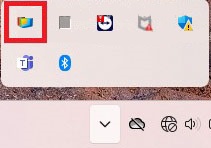
Click the upward facing chevron to the left of the icons and expand the system tray. Identify the PremierColor icon which is a yellow square surrounded in colored lines of red, light, and dark blue:
-
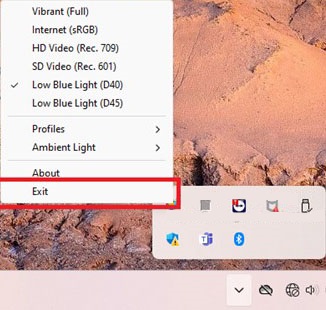
Right-click the icon and select Exit from the menu that appears on-screen:
-
-
Ensure that any open processes of PremierColor are ended in Task Manager:
-
Open Task Manager by pressing down the Ctrl, Shift, and Esc keys simultaneously.
-
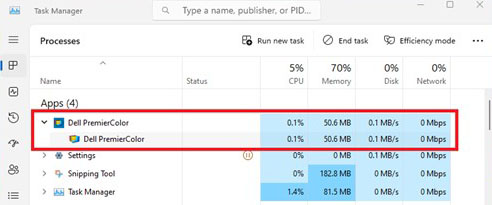
Go to the Processes tab and look for Dell PremierColor:
-
Click any open Dell PremierColor process and click End Task.
-
-
Now you can go through the uninstallation steps:
-
Windows 10
-
Open the Windows settings by clicking the cog icon in the start menu.
-
Go to the Apps and select Apps & features.
-
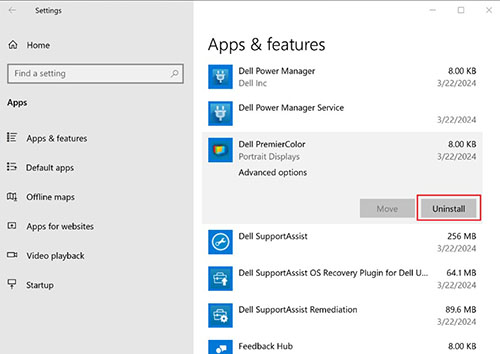
Find Dell PremierColor.
-
Click Uninstall and follow the on-screen instructions.
-
-
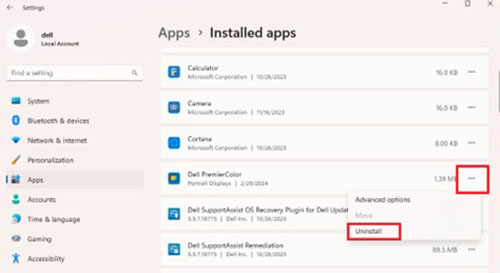
Windows 11
-
Open the Windows settings by clicking the cog icon in the start menu.
-
Go to the Apps and select Installed apps.
-
Find Dell PremierColor.
-
Click Uninstall and follow the on-screen instructions.
-
-
Affected Products
Fixed Workstations, Mobile WorkstationsArticle Properties
Article Number: 000227879
Article Type: Solution
Last Modified: 21 May 2026
Version: 4
Find answers to your questions from other Dell users
Support Services
Check if your device is covered by Support Services.