如何在啟用 MEBx 的 VPro 電腦上進入 Intel AMT 組態功能表
Summary: 瞭解如何在啟用 MEBx 的 VPro Latitude、OptiPlex、Precision 和 XPS 電腦上進入 Intel AMT 組態功能表。
This article applies to
This article does not apply to
This article is not tied to any specific product.
Not all product versions are identified in this article.
Instructions
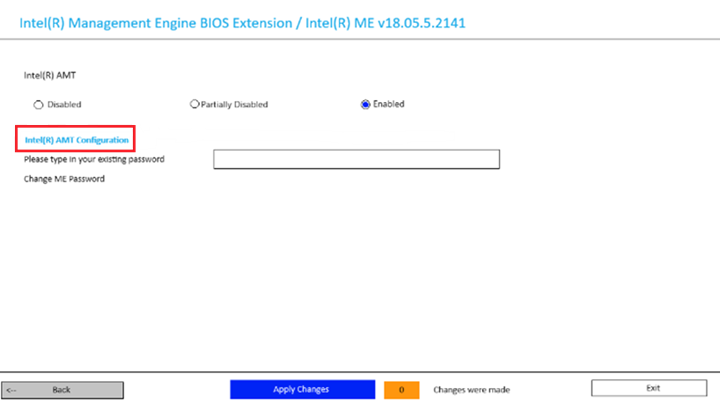
進入 BIOS 的主要 AMT 選單頁面時,可能無法立即清楚看清功能表頁面上的 Intel AMT 組態文字是否為進入 AMT 組態功能表的超連結。
在 BIOS 中設定管理員密碼後,AMT 組態功能表便是可存取的選項。如需詳細資訊,請參閱 無法使用 F12 開機功能表存取 MEBx VPro 功能表。
受影響的平台:
- Latitude 5350
- Latitude 5430
- Latitude 5431
- Latitude 5450
- Latitude 5530
- Latitude 5550
- Latitude 9430
- OptiPlex 5000 Micro
- OptiPlex 5400 多合一
- OptiPlex 7000 Micro
- OptiPlex 7000 立式
- OptiPlex 7400 多合一
- Precision 3460 小機型 (SFF)
- Precision 3571
- Precision 3660 直立式
- Precision 5570
- XPS 15 9520
- 使用 F12 鍵進入一次性開機功能表。
- 選取 Intel ME 組態 選項,然後按下 Enter 鍵。
- 如果變更了 ME 密碼並輸入了新密碼,則會顯示以下範例影像。按一下功能表頁面上的藍色 「Intel(R) AMT 組態 」超連結,以存取 AMT 組態。
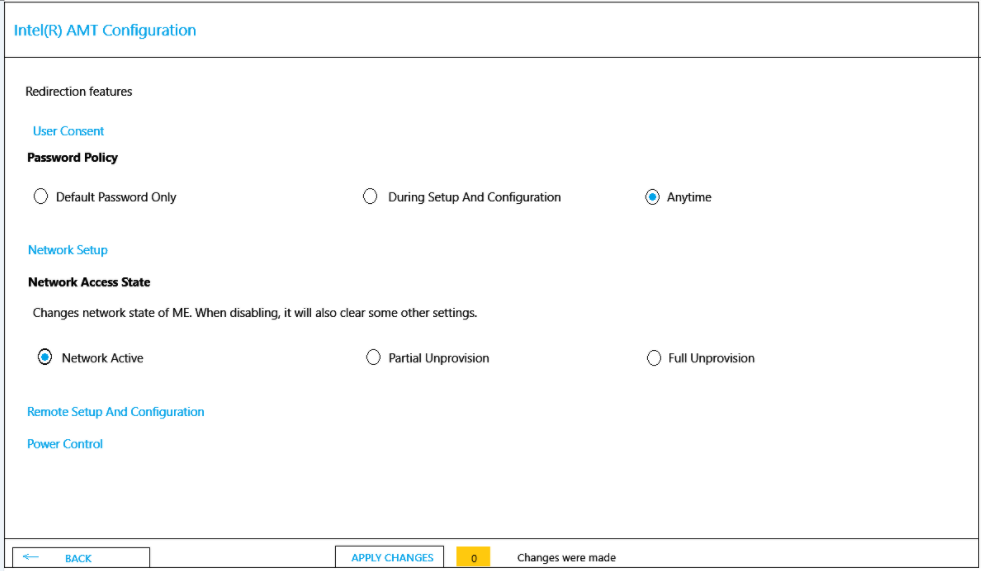
- 「 Intel(R) AMT 組態 」選單中的選項包括:
- 使用者同意
- 網路設定
- 遠端設定和組態
- 電源控制
Affected Products
Latitude 5350, Latitude 5431, Latitude 5450, Latitude 9430, Latitude 5530, Latitude 5550, Latitude 5430, OptiPlex 5000 Micro, OptiPlex 5400 All-In-One, OptiPlex 7000 Tower, OptiPlex 7000 Micro, OptiPlex 7400 All-In-One, Precision 3571, Precision 5570
, Precision 3460 Small Form Factor, Precision 3660 Tower, XPS 15 9520
...
Article Properties
Article Number: 000228454
Article Type: How To
Last Modified: 19 Nov 2025
Version: 4
Find answers to your questions from other Dell users
Support Services
Check if your device is covered by Support Services.