OS10 MTU 구성 소개
Summary: MTU 구성 소개 MTU(Maximum Transmission Unit)는 인터페이스가 단편화 없이 전송할 수 있는 최대 패킷 크기를 정의합니다. 적절한 MTU 구성은 네트워크 성능과 안정성에 매우 중요합니다. 이 문서에서는 Dell 전원 스위치의 MTU 동작, 기본 설정 및 구성 명령에 대한 자세한 정보를 제공합니다.
This article applies to
This article does not apply to
This article is not tied to any specific product.
Not all product versions are identified in this article.
Instructions
다루는 주요 주제
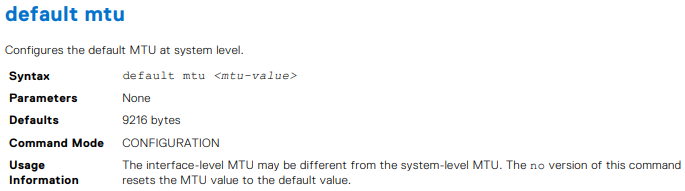
기본 MTU 구성
- 기본 MTU 값은 릴리스 10.5.4.4부터 9216바이트입니다. 이전에는 1532바이트였습니다.
- MTU 값을 구성하고 확인하는 명령:
default mtu <value>:사용자가 구성한 MTU 없이 모든 인터페이스에 대한 사용자 지정 MTU 값을 설정합니다.no default mtu:인터페이스를 시스템 기본 MTU 값으로 재설정합니다.show default mtu:시스템 수준 기본 MTU를 표시합니다.show interface:특정 인터페이스의 현재 MTU를 표시합니다.
MTU 구성 예
- CLI 명령을 사용하여 기본 MTU를 표시하고 수정하는 방법의 예
- L2 및 L3 VPN 플랩을 방지하기 위해 모든 인터페이스에서 일관된 MTU 설정의 중요성을 강조하는 VLAN( Virtual LAN) 및 가상 네트워크의 구성 시나리오
고려 사항 및 모범 사례
- BGP(Border Gateway Protocol) 피어 간의 논리적 인터페이스와 물리적 인터페이스를 포함하여 모든 인터페이스에서 균일한 MTU 설정을 보장합니다.
- 조각화는 S4200-ON Series 및 S5148-ON 플랫폼과 같은 특정 모델을 제외하고 대부분의 Dell 전원 스위치에서 지원되지 않습니다
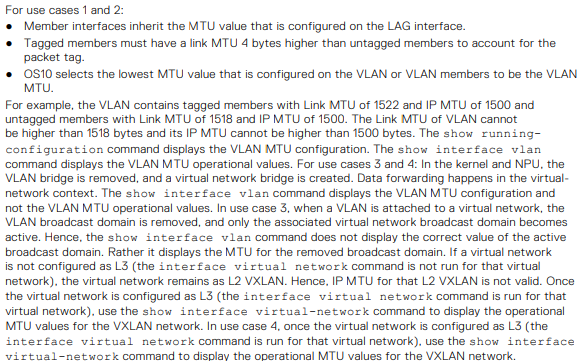
- OS10은 VLAN 또는 VLAN 멤버에 구성된 가장 낮은 MTU 값을 VLAN MTU로 선택합니다
MTU
- 10.5.4.4로 업그레이드한 후 사용자가 구성한 MTU가 아직 없는 모든 VLAN 및 이더넷 인터페이스에서 MTU는 기본적으로 9216으로 설정됩니다
잘못된 MTU 구성의 잠재적 문제
패킷 손실(Packet Loss)
- MTU를 너무 낮게 설정하면 더 큰 패킷이 삭제되어 상당한 데이터 손실과 네트워크 성능 저하가 발생합니다
네트워크 플랩
- 인터페이스 간의 MTU 설정이 일치하지 않으면 L2 및 L3 VPN 플랩이 발생하여 네트워크 안정성과 연결이 중단될 수 있습니다.
레이턴시 증가
- MTU 설정이 잘못되면 조각화가 증가하여 레이턴시가 길어지고 처리량이 감소할 수 있습니다

기본 MTU를 표시합니다.
OS10# show default mtu
Default MTU 9216 bytes
사용자 구성이 없는 시스템 기본값
OS10# show interface ethernet 1/1/1
Ethernet 1/1/1 is up, line protocol is down
Hardware is Eth, address is 90:b1:00:00:00:a0
 Current address is 90:b1:00:00:00:a0
Pluggable media present, QSFP+ type is QSFP+ 40GBASE-LR4
 Wavelength is 1311
 Receive power reading is no power
Interface index is 11
Internet address is not set
Mode of IPv4 Address Assignment: not set
Interface IPv6 oper status: Disabled
MTU 9216 bytes, IP MTU 1500 bytes
LineSpeed 0, Auto-Negotiation off
Flowcontrol rx off tx off
ARP type: ARPA, ARP Timeout: 60
Last clearing of "show interface" counters: 20:45:24
Queuing strategy: fifo
Input statistics:
 0 packets, 0 octets
 0 64-byte pkts, 0 over 64-byte pkts, 0 over 127-byte pkts
 0 over 255-byte pkts, 0 over 511-byte pkts, 0 over 1023-byte pkts
 0 Multicasts, 0 Broadcasts, 0 Unicasts
 0 runts, 0 giants, 0 throttles
 0 CRC, 0 overrun, 0 discarded
Output statistics:
 0 packets, 0 octets
 0 64-byte pkts, 0 over 64-byte pkts, 0 over 127-byte pkts
 0 over 255-byte pkts, 0 over 511-byte pkts, 0 over 1023-byte pkts
 0 Multicasts, 0 Broadcasts, 0 Unicasts
 0 throttles, 0 discarded, 0 Collisions, wred drops
Rate Info(interval 30 seconds):
 Input 0 Mbits/sec, 0 packets/sec, 0% of line rate
Output 0 Mbits/sec, 0 packets/sec, 0% of line rate
Time since last interface status change: 20:45:25
OS10# configure terminal
OS10(config)# default mtu 9000
OS10(config)#
- 예제
OS10# default mtu 9216
OS10# no default mtu

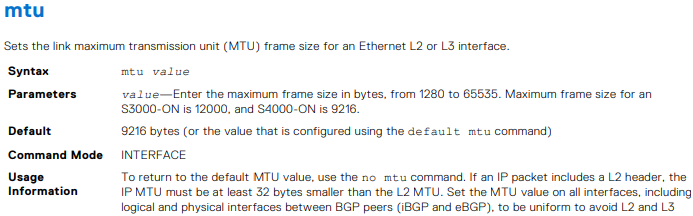

표 54. VLAN MTU 구성의 활용 사례.
| 구성 |
이더넷 인터페이스 구성 |
인터페이스 출력 표시 |
|---|---|---|
interface vlan300 no shutdown ! |
interface ethernet1/1/6 no shutdown switchport mode trunk switchport trunk allowed vlan300 ! interface ethernet1/1/9 no shutdown switchport mode trunk switchport trunk allowed vlan300 |
OS10# show interface vlan300 Vlan300 is up, line protocol is up Address is 14:10:10:0d:00:e9, Current address is 14:10:10:0d:00:e9 Interface index is 84 Internet address is not set Mode of IPv4 Address Assignment: not set Interface IPv6 oper status: Enabled Link local IPv6 address: fe80::1010:10ff:fe0d:e9/10 MTU 1532 bytes, IP MTU 1500 bytes |
interface vlan300 no shutdown ! |
interface ethernet1/1/6 no shutdown switchport mode trunk switchport trunk allowed vlan300 ! interface ethernet1/1/9 no shutdown switchport mode trunk switchport trunk allowed vlan300 mtu 1312 |
OS10# show interface vlan300 Vlan300 is up, line protocol is up Address is 14:10:10:0d:00:e9, Current address is 14:10:10:0d:00:e9 Interface index is 84 Internet address is not set Mode of IPv4 Address Assignment: not set Interface IPv6 oper status: Enabled Link local IPv6 address: fe80::1010:10ff:fe0d:e9/10 MTU 1312 bytes, IP MTU 1280 bytes |
virtual-network 3333 ! interface vlan300 no shutdown virtual-network 3333 ! |
interface ethernet1/1/6 no shutdown switchport mode trunk switchport trunk allowed vlan300 ! interface ethernet1/1/9 no shutdown switchport mode trunk switchport trunk allowed vlan300 mtu 1312 |
OS10# # show interface vlan300 Vlan300 is up, line protocol is up Address is 14:18:77:0d:00:e9, Current address is 14:18:77:0d:00:e9 Interface index is 84 Internet address is not set Mode of IPv4 Address Assignment: not set Interface IPv6 oper status: Enabled Link local IPv6 address: fe80::1618:77ff:fe0d:e9/64 MTU 1532 bytes, IP MTU 1500 bytes |
virtual-network 3333 ! interface vlan300 no shutdown virtual-network 3333 ! interface virtual-network 3333 |
interface ethernet1/1/6 no shutdown switchport mode trunk switchport trunk allowed vlan300 ! interface ethernet1/1/9 no shutdown switchport mode trunk switchport trunk allowed vlan300 mtu 1312 |
show interface vlan300 Vlan300 is up, line protocol is up Address is 14:18:77:0d:00:e9, Current address is 14:18:77:0d:00:e9 Interface index is 84 Internet address is not set Mode of IPv4 Address Assignment: not set Interface IPv6 oper status: Enabled Link local IPv6 address: fe80::1618:77ff:fe0d:e9/64 MTU 1532 bytes, IP MTU 1500 bytes OS10# show interface virtual-network 3333 Virtual-network 3333 is up, line protocol is up Address is 14:18:77:0d:00:ea, Current address is 14:18:77:0d:00:ea Interface index is 87 Internet address is not set Mode of IPv4 Address Assignment: not set Interface IPv6 oper status: Enabled MTU 1312 bytes, IP MTU 1280 bytes |
- 예제
OS10(conf-if-eth1/1/7)# mtu 3000


- 예제
OS10# show default mtu
Default MTU 9216 bytes

Additional Information
OS10 사용자 가이드 온라인 설명서 - SmartFabric OS10 소프트웨어 지원 | 문서 | Dell 미국
Affected Products
SmartFabric OS10 SoftwareArticle Properties
Article Number: 000228459
Article Type: How To
Last Modified: 07 Nov 2025
Version: 4
Find answers to your questions from other Dell users
Support Services
Check if your device is covered by Support Services.