Live Optics、檔案:完成 Linux 檔案掃描
Summary: 本文說明如何完成 Linux 檔案掃描。
This article applies to
This article does not apply to
This article is not tied to any specific product.
Not all product versions are identified in this article.
Instructions
開始之前
從 Live Optics Web 入口網站下載並解壓縮管理文件。您可以在「收集者」標籤的「達析報告」下找到達析報告收集器。
- Linux 達析報告收集器隨即下載為Dossier.Linux.x64.tar.gz。使用下列命令解壓縮tar.gz檔案:
tar-xzf LiveOptics.Dossier.Linux.x64.tar.gz
- 解壓縮tar.gz檔案後,會顯示兩個檔案,即 EULA_all.pdf 和 LiveOptics.Dossier.Linux.ConsoleApp。
- 若要授予收集器執行權限,請輸入:
chmod +x LiveOptics.Dossier.Linux.ConsoleApp
- 若要檢查 Linux 達析報告收集器可使用哪些選項,請使用 --help 選項:
./LiveOptics.Dossier.Linux.ConsoleApp --help
使用空格逐一新增路徑來掃描多個目錄:
./LiveOptics.Dossier.Linux.ConsoleApp /mnt/c/Users/tamk1/Desktop/New\ folder /mnt/c/Users/tamk1/Desktop/New\ folder\ 2/

通過向文字檔添加以新行分隔的多個路徑,使用導入檔掃描目錄。若要匯入文字檔,請使用 --import 命令:
./LiveOptics.Dossier.Linux.ConsoleApp --import /mnt/c/Users/tamk1/Desktop/New\ folder\ 2/10Paths.txt
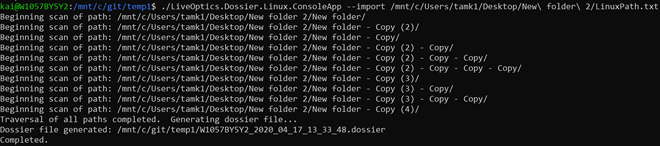
使用 --percmp 命令掃描具有壓縮選項的目錄:
./LiveOptics.Dossier.Linux.ConsoleApp --percmp 10 /mnt/c/Users/tamk1/Desktop/New\ folder\ 2/
在此可選參數之後輸入一個整數值以表示百分比值(預設值為 0%)。
使用 --dedup 命令掃描具有重複資料刪除選項的目錄:
./LiveOptics.Dossier.Linux.ConsoleApp --dedup /mnt/c/Users/tamk1/Desktop/New\ folder\ 2/.

使用壓縮與重複資料刪除選項掃描目錄:
./LiveOptics.Dossier.Linux.ConsoleApp --percmp 10 --dedup /mnt/c/Users/tamk1/Desktop/New\ folder\ 2

Affected Products
File Level RetentionArticle Properties
Article Number: 000228667
Article Type: How To
Last Modified: 25 Mar 2025
Version: 3
Find answers to your questions from other Dell users
Support Services
Check if your device is covered by Support Services.