Data Domain - How to Use the iDRAC Direct Feature
Summary: This document explains how to use iDRAC9 Direct to manage your Data Domain models: DD3300, DD6900, DD6400, DD9400, DD9900
This article applies to
This article does not apply to
This article is not tied to any specific product.
Not all product versions are identified in this article.
Instructions
The iDRAC direct feature allows you to directly connect your laptop to the iDRAC USB port. This article explains how to use iDRAC Direct function for advanced Data Domain management and maintenance.
Table of Content:
Requirements
To connect using the Direct iDRAC feature, you must locate the micro-USB port in front of the server. The location of the iDRAC direct port can usually be found here:

Figure 1: DD3300, DD6900, DD6400, DD9400 as an Example

Figure 2: DD9900 as an Example
Below is the figure of a USB to micro-USB cable(see figure 3), this cable is required to perform the operation:
Figure 3: USB to micro USB cable
Steps to access the iDRAC interface over the USB port
-
Turn off any wireless networks and disconnect from any other hard-wired network.
-
Ensure that the USB port is enabled.
Note: On the server, you can enable or disable the iDRAC Direct USB Port using the system BIOS. Go to System BIOS > Integrated Devices.
-
After you connect the USB cable, the laptop will download the "iDRAC Virtual NIC USB Device" driver automatically.

Then you see the Remote NDIS Compatible Device #2 appearing in Device Manager, Network Adapter.

-
Wait for the laptop to obtain the IP address 169.254.0.4. It is always the same IP address. It may take several seconds for the IP addresses to be acquired. iDRAC acquires the IP address 169.254.0.3.
To check if the iDRAC is responding, launch the
pingcommand.

-
Now, you can start using the iDRAC network interfaces such as the web interface, RACADM, Redfish, or WSMan. For example, to access the iDRAC web interface, open a supported browser, and type the address 169.254.0.3 and press Enter. The iDRAC login screen is displayed.

-
When iDRAC is using the USB port, the LED blinks indicating activity. The blink frequency is 4 per second. After completing the wanted actions, disconnect the USB cable from the system. The LED turns off.
-
If the Micro USB cable cannot be recognized, go to iDRAC Settings > Media and USB Port Settings > iDRAC Direct Only.
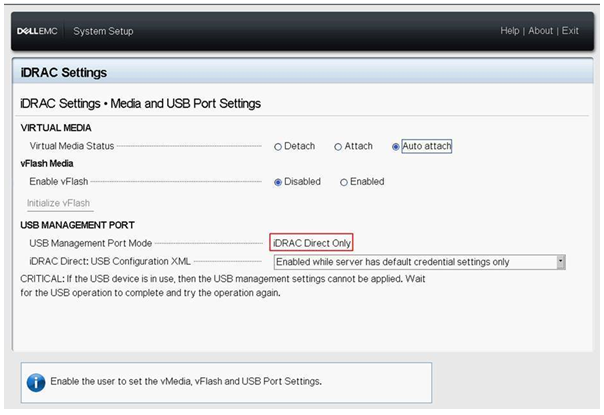
For more information, see Integrated Dell Remote Access Controller 9 Version 3.31.31.31 User's Guide
Affected Products
iDRAC8, iDRAC9Article Properties
Article Number: 000239051
Article Type: How To
Last Modified: 22 Nov 2024
Version: 3
Find answers to your questions from other Dell users
Support Services
Check if your device is covered by Support Services.