PowerStore: How to Get Node in and out of Service Mode
Summary: This article describes how to enter and exit Service Mode on a PowerStore node, and how to verify if a PowerStore node is in Service Mode. Service Mode is a status that a PowerStore node can be placed into, to allow maintenance activities. Putting a node into service mode requires a reboot and when it boots up, it enters service mode. The node does not serve data to clients when placed in service mode. ...
This article applies to
This article does not apply to
This article is not tied to any specific product.
Not all product versions are identified in this article.
Instructions
Caution: Putting a node in Service Mode, stops that node from servicing data. Putting both nodes on Service Mode causes all data access to be unavailable.
Verify that SSH is Enabled on the Management Console:
- On the Management Console go to Settings > SSH Management on the left panel
- Check the box next to Appliance, click Enable SSH button
- To Disable SSH access, follow the same steps above and click the Disable SSH button.
Connect using SSH.
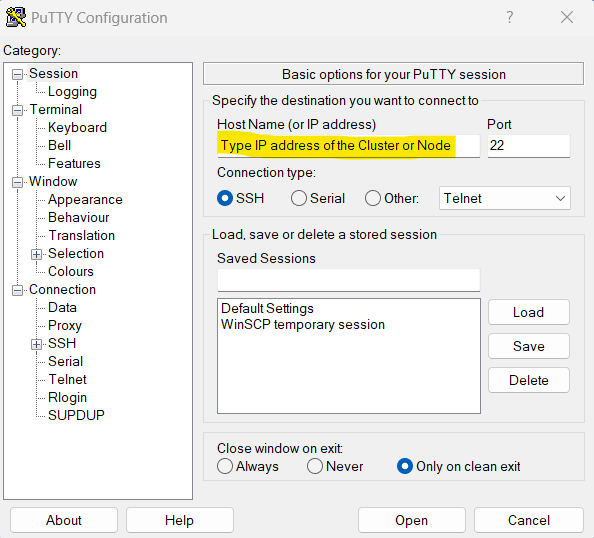
- Connect to Appliance through any SSH terminal, using Cluster or Node Management IP address
- To get an IP address on the Management Console, go to Settings > Network IPs > Management tab
Example SSH connection using Putty
Log in to your service account.
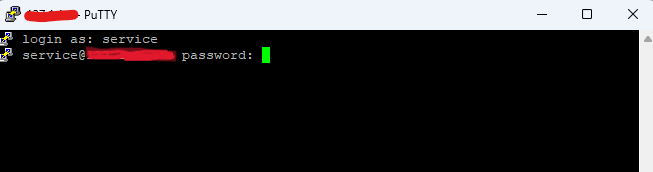
- Use the username: service, and password
- To create or reset Service Account password from Management Console, go to Settings > Service Account > Type password on New Service Password > Retype password on Verify New Service Password
Example SSH login using PuTTY
How to Check the Node is in Service Mode.
- On node, enter command:
# svc_rescue_state list
Example of Node in Normal Mode
[SVC:service@XXXXXX-B user]$ svc_rescue_state list
Current Base OS status is Normal Mode, rc = 1.
Bootcount indicates the number of boots since the last successful boot.
current bootcount = 0, threshold is 3
Note: bootcount = 0, node is on Normal Mode. If bootcount equals 4 or higher, it should be in Service Mode after node reboot.
Example of Node in Service Mode after rebooted
[SVC:service@XXXXXX-B user]$ svc_rescue_state list
Current CoreOS status is Service Mode, rc = 0.
current bootcount = 4
UI requested Service Mode

*** WARNING *** This Node is currently in Service Mode WARNING
How to get Node into Service Mode.
- On the Node enter command:
svc_rescue_state set - To check bootcount = 4 or higher, run command:
# svc_rescue_state list - To complete the procedure, reboot local node entering command:
# svc_node reboot local- Alternatively, the following commands can be run:
-
- If the node does not reboot after 15 minutes, the --force option can be used. The force option should not be used unless it is required. Forcing a Node to reboot when it is not ready can cause unpredictable results:
# svc_node reboot local --force
- If the node does not reboot after 15 minutes, the --force option can be used. The force option should not be used unless it is required. Forcing a Node to reboot when it is not ready can cause unpredictable results:
-
- If the peer node must be rebooted, enter the command:
# svc_node reboot peer - To navigate between nodes, use command:
# svc_ssh_peer
- If the peer node must be rebooted, enter the command:
To check if a node is in Service Mode, follow steps on How to Check if a Node is in Service Mode, and look for output:
*** WARNING *** This Node is currently in Service Mode WARNING
How to get node from Service Mode into Normal Mode.
- On the node on Service Mode, enter command:
# svc_rescue_state clear- Command output should report bootcount = 0
- To complete the procedure, reboot node entering command:
# svc_node reboot local-
- Alternatively, the node can be rebooted using the --force option or do it from the peer node, using commands mentioned previously.
-
Example of Node in Normal Mode: Output shows status is Normal Mode, and bootcount = 0
[SVC:service@XXXXXX-B user]$ svc_rescue_state list
Current Base OS status is Normal Mode, rc = 1.
Bootcount indicates the number of boots since the last successful boot.
current bootcount = 0, threshold is 3
Affected Products
PowerStoreArticle Properties
Article Number: 000240713
Article Type: How To
Last Modified: 07 Nov 2024
Version: 1
Find answers to your questions from other Dell users
Support Services
Check if your device is covered by Support Services.