Dell Pro Keyboard and Mouse KM5221W Stops Working after Update
Summary: The following article provides information about an issue with the Dell Pro Keyboard and Mouse KM5221W. The keyboard and mouse stop working or are not detected after the Dell Peripheral Manager incorrectly update its firmware (FW). ...
This article applies to
This article does not apply to
This article is not tied to any specific product.
Not all product versions are identified in this article.
Symptoms
The Dell Pro Keyboard and Mouse KM5221W stop working after an incomplete firmware update
The following problems may be experienced with your Dell Pro Keyboard and Mouse KM5221W:
- The keyboard and mouse are not working
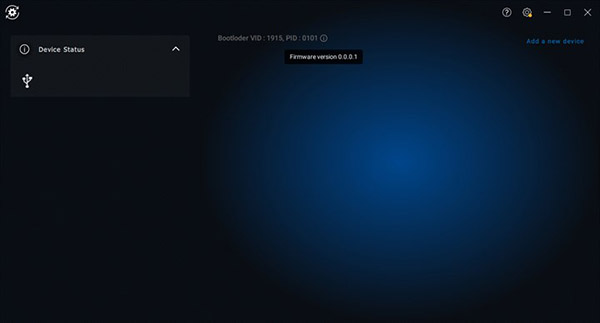
- Dell Peripheral Manager (DPM) cannot detect the keyboard and mouse
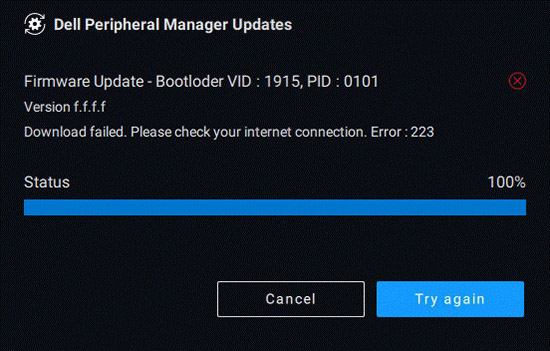
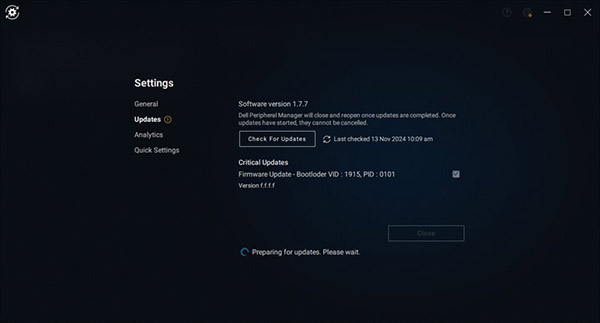
This happens after DPM states that the peripherals update successfully. However, the firmware update shows it failed to download correctly. DPM then reports that a critical error is occurring.
Cause
The latest firmware update was not available to the servers globally. This is causing a download failure. The dongle firmware can end up in its bootloader state when the firmware update does not complete successfully. The dongle loses communication with the keyboard and mouse.
Resolution
Note: Administrator rights are required on the device the keyboard and mouse connect to when updating software on the peripherals.
Use the following instructions to reinstall the firmware update on your keyboard and mouse:
-
Manually download and install the following firmware:
-
Download this .zip file: Standalone Bootloader FW Update Utility
-
Extract the .zip file to a temporary folder.
-
Open the temporary folder and right-click
Dongle_FWUpdateTool 0.1.2.6.exeand select Run as Administrator. -
Follow the on-screen instructions to complete the firmware update.
-
-
Launch the Dell Peripheral Manager application.
-
Run the Firmware update process in DPM.
-
Go back to Step.1 and repeat them if the dongle is still having issues.
-
-
Contact Us if the issue continues.
Affected Products
Dell Pro Keyboard and Mouse KM5221WArticle Properties
Article Number: 000252857
Article Type: Solution
Last Modified: 25 Jul 2025
Version: 3
Find answers to your questions from other Dell users
Support Services
Check if your device is covered by Support Services.