PowerEdge: How to change the Server Thermal and Fan Settings
Summary: This article shows how to modify the PowerEdge Server Thermal settings and Fan Speed manually.
This article applies to
This article does not apply to
This article is not tied to any specific product.
Not all product versions are identified in this article.
Instructions
Modifying Thermal Settings using iDRAC9 Web Interface
To modify the thermal settings:
- In the iDRAC Web interface, go to Configuration > System Settings > Hardware Settings > Cooling Configuration.
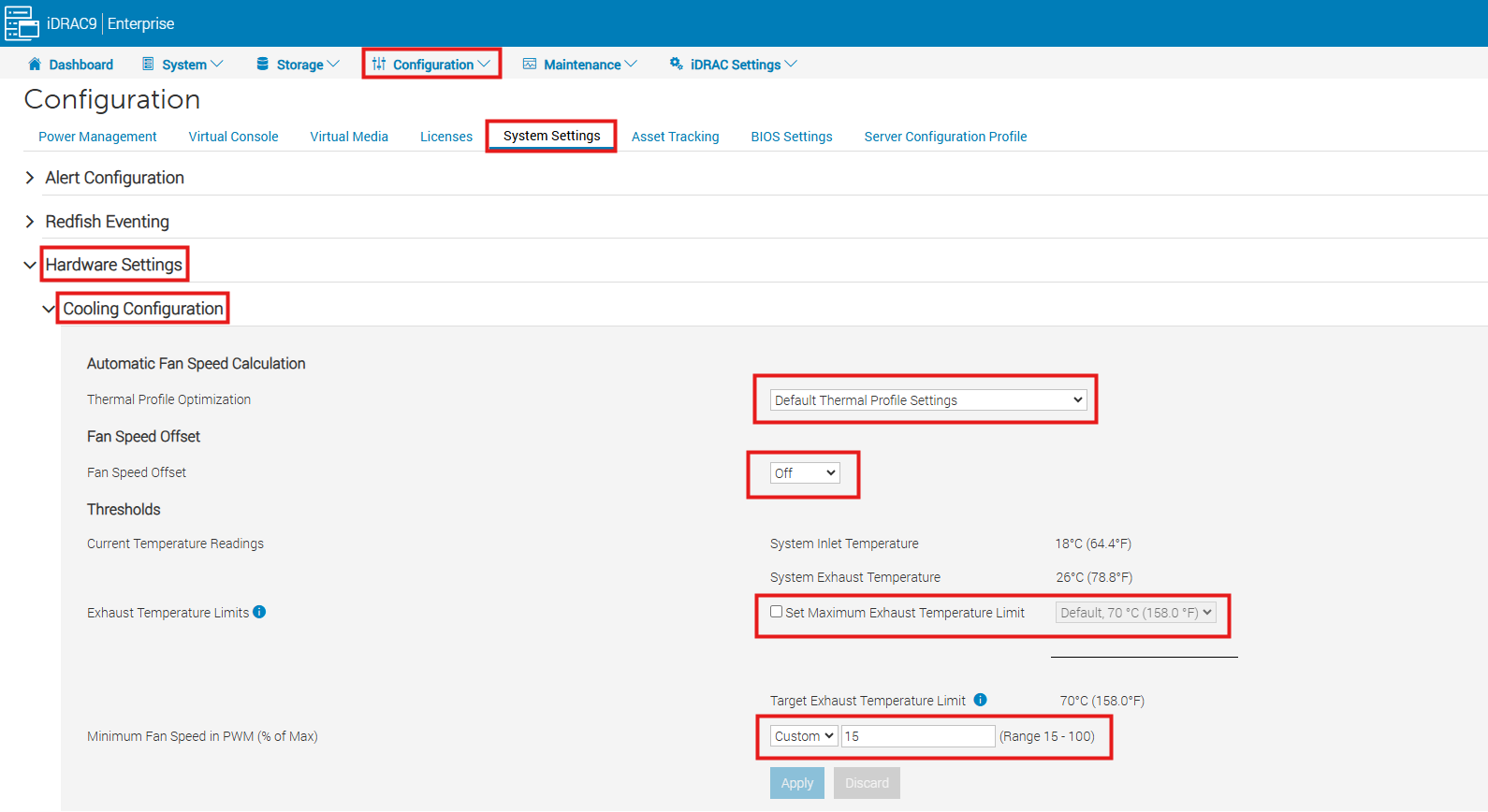
Specify the following:
- Thermal Profile Optimization — Select the thermal profile:
- Default Thermal Profile Settings (Minimum Power) — Implies that the thermal algorithm uses the same system profile settings that are defined under System BIOS > System BIOS Settings > System Profile Settings page.
- Maximum Performance (Performance Optimized):
- Reduced probability of memory or CPU throttling
- Increased probability of turbo mode activation
- Generally, higher fan speeds at idle and stress loads.
- Minimum Power (Performance per Watt Optimized):
- Optimized for the lowest system power consumption based on optimum fan power state
- Generally, lower fan speeds at idle and stress loads.
- Sound Cap - Sound Cap provides reduced acoustical output from a server at the expense of some performance. Enabling Sound Cap may include temporary deployment or evaluation of a server in an occupied space, but it should not be used during benchmarking or performance sensitive applications.
- Note: The sound Cap option is not available on all models
- Note: Selecting Maximum Performance or Minimum Power, overrides thermal settings associated to System Profile setting under System BIOS > System BIOS Settings. System Profile Settings page
- Maximum Exhaust Temperature Limit — From the drop-down menu, select the maximum exhaust air temperature. The values are displayed based on the system.
- This option allows the system fans speeds to change such that the exhaust temperature does not exceed the selected exhaust temperature limit. This cannot always be guaranteed under all system operating conditions due to dependency on system load and system cooling capability.
- Fan Speed Offset - Selecting this option allows additional cooling to the server. In case hardware is added (example, new PCIe cards), it may require additional cooling. A fan speed offset causes fan speeds to increase (by the offset % value) over baseline fan speeds calculated by the Thermal Control algorithm. Possible values are:
- Low Fan Speed - Drives fan speeds to a moderate fan speed.
- Medium Fan Speed - Drives fan speeds close to medium.
- High Fan Speed - Drives fan speeds close to full speed. Max Fan Speed — Drives fan speeds to full speed.
- Off - Fan speed offset is set to off. This is the default value. When set to off, the percentage does not display. The default fan speed is applied with no offset. Conversely, the maximum setting results in all fans running at maximum speed.
- Thresholds:
- Maximum PCIe Inlet Temperature Limit — Default value is 55°C. Select the lower temperature of 45°C for third party PCIe cards which require a lower inlet temperature.
- Exhaust Temperature Limits — By modifying the values for the following you can set the exhaust temperature limits:
- Set Maximum Exhaust Temperature Limit
- Set Air Temperature Rise Limit
- Minimum Fan Speed in PWM (% of Max) — Select this option to fine-tune the fan speed. Using this option, you can set a higher baseline system fan speed or increase the system fan speed if other custom fan speed options are not resulting in the required higher fan speeds.
- Default — Sets minimum fan speed to default value as determined by the system cooling algorithm.
- Custom — Enter the percentage by which you want to change the fan speed.
Note: The minimum fan speed range varies from system to system based on the hardware configuration and cooling requirements.
- Click Apply to apply the settings.
- The following message is displayed: It is recommended to reboot the system when a thermal profile change has been made. This is to ensure all power, and thermal settings are activated.
- Click Reboot Later or Reboot Now.
Note: You must reboot the system for the settings to take effect.
Additional Information
To modify the thermal settings using racadm you can reference the IDRAC User's Guide
Affected Products
iDRAC9, PowerEdge R240, PowerEdge R250, PowerEdge R260, PowerEdge R340, PowerEdge R350, PowerEdge R360, PowerEdge R440, PowerEdge R450, PowerEdge R540, PowerEdge R550, PowerEdge R640, PowerEdge R6415, PowerEdge R650, PowerEdge R650xs, PowerEdge R6515
, PowerEdge R6525, PowerEdge R660, PowerEdge R660xs, PowerEdge R6615, PowerEdge R6625, PowerEdge R740, PowerEdge R740XD, PowerEdge R740XD2, PowerEdge R7415, PowerEdge R7425, PowerEdge R750, PowerEdge R750XA, PowerEdge R750xs, PowerEdge R7515, PowerEdge R7525, PowerEdge R760, PowerEdge R760XA, PowerEdge R760xd2, PowerEdge R760xs, PowerEdge R7615, PowerEdge R7625, PowerEdge R840, PowerEdge R860, PowerEdge R940, PowerEdge R940xa, PowerEdge R960, PowerEdge T140, PowerEdge T150, PowerEdge T160, PowerEdge T340, PowerEdge T350, PowerEdge T360, PowerEdge T440, PowerEdge T550, PowerEdge T560, PowerEdge T640
...
Article Properties
Article Number: 000257346
Article Type: How To
Last Modified: 25 Apr 2025
Version: 2
Find answers to your questions from other Dell users
Support Services
Check if your device is covered by Support Services.