NetWorker:啟用 MFA 後,登入失敗並顯示「請輸入有效的 OTP」
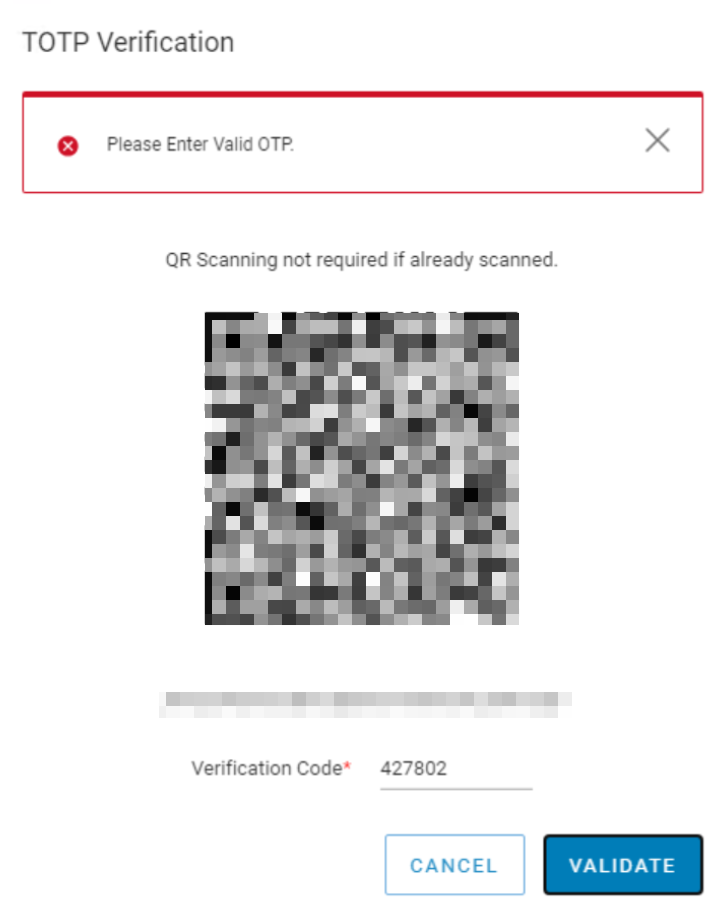
Summary: 本機 NetWorker 使用者帳戶已啟用多重因素驗證,並已成功在 Google Authenticator 中註冊。使用 MFA 使用者登錄時,MFA 身份驗證失敗。隨即會出現錯誤訊息,指出「請輸入有效的 OTP」。在 NetWorker/NWUI 伺服器和用於存取 NetWorker Web 使用者介面 (NWUI) 的主機之間觀察到時間同步問題
This article applies to
This article does not apply to
This article is not tied to any specific product.
Not all product versions are identified in this article.
Symptoms
- 本機 NetWorker 使用者帳戶已啟用多重因素驗證,並已成功在 Google Authenticator 中註冊。
- Google Authenticator 應用程式為 6.0 版或更新版本。
- 使用 MFA 使用者登入 NetWorker Web 使用者介面 (NWUI) 時,MFA 驗證失敗。隨即會出現錯誤訊息,指出「請輸入有效的 OTP」
Cause
用於存取 NWUI 和 NetWorker 伺服器或過時同步的伺服器。例如,訪問 NWUI 的 NetWorker 伺服器和主機位於同一時區;但是,其中一個系統上的時間是關閉的。
在 NetWorker 伺服器設定為特定時區的情況下,便會發生此問題;但是,伺服器上的時間不正確。它偏離了一個小時。幾秒鐘的時差可能不會造成任何問題;但是,時間上的更大差異可能會導致此問題。
注意:如果 Google Authenticator 應用程式不是 6.0 或更新版本,也會發現同樣的錯誤。NetWorker 安全性組態指南說明了 MFA 的 Google Authenticator 需求:https://www.dell.com/support/product-details/product/networker/docs。
Resolution
請確定 Google Authenticator 應用程式為 6.0 或更新版本。
修正不同步主機上的時區/同步問題。
如需變更時間、時區、網路時間通訊協定 (NTP) 設定,請洽詢系統管理員。這些步驟可能因作業系統而有所不同。
如果不同步的主機是 NetWorker/NWUI 伺服器,請重新啟動 NetWorker 服務:
Linux:
nsr_shutdown
net start networker
systemctl restart nwui
Windows:
net stop nsrd
net start nsrd
net stop nwui
net start nwui
修正時間同步問題後,MFA 使用者可以使用 Google Authenticator 的 Time-Based One-Time Password (TOTP) 金鑰登入 NWUI。
Additional Information
若為 NetWorker Virtual Edition (NVE) 裝置,可使用下列指示修改時間設定:
注意: 以下步驟適用於大多數 Linux 發行版;但是,在繼續之前,請先諮詢系統供應商文檔和Linux系統管理員。
時區調整:
- 檢查目前時區:
timedatectl status
- 列出所有可用的時區:
timedatectl list-timezones
- 設定所需的時區:
sudo timedatectl set-timezone <Your_Timezone>
注意:將 Your_Timezone> 替換為<清單中的適當時區,例如 America/New_york。
- 確認變更:
timedatectl
手動設定時間:
- 檢查目前的日期和時間:
date
- 設定新的日期和時間:
sudo date -s "YYYY-MM-DD HH:MM:SS"
注意:將 YYYY-MM-DD HH:MM:SS 替換為所需的日期和時間。
- 更新硬體時鐘以符合系統時鐘:
sudo hwclock --systohc
這將確保重新開機後變更仍然存在。
網路時間通訊協定 (NTP) 組態:
- 以 root 權限在文字編輯器中開啟 /etc/ntp.conf 檔案。例如,使用 vi:
sudo vi /etc/ntp.conf
- 新增您的 NTP 伺服器,方法是在伺服器關鍵字後加上伺服器的位址。例如:
server 0.pool.ntp.org iburst
server 1.pool.ntp.org iburst
server 2.pool.ntp.org iburst
server 3.pool.ntp.org iburst
- 儲存並關閉檔案。在 nano 中,您可以按下 ESC 鍵,然後輸入 :wq! 來寫入變更並退出。
- 重新啟動 NTP 服務以套用變更:
sudo systemctl restart ntpd
- 驗證 NTP 同步狀態:
ntpq -p
這可確保您的系統與指定的 NTP 伺服器同步。
Affected Products
NetWorkerProducts
NetWorker FamilyArticle Properties
Article Number: 000267579
Article Type: Solution
Last Modified: 04 Dec 2025
Version: 5
Find answers to your questions from other Dell users
Support Services
Check if your device is covered by Support Services.