NetWorker:启用 MFA 后,登录失败并显示“Please Enter valid OTP”(请输入有效的 OTP)
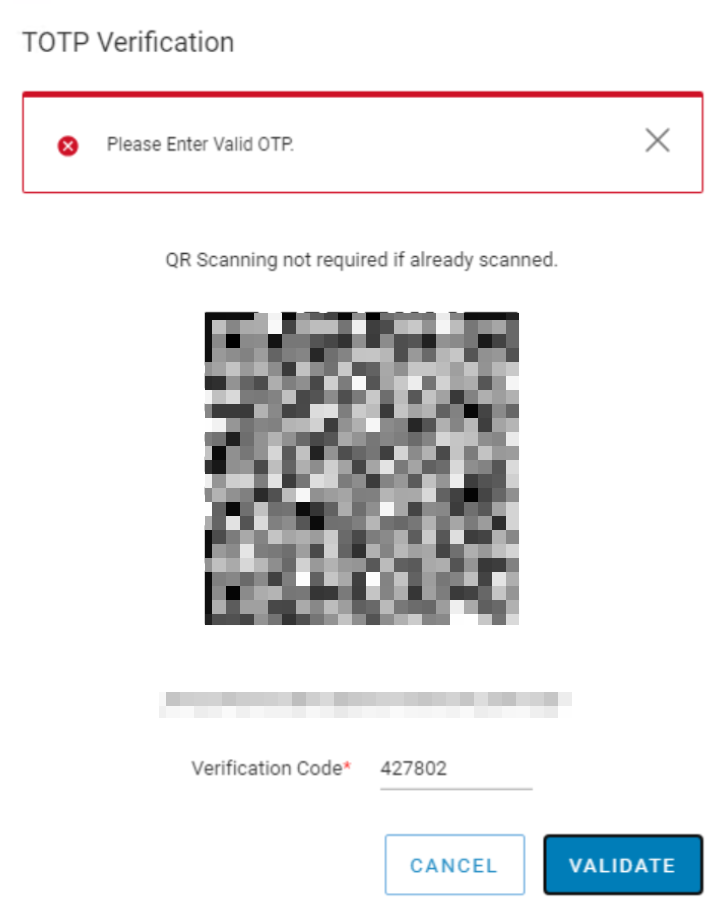
Summary: 为本地 NetWorker 用户帐户启用了多因素身份验证,并已在 Google Authenticator 中成功注册。使用 MFA 用户登录时,MFA 身份验证失败。此时将显示一条错误消息,指出“请输入有效的 OTP”。在 NetWorker/NWUI 服务器与用于访问 NetWorker Web 用户界面 (NWUI) 的主机之间观察到时间同步问题
This article applies to
This article does not apply to
This article is not tied to any specific product.
Not all product versions are identified in this article.
Symptoms
- 为本地 NetWorker 用户帐户启用了多因素身份验证,并已在 Google Authenticator 中成功注册。
- Google Authenticator 应用程序为 6.0 或更高版本。
- 使用 MFA 用户登录 NetWorker Web 用户界面 (NWUI) 时,MFA 身份验证失败。此时将显示一条错误消息,指出“请输入有效的 OTP”
Cause
用于访问 NWUI 和 NetWorker 服务器或不同步时间的服务器。例如,访问 NWUI 的 NetWorker 服务器和主机位于同一时区;但是,其中一个系统上的时间已关闭。
在 NetWorker 服务器设置为特定时区的场景中观察到此问题;但是,服务器上的时间不正确。它偏离了一个小时。几秒钟的时间差可能不会造成任何问题;但是,更大的时间差异可能会导致此问题。
提醒:如果 Google Authenticator 应用程序不是 6.0 或更高版本,也可以观察到相同的错误。NetWorker 安全配置指南阐明了 MFA 的 Google 身份验证器要求:https://www.dell.com/support/product-details/product/networker/docs。
Resolution
确保 Google Authenticator 应用程序为 6.0 或更高版本。
修复不同步主机上的时区/同步问题。
请咨询系统管理员以更改时间、时区、网络时间协议 (NTP) 设置。这些步骤可能因作系统而异。
如果不同步的主机是 NetWorker/NWUI 服务器,请重新启动 NetWorker 服务:
Linux:
nsr_shutdown
net start networker
systemctl restart nwui
Windows:
net stop nsrd
net start nsrd
net stop nwui
net start nwui
纠正时间同步问题后,MFA 用户可以使用 Google Authenticator 中基于时间的一次性密码 (TOTP) 密钥登录 NWUI。
Additional Information
对于 NetWorker Virtual Edition (NVE) 一体机,可以使用以下说明修改时间设置:
注意: 以下步骤适用于大多数 Linux 发行版;但是,在继续作之前,请先咨询系统供应商文档和 Linux 系统管理员。
时区调整:
- 检查当前时区:
timedatectl status
- 列出所有可用的时区:
timedatectl list-timezones
- 设置所需的时区:
sudo timedatectl set-timezone <Your_Timezone>
提醒:将Your_Timezone>替换为<列表中的相应时区,例如美洲/New_york。
- 验证更改:
timedatectl
手动设置时间:
- 检查当前日期和时间:
date
- 设置新的日期和时间:
sudo date -s "YYYY-MM-DD HH:MM:SS"
提醒:将 YYYY-MM-DD HH:MM:SS 替换为所需的日期和时间。
- 更新硬件时钟以匹配系统时钟:
sudo hwclock --systohc
这将确保更改在重新启动后仍然存在。
网络时间协议 (NTP) 配置:
- 使用 root 权限在文本编辑器中打开 /etc/ntp.conf 文件。例如,使用 vi:
sudo vi /etc/ntp.conf
- 添加 NTP 服务器方法是在 server 关键字中包含一行,后跟服务器地址。例如:
server 0.pool.ntp.org iburst
server 1.pool.ntp.org iburst
server 2.pool.ntp.org iburst
server 3.pool.ntp.org iburst
- 保存并关闭文件。在 nano 中,您可以按 ESC 键然后输入 :wq! 以写入更改并退出来执行此作。
- 重新启动 NTP 服务以应用更改:
sudo systemctl restart ntpd
- 验证 NTP 同步状态:
ntpq -p
这可确保您的系统与指定的 NTP 服务器同步。
Affected Products
NetWorkerProducts
NetWorker FamilyArticle Properties
Article Number: 000267579
Article Type: Solution
Last Modified: 04 Dec 2025
Version: 5
Find answers to your questions from other Dell users
Support Services
Check if your device is covered by Support Services.