BIOS 업데이트 오류 또는 Windows 2025년 1월 업데이트 후 업데이트가 멈춤
Summary: 이 문서에서는 BIOS 업데이트 오류 또는 Windows 2025년 1월 업데이트 이상을 실행하는 컴퓨터에서 멈추는 문제에 대한 정보를 제공합니다.
This article applies to
This article does not apply to
This article is not tied to any specific product.
Not all product versions are identified in this article.
Symptoms
해당되는 플랫폼:
- Alienware Aurora R12
- Alienware Aurora R13
- Alienware Aurora Ryzen Edition R14
- Alienware Aurora R15
- Alienware Aurora R15 AMD
- Alienware Aurora R16
- Alienware Area 51m R2
- Alienware m15 R3
- Alienware m15 R4
- Alienware m17 R3
- Alienware m17 R4
- Alienware x14
- Alienware x15 R1
- Alienware x15 R2
- Alienware x17 R1
- Alienware x17 R2
- XPS 8950
- XPS 8960
- Inspiron 15 3510
- Inspiron 15 3521
- Inspiron 3502
참고: 다른 플랫폼도 영향을 받을 수 있습니다. 나열된 플랫폼이 현재 확인된 플랫폼입니다.
영향을 받는 운영 체제:
- Windows 11 24H2 26100.2894 이상
- Windows 11 22H1 및 23H2 22621.4751 및 22631.4751 이상
- Windows 10 22H2 19044.5371 및 19045.5371 이상
컴퓨터가 BIOS를 업데이트하지 못하거나 SupportAssist 내에서 BIOS 업데이트가 중단될 수 있습니다. 이 문제는 Microsoft에서 1월 업데이트를 설치한 후에 발생합니다.
- Windows 11 24H2 KB5050009(OS 빌드 26100.2894) 이상
- Windows 11 23H2 KB5050021(OS 빌드 22621.4751 및 22631.4751) 이상
- Windows 10 22H2 KB5049981(OS 빌드 19044.5371 및 19045.5371) 이상

컴퓨터에 최신 BIOS를 설치하는 동안 다음과 같은 증상이 발생할 수 있습니다.
- SupportAssist 오류: 설치 중에 문제가 발생하여 설치를 완료하지 못했습니다.
Error : Driver Version Fail !메시지가 표시됨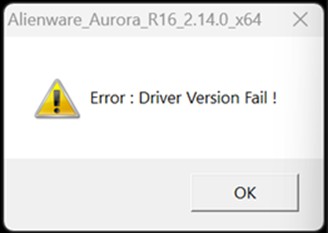
- BIOS 업데이트가 루프에 남아 있습니다.
Cause
Microsoft의 강화된 보안 기능으로 인해 BIOS 업데이트가 차단됩니다.
Resolution
영향을 받는 모든 BIOS 버전은 SupportAssist, Dell Update 또는 Alienware Update에서 강등되었습니다.
이 문제를 해결하는 모든 BIOS 업데이트가 릴리스되었습니다. 컴퓨터 제품 페이지 드라이버 및 다운로드에서 최신 BIOS를 다운로드하십시오.
| 마케팅 모델 이름 | BIOS 버전 |
|---|---|
| Alienware Aurora R12 | 1.1.29 |
| Alienware Aurora R13 | 1.24.0 |
| Alienware Aurora Ryzen Edition R14 | 2.22.0 |
| Alienware Aurora R15 | 1.19.0 |
| Alienware Aurora R15 AMD | 1.17.0 |
| Alienware Aurora R16 | 2.15.0 |
| Alienware Area 51m R2 | 1.31.0 |
| Alienware m15 R3 | 1.31.0 |
| Alienware m15 R4 | 1.27.0 |
| Alienware m17 R3 | 1.31.0 |
| Alienware m17 R4 | 1.27.0 |
| Alienware x14 | 1.24.0 |
| Alienware x15 R1 | 1.27.0 |
| Alienware x15 R2 | 1.25.0 |
| Alienware x17 R1 | 1.27.0 |
| Alienware x17 R2 | 1.25.0 |
| XPS 8950 | 1.24.0 |
| XPS 8960 | 2.14.0 |
| Inspiron 15 3510 | 1.24.1 |
| Inspiron 15 3521 | 1.19.1 |
| Inspiron 3502 | 1.21.1 |
운영 체제에서 BIOS 업데이트
- BIOS 플래시 파일을 실행하고 화면의 지시를 따릅니다.
USB 스틱을 사용하여 BIOS를 업데이트합니다.
- 실행 파일을 외부 스토리지(USB 플래시 드라이브)에 복사합니다.
- USB를 연결한 상태로 두고 컴퓨터를 재시작합니다 .
- F12 키를 눌러 One-Time Boot 설정으로 들어갑니다(F12 One-Time Boot 메뉴에서 BIOS 플래싱 참조).
Affected Products
Alienware Area-51m R2, Alienware Aurora R12, Alienware Aurora R13, Alienware Aurora Ryzen Edition R14, Alienware Aurora R15 AMD, Alienware Aurora R15, Alienware Aurora R16, Alienware M15 R3, Alienware m15 R4, Alienware M17 R3, Alienware m17 R4
, Alienware x14, Alienware x15 R1, Alienware x15 R2, Alienware x17 R1, Alienware x17 R2, Inspiron 3502, Inspiron 15 3510, Inspiron 15 3521, XPS 8950, XPS 8960
...
Article Properties
Article Number: 000275742
Article Type: Solution
Last Modified: 29 Apr 2025
Version: 9
Find answers to your questions from other Dell users
Support Services
Check if your device is covered by Support Services.