PowerProtect Data Manager Appliance: How to view or add Licenses in DM5500 versions 5.18 and above
Summary: Steps to view or assign licenses on PowerProtect DM5500 running versions v5.18 or later.
This article applies to
This article does not apply to
This article is not tied to any specific product.
Not all product versions are identified in this article.
Instructions
During the Day1 Configuration on 'Getting Started' page if a permanent license was not applied, then the users see zero active licenses on the DM5500 appliance UI under "Maintenance and Updates --> License":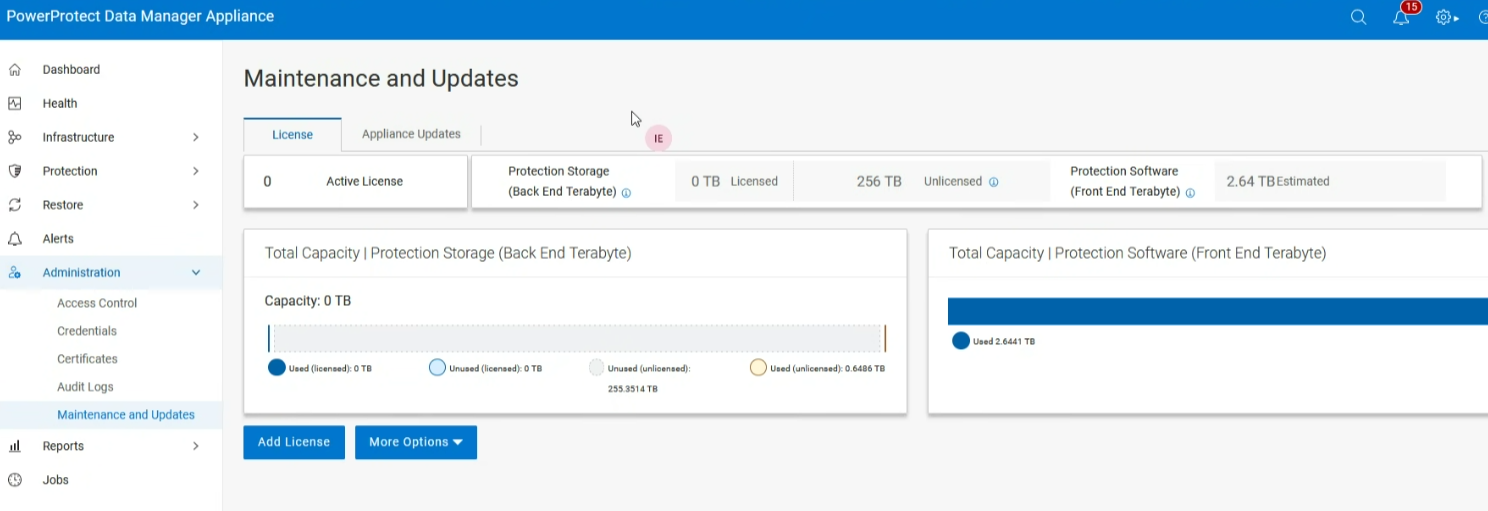
Default 12 TB is the activated capacity that is given to customers to use without applying for any license for 90 days. Post that customers must apply for a permanent license to avoid issues. Users must note that on the 'License' Page, the system displays only activated permanent license details (that is the license which is explicitly applied on the system).
Default 12TB Capacity - Temporary Activation Period
When a new appliance is provisioned, a default activated capacity of 12TB is granted to customers for an initial 90-day period.
Important Notes:
- This temporary capacity is intended to allow immediate use of the appliance without requiring a license upfront.
- Before the 90-day period ends, customers must apply for a permanent license to continue uninterrupted access.
- If a permanent license is not applied within this timeframe, the appliance begins generating alerts and warnings indicating the expiration of the 90-day temporary activation period.
To avoid service disruption, it is strongly recommended to activate the permanent license well before the temporary period expires.
Additional Information
The following message is displayed on the DM5500 UI in the upcoming release indicating the system is still running on a temporary activation period:
The system currently has no valid license. A 12 TB capacity is available for a limited 90-day period. Add license or contact the account manager.
Affected Products
PowerProtect DM5500Article Properties
Article Number: 000321296
Article Type: How To
Last Modified: 16 Oct 2025
Version: 4
Find answers to your questions from other Dell users
Support Services
Check if your device is covered by Support Services.