The Server Certificate Used to Manage Dell ThinOS 8.x Devices in Wyse Management Suite is Expiring
Summary: This article provides information about Dell ThinOS 8.x devices managed by Wyse Management Suite (WMS) expires on October 07, 2025.
This article applies to
This article does not apply to
This article is not tied to any specific product.
Not all product versions are identified in this article.
Symptoms
Affected Platforms:
- Wyse 3040
- Wyse 5070
- Wyse 5470 mobile
- Wyse 5470 All-in-One
Affected Products:
- Wyse Management Suite
Affected Operating Systems:
- Dell ThinOS 8.x
Cause
The current Wyse Management Server (WMS) certificate, issued by Entrust, is valid until September 25, 2025.
Resolution
New DigiCert Server certificate update timelines on WMS Cloud
- EU1 Instance on September 26, 2025
- US1 instance on September 27, 2025
To ensure continued secure connectivity and uninterrupted remote management, it is essential to update the root certificate to the Device issued by DigiCert.
- The new DigiCert-issued server certificate will be activated starting September 26, 2025.
- All platforms, devices, and Thin Clients must have the DigiCert root certificate installed on or before September 25, 2025.
- Failure to install the updated certificate by the deadline may result in loss of communication with WMS.
Plan accordingly to complete the root certificate update on devices within the specified timeline.
Options for Updating Your Digital Certificate
- Option 1: Customers are encouraged to upgrade eligible devices free of charge:
- ThinOS 9 (Wyse 3040, 5070, 5470 mobile and 5470 AiO)
Or, - ThinOS 10 (Wyse 5070, 5470 mobile, and 5470 AiO with 8GB RAM and 32GB storage or greater)
- ThinOS 9 (Wyse 3040, 5070, 5470 mobile and 5470 AiO)
- Option 2: Manually add the new DigiCert certificate to devices that are not eligible for the operating system upgrade.
Steps to Manually Add the DigiCert Certificate
Administrators must create and publish the configuration policy to their devices manually.
Follow these steps:
- Go to Groups & Configs page.
- Edit Policy under ThinOS 8.x in the Default Device Policy Group.
- Select Advanced Configuration option and go to the Security section.
- Check Auto-install Certificates and select the required Certificates under the Certificates section.
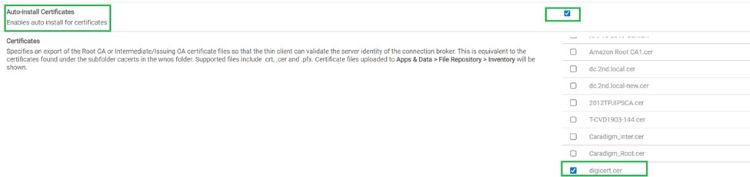
- Save & Publish the configuration policy.
Deadlines and Recommendations
The certificate will be uploaded to all 8.6 tenants by July 21, 2025. Dell Technologies advises customers to update the certificate before October 07, 2025.
Note: Dell ThinOS 8.x customers using file server image and configuration deployment (INI files) without WMS are not required to take immediate action. However, ThinOS 8.x is past lifecycle End of Support and operating system client support is no longer available from Dell. In 2026, WMS is planning on removing profile support for ThinOS 8.x. We encourage you to begin planning soon and to reach out to your Dell Sales representative to discuss upgrade, conversion, and replacement options.
Affected Products
Wyse 3040 Thin Client, Wyse 5070 Thin Client, Wyse 5470 All-In-One, Wyse 5470, Dell ThinOS, Wyse Management SuiteArticle Properties
Article Number: 000347894
Article Type: Solution
Last Modified: 22 Sep 2025
Version: 5
Find answers to your questions from other Dell users
Support Services
Check if your device is covered by Support Services.