BIOS Update Locks Up on Dell Pro With DASH Support Enabled
Summary: Learn what to do if a Dell Pro Micro QCM1255, Dell Pro Slim QCS1255, or Dell Pro Tower QCT1255 with DASH Support enabled lock up while updating the BIOS.
This article applies to
This article does not apply to
This article is not tied to any specific product.
Not all product versions are identified in this article.
Symptoms
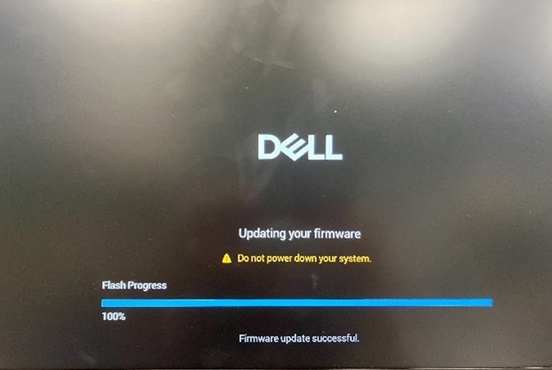
A Dell Pro Micro QCM1255, Dell Pro Slim QCS1255, or Dell Pro Tower QCT1255 may lock up on the BIOS updating screen when DASH Support is enabled. The BIOS update screen says, "Updating your firmware - Do not power down your system. Flash Progress 100% - Firmware Update successful."
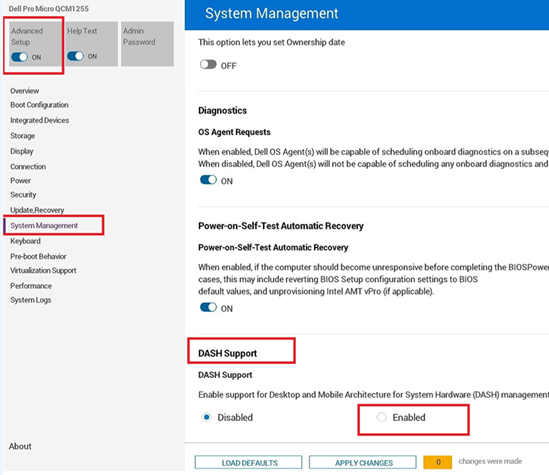
DASH Support is found in the BIOS under Advanced Setup, System Management, and then DASH Support.
The computer boots after rebooting manually. The BIOS version is updated successfully. The computer is expected to reboot automatically after the BIOS update is completed.
Affected Platforms:
Dell Pro Micro QCM1255Dell Pro Slim QCS1255Dell Pro Tower QCT1255
Cause
A BIOS coding issue causes this behavior.
Resolution
Short-term workaround
If the computer remains stuck on the BIOS updating screen, follow these steps:
- Press and hold the power button for about 25 seconds until the computer shuts down.
- If the computer does not shut down, unplug the power cable and then plug it back in.
- Press the power button to turn the computer back on.
Long-term solution
Updating to BIOS version 1.6.2 or later on the computer resolves the issue. To download and install the BIOS, refer to the BIOS Update Guide.
Affected Products
Dell Pro Micro QCM1255, Dell Pro Slim QCS1255, Dell Pro Tower QCT1255Article Properties
Article Number: 000355943
Article Type: Solution
Last Modified: 23 May 2026
Version: 5
Find answers to your questions from other Dell users
Support Services
Check if your device is covered by Support Services.