System Triggers a BitLocker Recovery After Updating the BIOS to Version 1.2.0 Using Windows Update
Summary: Information about a BitLocker recovery process being triggered after a BIOS update.
This article applies to
This article does not apply to
This article is not tied to any specific product.
Not all product versions are identified in this article.
Symptoms
Your system may have a BitLocker recovery screen after you update the BIOS using Windows Update. There is no issue if you update the BIOS using Dell SupportAssist or if you download it from Dell.com.
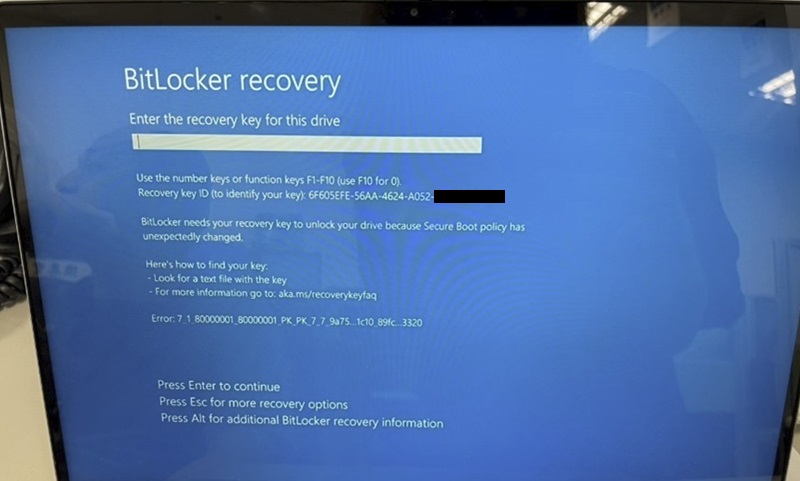
Affected Systems:
- Dell 14 Plus DB14255
- Dell 14 Plus 2-in-1 DB04255
- Dell 16 Plus DB16255
Cause
The reason this happens is because updating the BIOS changes security settings, which can make BitLocker ask for a recovery key. If you update the BIOS through Windows Update, BitLocker is not automatically paused, which is why you might see the recovery prompt after restarting.
Resolution
BitLocker Recovery
Short-Term Recovery Method:
A BitLocker recovery key is needed when BitLocker cannot automatically unlock an encrypted drive in Windows. This key, which is a 48-digit number, is used to regain access to the drive. You might be prompted for the BitLocker recovery key during startup, due to a security risk or hardware change: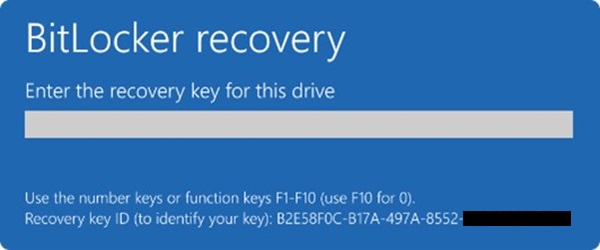
You might need to provide a BitLocker recovery key for data or external drives, for example if you forgot the unlock password: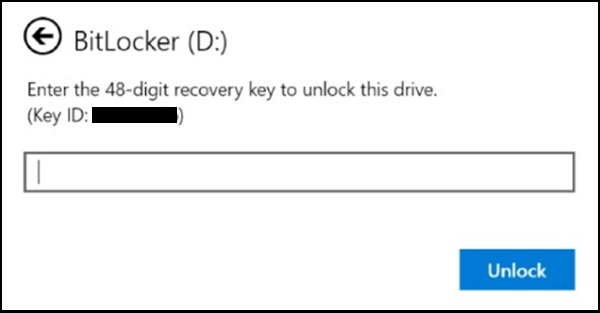
This article provides information to help you locate your BitLocker recovery key. Take note of the recovery key ID.
When you are prompted to enter a BitLocker recovery key, take note of the first eight digits of the recovery key ID. The recovery key ID helps identifying which recovery key to use, in case you have more than one.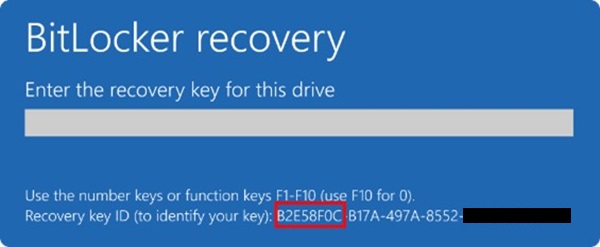
There are several places where your recovery key might be, depending on the choice that was made when activating BitLocker.
- Attached to your Microsoft account:
If the BitLocker recovery key is backed up to your Microsoft Account, follow these steps to retrieve it:- From another device, open a web browser and go to: AKA.MS/MyRecoveryKey
- Sign in with your Microsoft Account and locate the key ID:
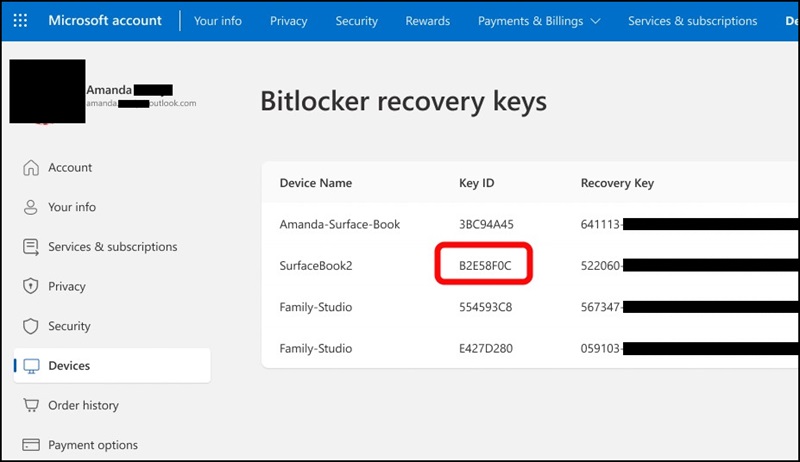
- Use the related recovery key to unlock the drive.
Note:
- If the device was set up, or if BitLocker was turned on, by somebody else, the recovery key might be stored in that person's Microsoft account.
- Starting in Windows 11, version 24H2, the BitLocker recovery screen shows a hint of the Microsoft account associated with the recovery key.
- Attached to your Work or School account:
If your device was ever signed into an organization using a Work or School Account, the recovery key could be stored in that organization's account. You might be able to access it directly, or you might need to contact the IT support for that organization to access your recovery key.- From another device, open a web browser and go to: AKA.MS/MyRecoveryKey
- Sign in with your Work or School Account
- Select Devices and expand the device for which you need to retrieve the recovery key:
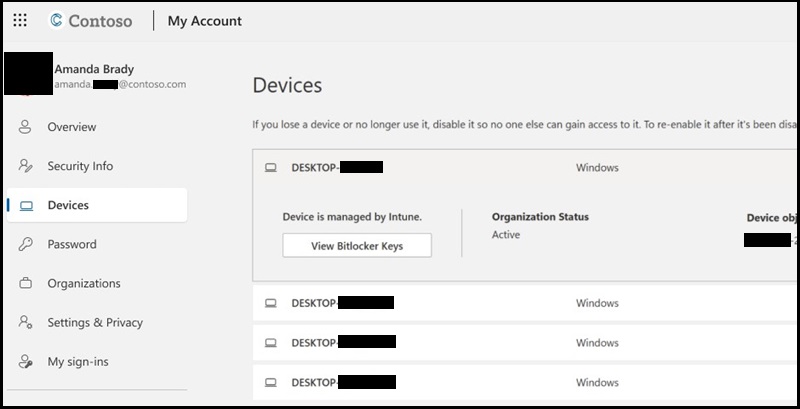
- Select the option View BitLocker Keys.
- Using the key ID, find the related recovery key and use it to unlock the drive.
- On a printout:
You might have printed your recovery key when BitLocker was activated. Look where you keep important papers related to your device. For example, in the following printout, the key id and the relative recovery key are highlighted: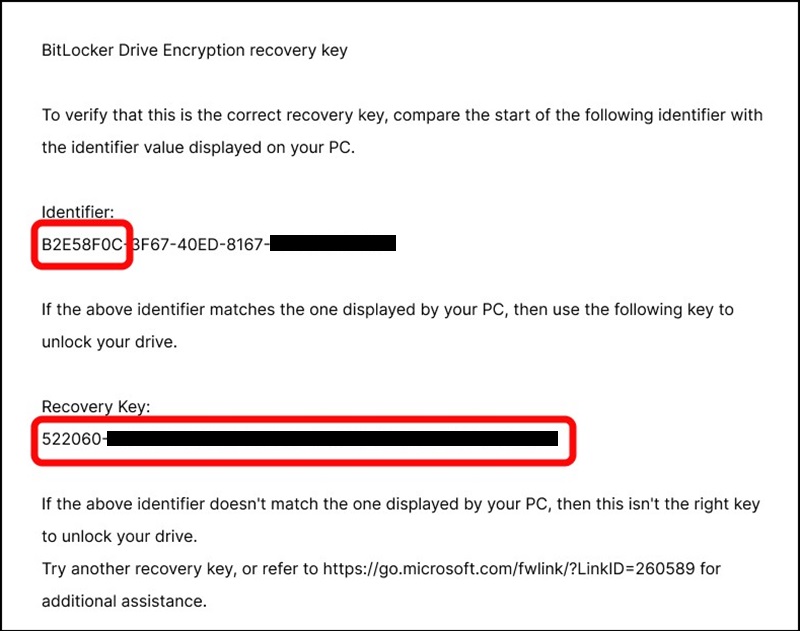
- On a USB flash drive:
Plug the USB flash drive into your locked device and follow the instructions. If you saved the key as a text file on the flash drive, use a different device to read the text file.
Long-Term Recovery Method:
The Windows Update for BIOS version 1.2.0 and above is unavailable and is expected to return around November 2025 (subject to change.) Microsoft is working on a new update method to fix the PK key issue and will share more details when available. In the meantime, you should go to Dell.com or use Dell SupportAssist to get the latest BIOS version for your system.
Affected Products
Dell 14 Plus 2-in-1 DB04255, Dell 14 Plus DB14255, Dell 16 Plus DB16255Article Properties
Article Number: 000358493
Article Type: Solution
Last Modified: 19 Aug 2025
Version: 1
Find answers to your questions from other Dell users
Support Services
Check if your device is covered by Support Services.