Alienware Command Center FX Settings Do Not Work on Alienware Area-51
Summary: Learn how to resolve when changes made in the FX tab of Alienware Command Center are not seen on the Alienware Area-51 computer’s lights.
This article applies to
This article does not apply to
This article is not tied to any specific product.
Not all product versions are identified in this article.
Symptoms
Changes to the Alienware computer’s lights may not be seen when changes are made in the FX tab of Alienware Command Center version 6.9.15.0. In some cases, the FX tab may be missing from Alienware Command Center.
Affected Platforms:
- Alienware 18 Area-51 AA18250
- Alienware Area-51 AAT2250
- Alienware Area-51 AAT2265
Affected Software:
- Alienware Command Center version 6.9.15.0
Affected Operating Systems:
- Windows 11
Cause
The issue may stem from compatibility problems or missing dependencies during Alienware Command Center installation in the factory-installed image.
Resolution
- Go to Installed Apps in Settings to begin the repair process for Alienware Command Center.
- Select the Alienware Command Center application and choose the Modify option to access repair features.
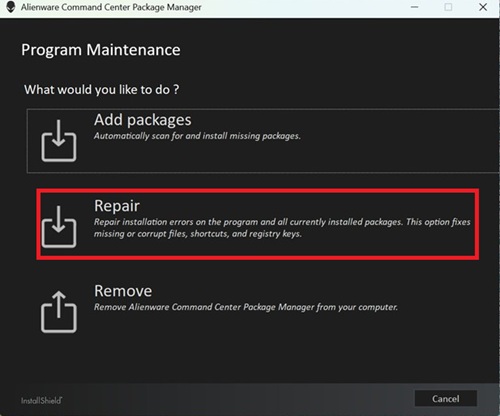
- Choose Repair and select the ALIENFX component to restore lighting effect functionality.
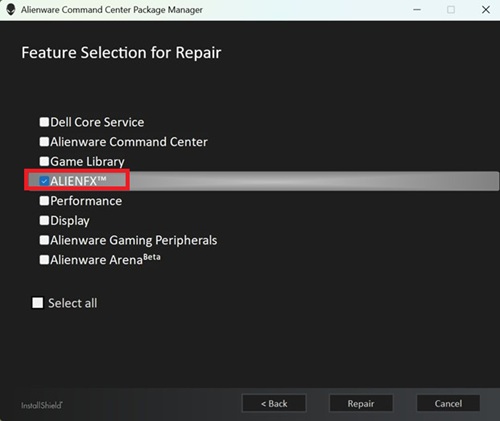
- Follow any steps on the screen to finish the repair.
- Reboot the computer and check to see if the FX tab is now visible in the Alienware Command Center.
- If the FX tab is still not visible, update to the latest version of Alienware Command Center. For information about updating to the latest version of Alienware Command Center, refer to the User's Guide at Support for Alienware Command Center Manuals & Documents.
Affected Products
Alienware 18 Area-51 AA18250, Alienware Area-51 AAT2250, Alienware Area-51 AAT2265Article Properties
Article Number: 000373023
Article Type: Solution
Last Modified: 29 Jul 2026
Version: 5
Find answers to your questions from other Dell users
Support Services
Check if your device is covered by Support Services.