Open Networking switch - How to identify the Service Tag on Open Network Install Environment (ONIE)
概要: This article introduces how to check your Open Networking Switch Service Tag from the Open Network Install Environment (ONIE) by using command.
この記事は次に適用されます:
この記事は次には適用されません:
この記事は、特定の製品に関連付けられていません。
すべての製品パージョンがこの記事に記載されているわけではありません。
手順
Article Summary
This article provides how to identify the Switch Service Tag on Open Network Install Environment (ONIE).
Products to be applied:
- Dell Networking S3048-ON
- Dell Networking S4048-ON
- Dell Networking S4048T-ON
- Dell Networking S6000-ON
- Dell Networking S6010-ON
- Dell Networking S6100-ON
- Dell Networking Z9100-ON
How to Identify Service tag
-
Connect to the switch with a serial console via the serial console port.
-
Turn OFF then turn ON the switch power to restart.
-
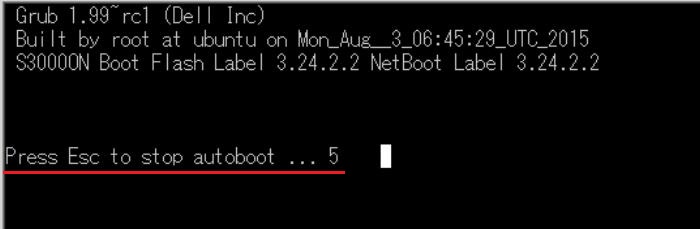
After the restart completed, press ESC key within 5 seconds once the message "Press ESC to stop autoboot..." displayed on the terminal software.
-
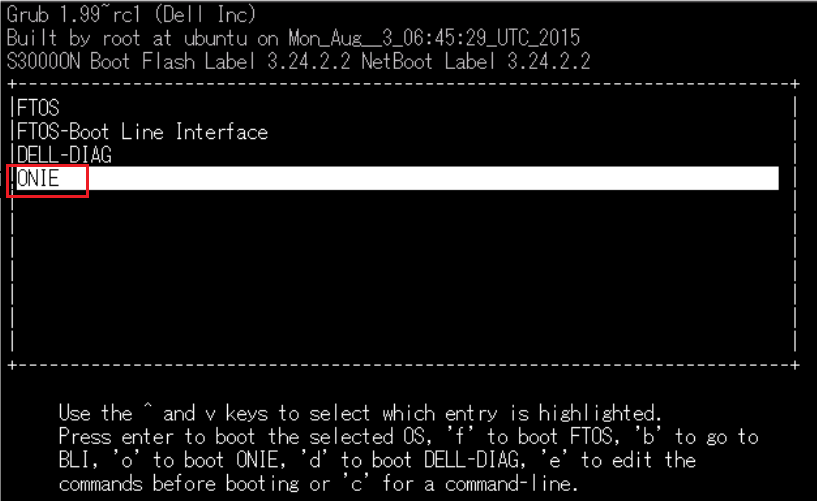
Select ONIE from the Grub menu and press Enter key.
-
Select Rescue from the ONIE menu and press Enter key.
If the NOS is installed, ensure the Rescue is selected since OS does not boot if ""Install OS" is selected.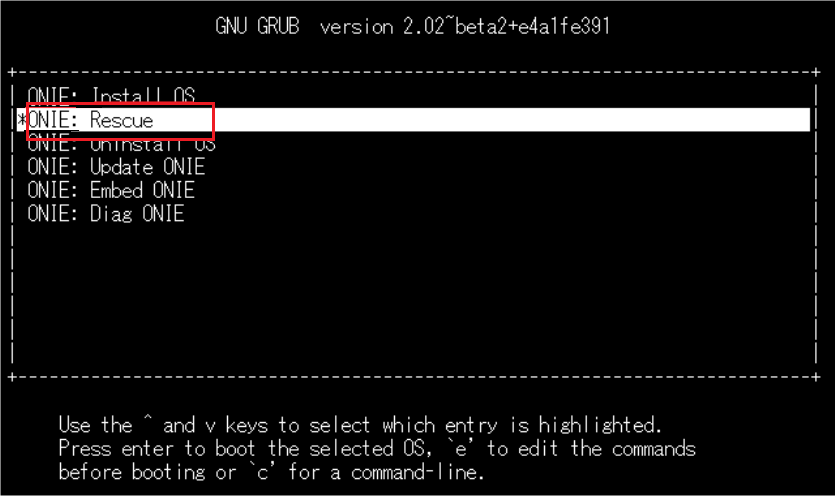
-
Run the command:
onie-syseepromon the ONIE prompt.
The Service Tag is displayed in the "Service Tag" line.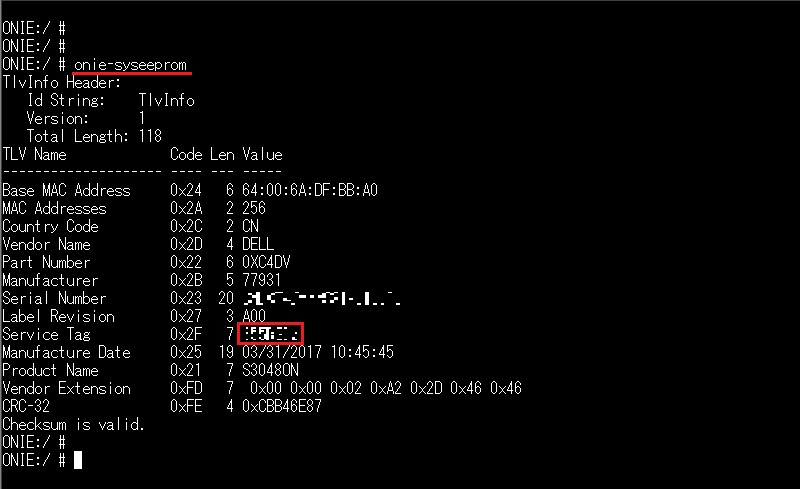
対象製品
Networking, PowerSwitch S3048-ON, PowerSwitch S4048-ON, PowerSwitch S6000 ON, PowerSwitch S4048T-ON, PowerSwitch S6010-ON, PowerSwitch S6100-ON, PowerSwitch Z9100-ON文書のプロパティ
文書番号: 000122325
文書の種類: How To
最終更新: 29 7月 2025
バージョン: 5
質問に対する他のDellユーザーからの回答を見つける
サポート サービス
お使いのデバイスがサポート サービスの対象かどうかを確認してください。