Adding Programs and Apps to the Startup Folder in Windows 10
概要: How to add apps to the startup folder in Windows 10 using simple steps and commands. Optimize startup programs for a faster boot and know the use of the shell startup command.
この記事は次に適用されます:
この記事は次には適用されません:
この記事は、特定の製品に関連付けられていません。
すべての製品パージョンがこの記事に記載されているわけではありません。
手順
Note: Microsoft will end support for Windows 10 on October 14, 2025. See our Microsoft Windows 10 End of Support Announcement for more information.
Add apps to startup in Windows 10.
-
You must create a shortcut of the app that you would like to add to start up. Drag and drop the app from the Start Menu to the desktop the shortcut of that app is created on the desktop.
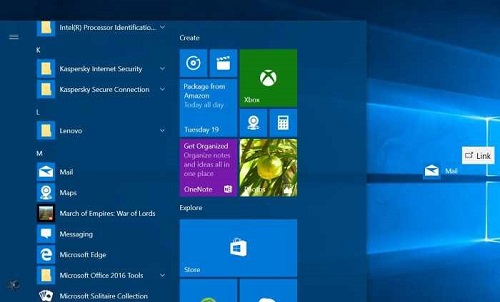
Figure 1: Creating a Desktop shortcut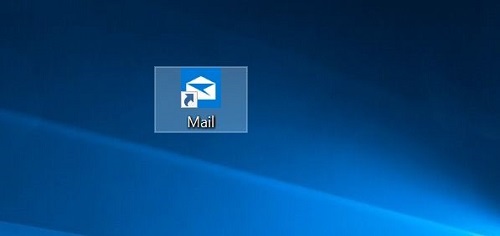
Figure 2: Desktop Shortcut -
Open Run command box by pressing the Windows logo + R keys. In the Run command field, type shell: Startup and then press Enter key to open Startup folder.
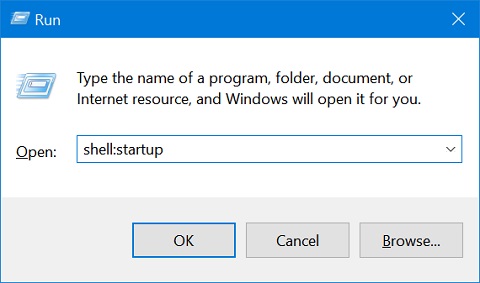
Figure 3: Run Command Box -
Copy and paste the app shortcut from the desktop to this Startup folder and the app is added to startup.
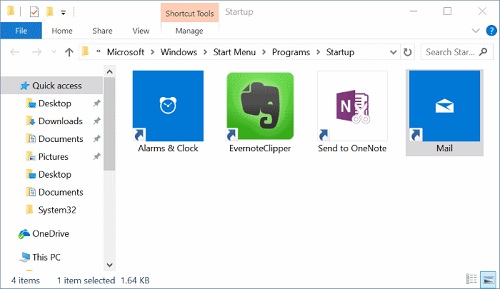
Figure 4: Startup Folder
対象製品
Chromebox, Alienware, Dell All-in-One, Dell Pro Max Micro, Dell Pro Max Slim, Dell Pro Max Tower, Dell Pro Micro, Dell Pro Slim, Dell Pro Tower, Dell Slim, Dell Tower, Inspiron, Legacy Desktop Models, OptiPlex, Vostro, XPS, G Series, Chromebook
, G Series, Alienware, Dell Plus, Dell Pro, Dell Pro Max, Dell Pro Plus, Dell Pro Premium, Inspiron, Latitude, Dell Pro Rugged, Vostro, XPS, Legacy Laptop Models, Latitude Tablets, Surface, XPS Tablets, Mobile Workstations
...
文書のプロパティ
文書番号: 000124550
文書の種類: How To
最終更新: 10 7月 2025
バージョン: 15
質問に対する他のDellユーザーからの回答を見つける
サポート サービス
お使いのデバイスがサポート サービスの対象かどうかを確認してください。