Dell Data Security Server Administration Console에 액세스하는 방법
概要: 다음 단계별 지침에 따라 Dell Data Security 또는 Dell Data Protection Server 관리 콘솔에 액세스하는 방법을 알아보십시오.
この記事は次に適用されます:
この記事は次には適用されません:
この記事は、特定の製品に関連付けられていません。
すべての製品パージョンがこの記事に記載されているわけではありません。
手順
Dell Data Security(이전의 Dell Data Protection)를 사용하려면 다음을 관리하기 위한 관리 콘솔이 필요합니다.
- 정책
- Reports
- 암호화 키
영향을 받는 제품:
- Dell Security Management Server
- Dell Data Protection Enterprise Edition Server
- Dell Security Management Server Virtual
- Dell Data Protection Virtual Edition
영향을 받는 버전:
- 8.0 이상
관리 콘솔에 로그인하기 위한 지침은 Dell Data Security Server의 버전에 따라 다릅니다.
관리 콘솔에 액세스하는 특정 단계를 보려면 해당 제품 버전을 클릭하십시오. 버전 관리에 대한 자세한 내용은 Dell Data Security Server 버전을 식별하는 방법을 참조하십시오.
9.2 이상
- 웹 브라우저를 열고 https://servername.company.com:8443/webui로 이동합니다.
 참고:
참고:- 예제 FQDN(Fully Qualified Domain Name)은 해당 환경의 서버에 따라 다릅니다.
- 포트 8443은 사용자 환경의 관리 콘솔 포트와 다를 수 있습니다.
- 관리 콘솔에 로그인합니다.
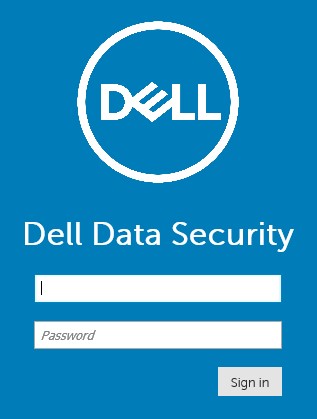 참고:
참고:- 버전 11.4 이상에서 Google Authenticator 또는 이메일 MFA(Multi-Factor Authentication)가 사용자에 대해 구성된 경우 사용자에게 OTP(One Time Password)를 입력하라는 메시지가 표시됩니다.
- MFA 구성에 대한 자세한 내용은 Dell Security Management Server 관리 콘솔에서 다단계 인증을 관리하는 방법을 참조하십시오.
8.0 ~ 9.1.5
- Windows 탐색기에서 다음으로 이동합니다.
- Dell Data Protection Enterprise Edition 서버:
C:\Program Files\Dell\Enterprise Edition - 끝점:
C:\Program Files\Dell\Virtual Edition
참고:- 엔드포인트에 액세스하려면 Dell Data Protection Virtual Edition 미디어에서 관리 콘솔(이전의 Remote Management Console)을 설치해야 합니다.
- 설치 단계는 Dell Data Protection Remote Management Console 설치 방법을 참조하십시오.
- Dell Data Protection Enterprise Edition 서버:
- 두 번 클릭
Credant.Console.

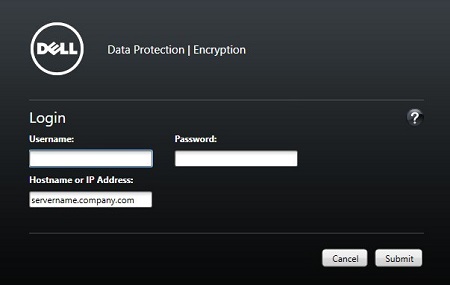
- 자격 증명을 제출하여 관리자 콘솔에 로그인합니다.
その他の情報
ビデオ
対象製品
Dell Encryption文書のプロパティ
文書番号: 000126852
文書の種類: How To
最終更新: 21 7月 2026
バージョン: 16
質問に対する他のDellユーザーからの回答を見つける
サポート サービス
お使いのデバイスがサポート サービスの対象かどうかを確認してください。