Dell Wireless Monitors Setup and Troubleshooting
概要: Learn how to set up, configure, and troubleshoot Dell wireless monitors. Explore features like Dual Screencast, hardware requirements, and solutions for common connectivity issues with Windows and Android devices. ...
この記事は次に適用されます:
この記事は次には適用されません:
この記事は、特定の製品に関連付けられていません。
すべての製品パージョンがこの記事に記載されているわけではありません。
手順
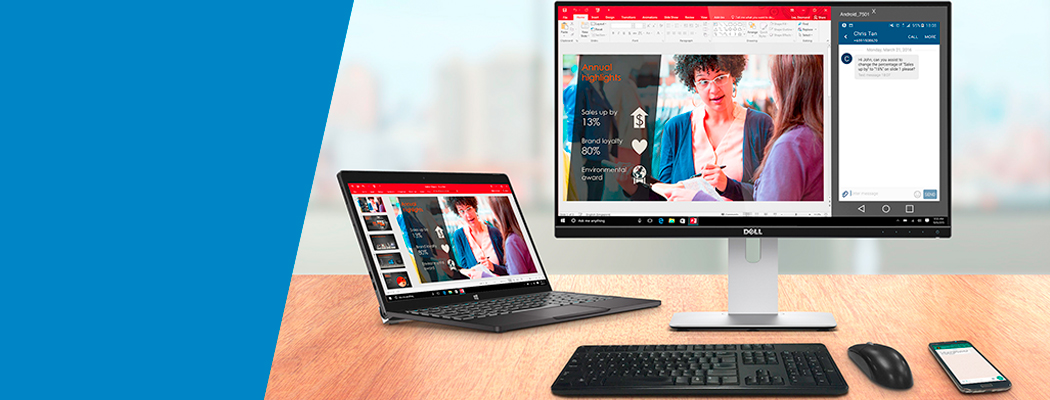
Dell wireless monitor enables your Windows laptop, Android smartphone, or tablet with Miracast capability to display the screen image to the monitor using a Wi-Fi Direct interface. When you connect the laptop, smartphone or tablet to the Dell wireless monitor, you can access the mouse and keyboard that is connected to the monitor and control the devices.
You can either extend or duplicate your Windows desktop wirelessly to one of these monitors and connect your Android 5.0 (and above) tablet or smartphone over Wi-Fi simultaneously through Dual Cast.
NOTE: Apple iPhone, iPad, and Macbooks are not supported. Sony smartphones are not supported as a secondary device for dual cast.
Connecting to Dell wireless monitor in Windows 10
- Verify that your device meets the hardware requirements.
- Download and install the Dell Wireless Monitor software from the Dell Support website. Go to Dell S2317HWi or Dell U2417HWi drivers page.
- Press the Windows logo + K key on the keyboard. You can also click the Notification Icon and click Connect in the Action Center menu.
- Select the wireless monitor from the list. Follow the on-screen instructions that are displayed on the monitor and press the
 button that is located under the Checkmark to complete the setup process (First-time setup only).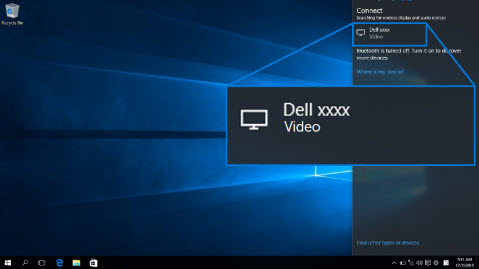
Figure 1: Select the wireless monitor.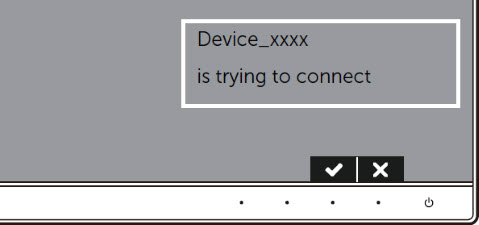
Figure 2: Confirm the pairing on the monitor. - Click Allow input from a keyboard or mouse connected to this display on the computer to complete the setup process.
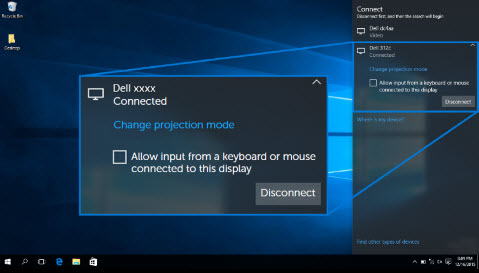
Figure 3: Allow input from a keyboard or mouse.
Want to connect an Android smartphone or tablet simultaneously? Learn how to connect to a Dell wireless monitor in Android.
Learn how to connect to the Dell wireless monitor in Windows 10
Duration: 00:45
When available, closed caption (subtitles) language settings can be chosen using the Settings or CC icon on this video player.
Learn how to disconnect from a Dell wireless monitor in Windows 10
Duration: 00:40
When available, closed caption (subtitles) language settings can be chosen using the Settings or CC icon on this video player.
Connecting to Dell wireless monitor in Windows 8.1
- Verify that the device meets the hardware requirements.
- Download and install the Dell Wireless Monitor software from the Dell Support website. Go to Dell S2317HWi or Dell U2417HWi drivers page.
- Press the Windows + C key on the keyboard to open the Charms menu. You can also swipe-in from the right to open the Charms menu.

Figure 4: Charms bar - Click Devices and then select Project.

Figure 5: Devices menu - Click Add a wireless display.
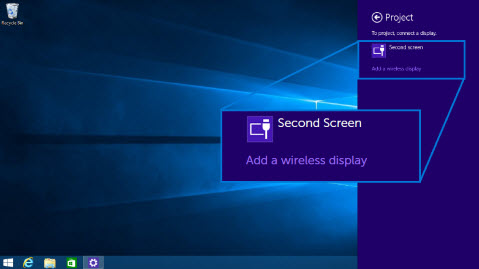
Figure 6: Add a wireless display. - Select the wireless monitor in the menu. Follow the on-screen instructions that are displayed on the monitor and press the
 button that is located under the Checkmark (on the monitor On-Screen Display (OSD) menu) to complete the setup process (First-time setup only).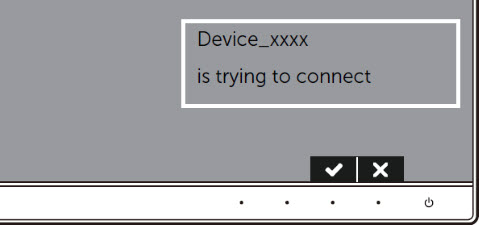
Figure 7: Confirm the pairing on the monitor. - Click Allow input from a keyboard or mouse connected to this display on the computer to complete the setup process.
Want to connect an Android smartphone or tablet simultaneously? Check the Connecting to Dell wireless monitor in Android section of this Dell Knowledge Base article.
Learn how to connect to the Dell Wireless Monitor in Windows 8.1
Duration: 00:49
When available, closed caption (subtitles) language settings can be chosen using the Settings or CC icon on this video player.
Learn how to disconnect from a Dell Wireless Monitor in Windows 8.1
Duration: 00:40
When available, closed caption (subtitles) language settings can be chosen using the Settings or CC icon on this video player.
Connecting to Dell wireless monitor in Windows 7
Connecting to the Dell wireless monitor in Windows 7 requires you to install the Dell Wireless Monitor software. This application helps you connect, disconnect, and change the projection mode.
- Verify that your device meets the hardware requirements.
- Download and install the Dell Wireless Monitor software from the Dell Support website. Go to Dell S2317HWi or Dell U2417HWi drivers page.
- Open the Dell Wireless Monitor software. The application will then automatically search for available devices.
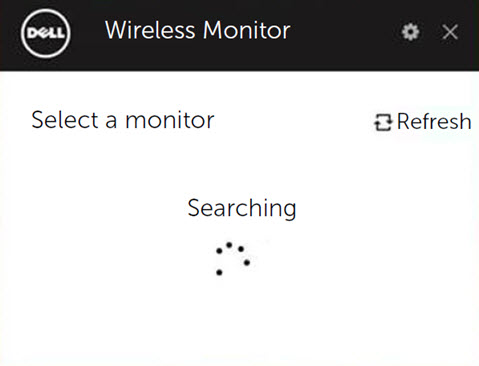
Figure 8: Cast settings - Click Connect once the monitor name is displayed in the list.
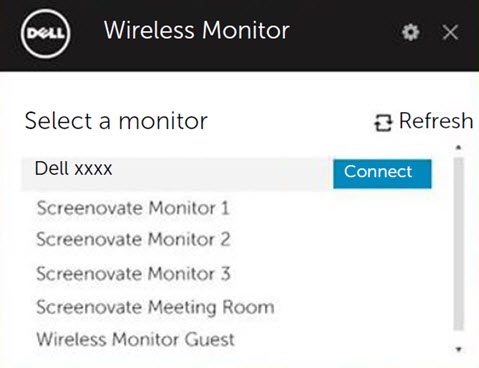
Figure 9: Cast settings - Enter the passcode as shown on the monitor screen and press Enter key on the keyboard to complete the pairing process.
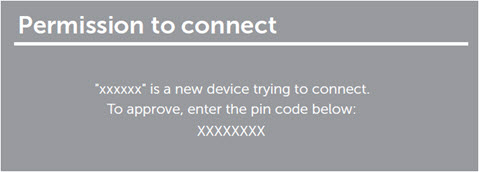
Figure 10: Cast settings
NOTE: When switching from/with a Windows 7 personal computer, it may take up to 1 minute to detect the monitor. Do not restart your personal computer or turn off your monitor.
Changing the Projection Mode in Windows 7
To disconnect from the Dell wireless monitor in Windows 7. Open the Dell Wireless Monitor software and click Disconnect.
Want to connect an Android smartphone or tablet simultaneously? Check the Connecting to Dell wireless monitor in Android section of this Dell Knowledge Base article.
- If you are prompted to update the Firmware of the monitor, click Yes.
- Open the Dell Wireless Monitor software.
- When your computer is connected to the monitor, select the required projection mode.
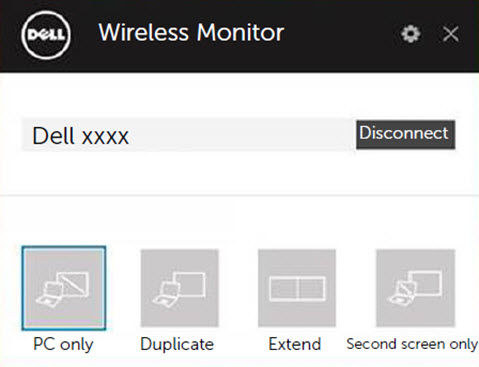
Figure 11: Cast settings
Connecting to Dell wireless monitor in Android
- Verify that your Android smartphone or tablet meets the hardware requirements.
- Go to the app drawer and open the Dell wireless monitor app.
NOTE: Download the Dell Wireless Monitor app from the Google Play Store.
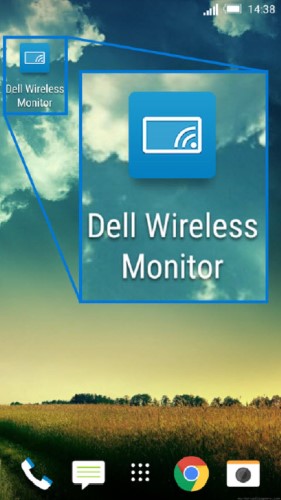
Figure 12: Dell Wireless Monitor app - Tap Cast Settings in the Dell Wireless Monitor app.

Figure 13: Cast settings - Tap on the Wireless Monitor in the list.
Follow the on-screen instructions that are displayed on the monitor and press the button that is located under the Checkmark (on the monitor On-Screen Display (OSD) menu) to complete the setup process (First-time setup only).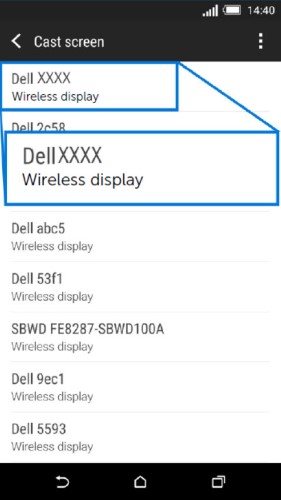
Figure 14: Wireless displays that are detected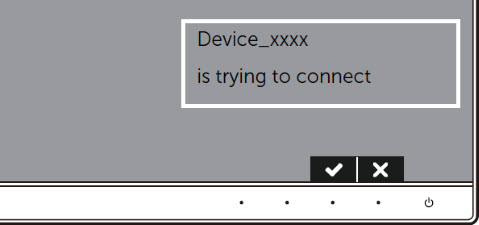
Figure 15: Confirm the pairing on the monitor. - Allow the Bluetooth Input connection on your device.
NOTE: Ensure that you allow the bluetooth input connection to control your Android tablet or smartphone using the keyboard and mouse that is connected to the monitor.
Want to connect a Windows laptop simultaneously? Check the Connecting to Dell wireless monitor in Windows 10 or Connecting to Dell wireless monitor in Windows 8.1 section of this Dell Knowledge Base article.
Dual Screencast - Connecting one Windows and one Android device
The Dual Screencast feature of the Dell wireless monitor allows you to connect one Windows laptop and one Android smartphone or tablet simultaneously. The image from the Windows laptop is displayed in full screen and the Android smartphone or tablet is displayed as an overlay (PiP - Picture in Picture) image.
You can connect only one Windows and one Android device simultaneously to the Dell wireless monitor.
NOTE: Dual Screencast function is only supported when your computer and Android device has the Dell wireless monitor software or app installed. Sony smartphones are not supported as secondary device for dual cast.
- Ensure that the Dell Wireless Monitor software is installed on both the devices.
- Download and install the Dell Wireless Monitor software from the Dell Support website. Go to Dell S2317HWi or Dell U2417HWi drivers page.
- For Google Android tablets or smartphones, go to the Google Play Store on your device to download the Dell Wireless Monitor app.
- First, connect the Windows laptop to the monitor.
- For laptops with Windows 10, follow the Connecting to Dell wireless monitor in Windows 10 section of this article.
- For laptops with Windows 8.1, follow the Connecting to Dell wireless monitor in Windows 8.1 section of this article.
Once the Android tablet or smartphone is connected, there are several functions that you can use to control the overlay image of your Android device:
- Connect the Google Android tablet or smartphone to the monitor. For more instructions, see the Connecting to Dell wireless monitor in Android section of this article.
- Left-click the mouse on the top of the overlay to drag the windows.
- Click the X icon on the upper right corner of the projected image to disconnect the Android Device.
- Click the speaker icon on the upper right corner of the projected image to mute or unmute the sound.
- Click and drag the lower right corner of the projected image to enlarge or shrink the image.
Dell Wireless Monitor Features and Hardware Requirements
Some of the key features of Dell Wireless Monitors include:
- Wirelessly connect two mobile devices (Windows laptop + Android smartphone/tablet) on a single large screen.
- Simultaneously display content from two mobile devices and edit with a single keyboard and mouse.
- Conveniently transition your tasks wirelessly between mobile devices and a monitor screen with ease.
- Wireless connectivity using IEEE 802.11ac, Bluetooth, and devices that support Miracast
- Full HD resolution, 1920 x 1080
- Full screen support for lower resolutions
- Wireless Charging for mobile devices on select Dell wireless monitors
Before connecting to the Dell wireless monitor, verify if your laptop or smartphone meets the recommended hardware requirements.
| Hardware Requirements |
|
|---|---|
| Software Requirements |
|
| Operating System |
|
NOTE: Apple iPhone, iPad, and Macbooks are not supported. Sony smartphones are not supported as a secondary device for dual cast.
Troubleshooting common issues
| Issue (Symptom) | Possible Solution |
|---|---|
| Laptop computer cannot connect to the monitor. |
For Windows 7 personal computer only:
|
| The keyboard and Mouse that is connected to the monitor is not working on the laptop. |
|
| The keyboard and Mouse that is connected to the monitor is not working on the Tablet or Smartphone. |
|
| No Audio from the monitor |
|
| Android tablet or smartphone cannot connect to the monitor. |
|
| Video quality is not good. |
|
| Audio quality is not good. |
|
| Cannot see the monitor name on the computer, tablet, or smartphone. |
|
| Cannot connect to the monitor on a network behind a firewall (corporate network). | If you have administrator rights on your Windows 10 or Windows 8.1 personal computer, you can try the following steps:
Contact your IT administrator to review the following settings and verify that the settings do not block Wi-Fi Direct, Virtual Wi-Fi port 7236 which is used for screen cast:
For Windows 10 and Windows 8.1 PCs, request your network administrator to add an incoming rule to Windows firewall advanced security to allow wireless display to accept connection on any protocol and on all network profiles (domain, private or public).
Disclaimer: Do not attempt to do this on your own without consulting your network administrators. Always ensure that you have your network administrators' prior approval and guidance before attempting this. Dell will not be liable in any manner whatsoever for any unauthorized, improper and/or incorrect action on your part.
|
Common error messages
| Error Message | Solution |
|---|---|
| Connection failed A maximum of two connections reached. (Error 1) |
Only one Windows and one Android device can be connected to the monitor simultaneously. NOTE: To connect both devices to a monitor, the Dell Wireless Monitor software should be installed on both Windows laptop and Android table or smartphone. |
| Connection failed Only one Windows device can be connected at a time. (Error 2) |
Only one Windows and one Android device can be connected to the monitor simultaneously. NOTE: To connect both devices to a monitor, the Dell Wireless Monitor software should be installed on both Windows laptop and Android table or smartphone. |
| Connection failed Connecting two Windows devices or two Android devices simultaneously is not supported. (Error 3) |
Only one Windows and one Android device can be connected to the monitor simultaneously. NOTE: To connect both devices to a monitor, the Dell Wireless Monitor software should be installed on both Windows laptop and Android table or smartphone. |
| Connection failed To enable dual connection of Windows and Android, install the Dell Wireless Monitor software on each device. (Error 4) |
To enable Dual Connection, the Dell Wireless Monitor software should be installed on both devices. Ensure that Dual Connection is enabled:
|
| Connection failed Multiple device connections failed, try again. (Error 5) |
|
| Connection failed To enable dual connection of Windows and Android, please allow Dual Connection under Advanced monitor settings. (Error 6) |
To enable Dual Connection, the Dell Wireless Monitor software should be installed on both devices. Ensure that Dual Connection is enabled:
|
| Channel optimization The Wi-Fi channel between your Windows device and Dell wireless monitor has been changed. To optimize the performance, it is advised to reconnect to the monitor. |
Reconnect your Windows computer, Android smartphone, or tablet to the Dell wireless monitor. |
 icon in the Home screen.
 icon in the Home screen.
その他の情報
Frequently Asked Questions
Here are some frequently asked questions. Click the questions below to find more information.
| Hardware Requirements |
|
|---|---|
| Software Requirements |
|
| Operating System |
|
The maximum resolution that is supported by both Dell S2317Hwi and U2417Hwi Monitors is 1920 x 1080.
At any given time, you can connect One Microsoft Windows laptop and One Android tablet or smartphone.
Ensure that the keyboard and mouse are connected to the USB downstream port of the monitor.
NOTE: Using the On-Screen Display (OSD) menu does not allow you to access the monitor's Home Screen.
To change the name of the Dell wireless monitor, follow these steps:
- Ensure that the keyboard and mouse are connected to the USB downstream port of the monitor.
- Click the gear icon on the upper right corner.
- Click Rename and enter a name of your choice.
- Click OK to save the settings.
To check the current firmware version number of the Dell wireless monitor:
- Ensure that the keyboard and mouse are connected to the USB downstream port of the monitor.
- Click the gear icon on the upper right corner.
- Click About.
Apple iPhone or iPads are not compatible with Dell wireless monitors.
Apple Macbooks are not compatible with Dell wireless monitors.
Only the Dell S2317Hwi Monitor supports Qi or PMA wireless charging on the monitor base.
With the OTA (over-the-air) upgrade feature, the firmware of the Dell wireless monitor can be upgraded to the most up-to-date version.
Ensure that you have the following installed and ready:
- Install the Dell Wireless Monitor software on your laptop.
- Connect your laptop to the Internet and verify that you can go online.
- Connect your laptop to the Dell wireless monitor.
The Dell Wireless Monitor goes into stand-by mode if there is no device that is connected within 30 seconds. Power ON the monitor and then try connecting to it again.
Some of the settings that may be causing this issue could include:
- Windows firewall settings
- Third-party firewall application settings (if applicable)
- Local group policy
- Anti-virus application settings
- VPN settings (if applicable)
- Network router settings
Contact your IT administrator to review these settings and verify that the settings do not block Wi-Fi Direct, Virtual Wi-Fi port 7236 which is used for screen cast.
If you have administrator rights on your Windows 10 or Windows 8.1 personal computer, you can try the following steps:
- Press the Windows logo key and X on the keyboard.
- Click the Command Prompt (Admin) option in the menu.
- Type
netsh advfirewall firewall add rule name="Wireless Display (DELL)" dir=in action=allow program=%%SystemRoot%%\System32\WUDFHost.exe enable=yes profile=anyand press the Enter key. - Restart the computer.
For Windows 10 and Windows 8.1 PCs, request your network administrator to add an incoming rule to Windows firewall advanced security to allow wireless display to accept connection on any protocol and on all network profiles (domain, private or public).
Disclaimer: Do not attempt to do this on your own without consulting your network administrators. Ensure that you have your network administrators' approval and guidance before attempting this. Dell shall not be liable in any manner whatsoever for any unauthorized, improper, and/or incorrect action on your part.
Sony smartphones are not supported as secondary device in dual cast mode. Dell wireless monitor does not support HDCP (High Definition Content Protection) connection while Sony smartphones always enabled HDCP during screen cast.
You can however connect a Sony smartphone as a single device connection. To do this, disconnect the personal computer from the monitor and connect your Sony smartphone to the monitor.
For additional information, see these Dell Knowledge Base articles:
 More information and support for your Dell monitor, laptop, or tablet screen can be found on our Monitor Support site.
 Out of warranty? No problem. Browse to the Dell.com/support website and enter your Dell Service Tag and view our offers.
NOTE: Offers are only available for US, Canada, UK, France, Germany, and China personal computer customers. Server and Storage are not applicable.
対象製品
Dell S2317HWI, Dell U2417HWI文書のプロパティ
文書番号: 000130716
文書の種類: How To
最終更新: 01 12月 2025
バージョン: 21
質問に対する他のDellユーザーからの回答を見つける
サポート サービス
お使いのデバイスがサポート サービスの対象かどうかを確認してください。