Microsoft Office downloaden via My Account (voorheen Dell Digital Locker)
概要: Het volgende artikel bevat informatie over het downloaden van Microsoft Office vanuit Mijn account (voorheen Dell Digital Locker).
この記事は次に適用されます:
この記事は次には適用されません:
この記事は、特定の製品に関連付けられていません。
すべての製品パージョンがこの記事に記載されているわけではありません。
手順
Microsoft Office downloaden via My Account (voorheen Dell Digital Locker)
Wanneer u Microsoft Office bij Dell bestelt als een licentie voor software en randapparatuur (S & P) (niet in de fabriek geïnstalleerd op uw computer), wordt het recht geleverd via Mijn account (voorheen Dell Digital Locker).
Opmerking: De migratie voor Mijn account wordt hier uitgelegd: Dell Digital Locker is verplaatst naar Mijn account
Identificatie van rechten
S&P-licenties worden verzonden en gefactureerd op afzonderlijke bestellingen en de aanspraken worden niet vermeld op de bestelling voor de computer.
Zoek de digitale e-mail met de bestelbevestiging met de bestelinformatie. De e-mail wordt bij aankoop verzonden naar het e-mailadres dat u aan Dell hebt opgegeven.
Als u de e-mail niet in uw mailbox kunt vinden, controleer dan de map Spam en Prullenbak .
Download proces
Voer de volgende stappen uit om Microsoft Office te downloaden met Mijn account:
- Ga naar de portal Mijn account.
- Voer uw e-mailadres en wachtwoord in.
- Accepteer de licentieovereenkomst voor eindgebruikers (EULA).
- Klik op Softwarelicenties en abonnementen.
- Zoek en klik op de Office-editie die u hebt besteld.

- Klik op Abonnement activeren (Office 365) of Product activeren (Office 20XX-versies). De browser wordt omgeleid naar de Microsoft Office-portal.

- Klik op Aan de slag.
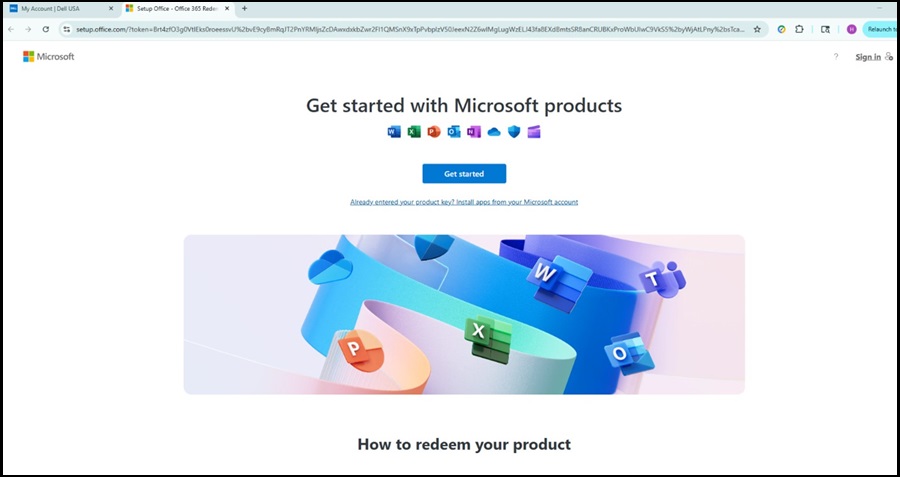
- Meld u aan met uw Microsoft-account.
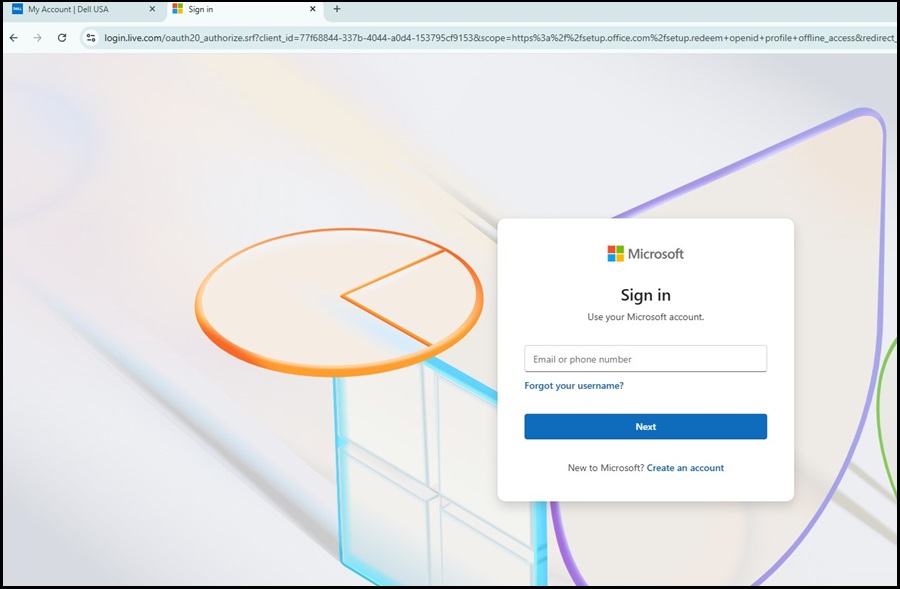
- Ga naar Abonnementen en zoek naar Producten die je hebt gekocht. Klik op Uw Office-product installeren .

- Klik op het Gedownloade installatiebestand om Office te installeren en volg de installatie-instructies.
Als Microsoft Office niet op uw computer staat na vervanging van de harde schijf of opnieuw installeren van Windows. Ga naar de Microsoft-accountpagina en klik op Installeren naast uw Office-product om het opnieuw te downloaden.
対象製品
Alienware, Dell All-in-One, Dell Pro All-in-One, Dell Pro Max Micro, Dell Pro Max Slim, Dell Pro Max Tower, Dell Pro Micro, Dell Pro Slim, Dell Pro Tower, Dell Slim, Dell Tower, Inspiron, OptiPlex, Vostro, XPS, G Series, G Series, Alienware
, Dell Laptops, Dell Plus, Dell Pro, Dell Pro Max, Dell Pro Plus, Dell Pro Premium, Inspiron, Latitude, Dell Pro Rugged, Vostro, XPS, Fixed Workstations, Mobile Workstations, Dell Pro Max Micro XE FCM2250, Dell Pro Max Slim XE FCS1250, Dell Pro Max Tower T2 XE FCT2250, Dell Pro Max 14 Premium MA14250, Dell Pro Max 16 Premium MA16250, Dell Pro Max 16 Plus MB16250, Dell Pro Max 18 Plus MB18250, Dell Pro Max 16 XE MC16250, Dell Pro Micro Plus XE QBM1250, Dell Pro Slim Plus XE5 QBS1250, Dell Pro Tower Plus XE5 QBT1250, Microsoft 365 from Dell
...
文書のプロパティ
文書番号: 000135141
文書の種類: How To
最終更新: 11 11月 2025
バージョン: 10
質問に対する他のDellユーザーからの回答を見つける
サポート サービス
お使いのデバイスがサポート サービスの対象かどうかを確認してください。