Energy Plans are Missing or Faulty in Windows 10
概要: This article explains how to recover the standard Windows energy saving plans in case they are missing or faulty.
この記事は次に適用されます:
この記事は次には適用されません:
この記事は、特定の製品に関連付けられていません。
すべての製品パージョンがこの記事に記載されているわけではありません。
現象
原因
Not applicable.
解決方法
Access the Energy settings
Right-click the Battery Icon at the Taskbar and select Energy Settings. Alternatively, you can open the Start menu and type in Energy Settings and then click the Enter key. In the Energy Settings window, you can see all the available energy-saving plans.
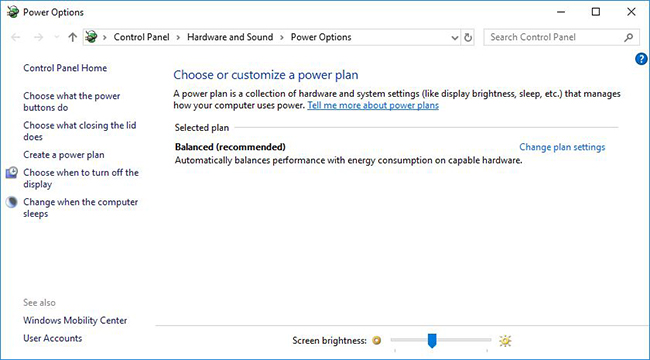
(Figure 1: Windows 10 Energy Saving Plans)
NOTE: If you do not see any energy savings plans or the plans displayed are faulty, go to the information in the next section
Recover Energy saving plans
-
Right-click Start and select Command Prompt (Administrator)
-
Then type the following command and confirm with the Enter key:
powercfg -restoredefaultschemes
Thereafter, all the standard Windows energy savings plans should be fully functional again.
Create an energy report
In the Energy Report, you can see all the functions of an Energy Saving Plan and which of them are faulty. These are marked in red.
-
Right-click Start and click Command Prompt (Administrator)
-
Type in the following command and confirm with the Enter key:
powercfg -energy
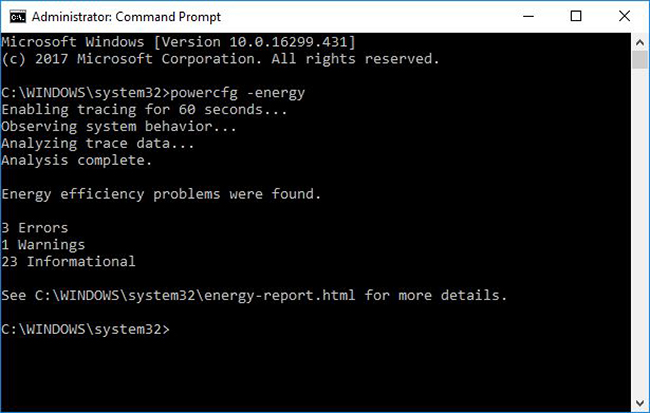
(Figure 2: Creating the Energy Report)
-
The report is saved in C:\Windows\system32\energy-report.html
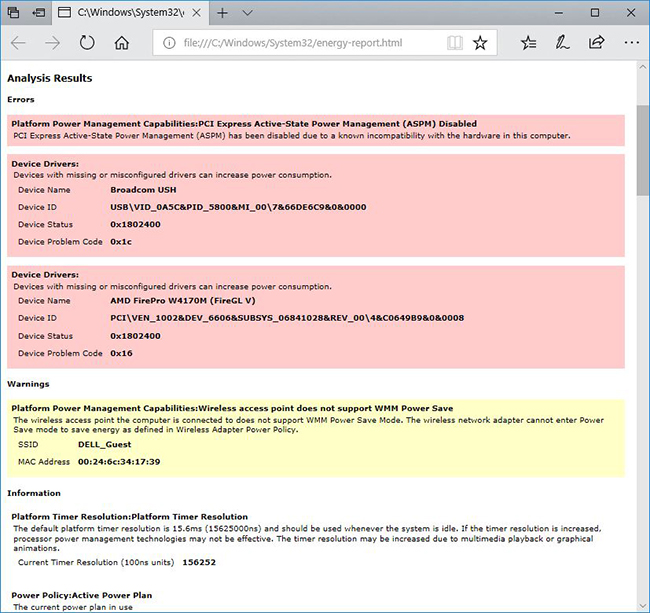
(Figure 3: Energy Report with errors)
For a solution to any reported problems, you can simply search on the Internet for the reported errors or contact Dell Support.
対象製品
G Series, Alienware, Dell Plus, Dell Pro, Dell Pro Max, Dell Pro Plus, Dell Pro Premium, Inspiron, Latitude, Dell Pro Rugged, Vostro, XPS, Latitude Tablets, Surface, XPS Tablets, Mobile Workstations, Dell Pro Max 16 XE MC16250文書のプロパティ
文書番号: 000148983
文書の種類: Solution
最終更新: 16 7月 2025
バージョン: 8
質問に対する他のDellユーザーからの回答を見つける
サポート サービス
お使いのデバイスがサポート サービスの対象かどうかを確認してください。