What is the USB PowerShare Feature on Dell Laptops
概要: This article describes the PowerShare (Power Share) feature on Dell laptops that allows USB devices to charge when the laptop is on battery power. (For example: Cellular phones, CD players, DVD players, MP3 players, and so on.) ...
この記事は次に適用されます:
この記事は次には適用されません:
この記事は、特定の製品に関連付けられていません。
すべての製品パージョンがこの記事に記載されているわけではありません。
手順
NOTE: This feature is quickly identifiable on laptops. Look for either the lightning bolt or battery USB symbol beside the USB port on the chassis of the laptop.
On many of the new laptops, the default setting in the Basic Input Output System (BIOS) for the USB PowerShare option is: Disabled
On many of the new laptops, the default setting in the Basic Input Output System (BIOS) for the USB PowerShare option is: Disabled
Only those USB ports with either a lightning bolt icon or a battery icon as seen in the following images can be used for this purpose.
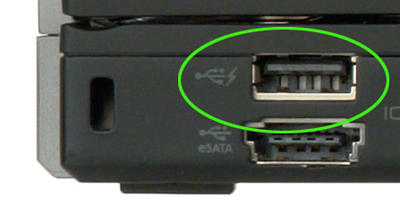
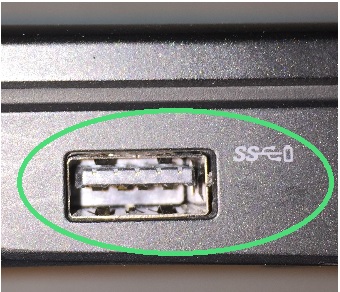
NOTE: To enter the BIOS, press the F2 function key on the keyboard at the Dell logo screen after turning the laptop on.
USB PowerShare BIOS setting
Enable PowerShare on the laptop and set it up under the onboard Devices heading. Select the amount of the battery's charge that can be used for sharing. (See the following picture.) If set to 25%, then the USB device can charge until the laptop battery reaches 25% of its full capacity.
(For example: Until the laptop has consumed 75% of its battery charge.)
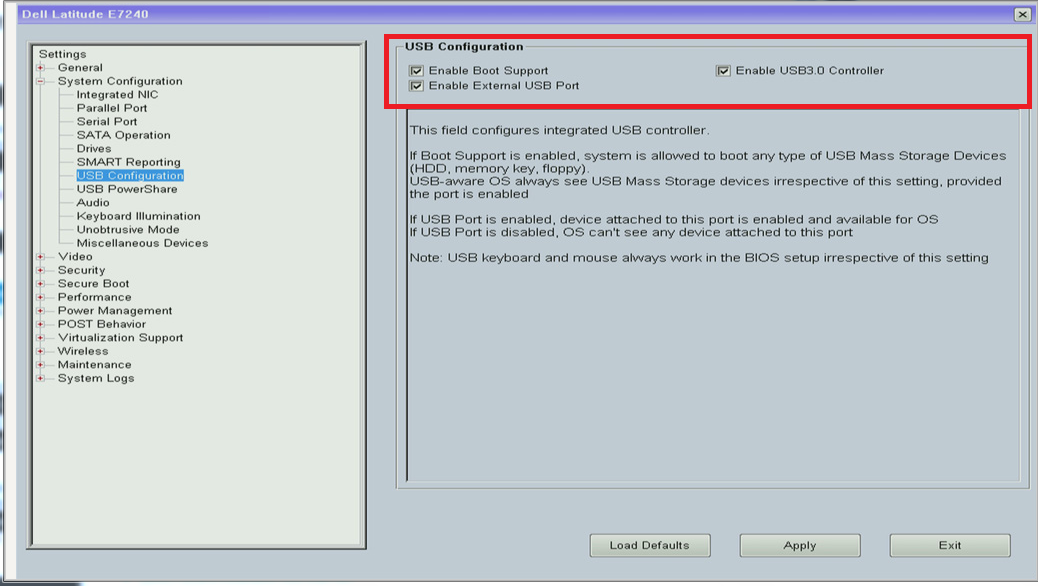
NOTE: The setting menu may vary depending on your laptops BIOS revision. Look for Onboard Devices or System Configuration in the BIOS settings. The following screenshots show some of the differing menu layouts and wording for the USB PowerShare options. Look for either USB PowerShare or USB Configuration options.
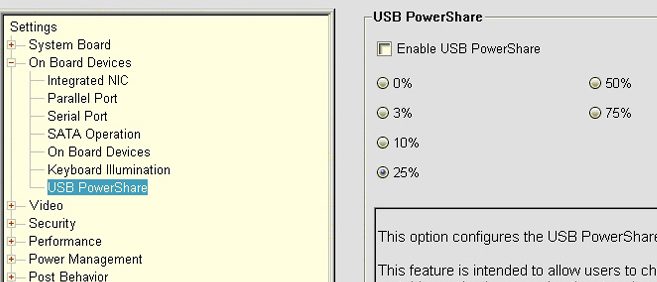
The USB PowerShare feature is turned off and any devices attached to the USB PowerShare port do not charge when this option is set to Disabled. Select any other setting to enable the feature. (Specify the amount of the laptop battery's capacity where it stops charging a USB device attached to one of the USB PowerShare ports.)
NOTE: PowerShare can be set to power devices while the laptop is in a low-power state (Standby) mode or turned off (Powered Down). This depends on the BIOS settings that are selected in newer BIOS revisions. This can drain your battery if the AC adapter is not connected.
- S1: USB power is on by default with either AC or battery only (powered on)
- S3: Battery or AC (Standby)
- S4 and S5: AC only (Hibernate and Powered down)
NOTE: The laptop may allow the battery to discharge down to 50% before the PowerShare feature is disabled. This depends on the model of laptop and the revision of the BIOS.
Ensure that the USB configuration options are enabled and ticked. (The options seen depend on the model of your laptop and the revision of your BIOS. The following screenshot is only an example.)
NOTE: Some older laptops do not support the USB PowerShare feature. (For example: The Latitude E6510.)
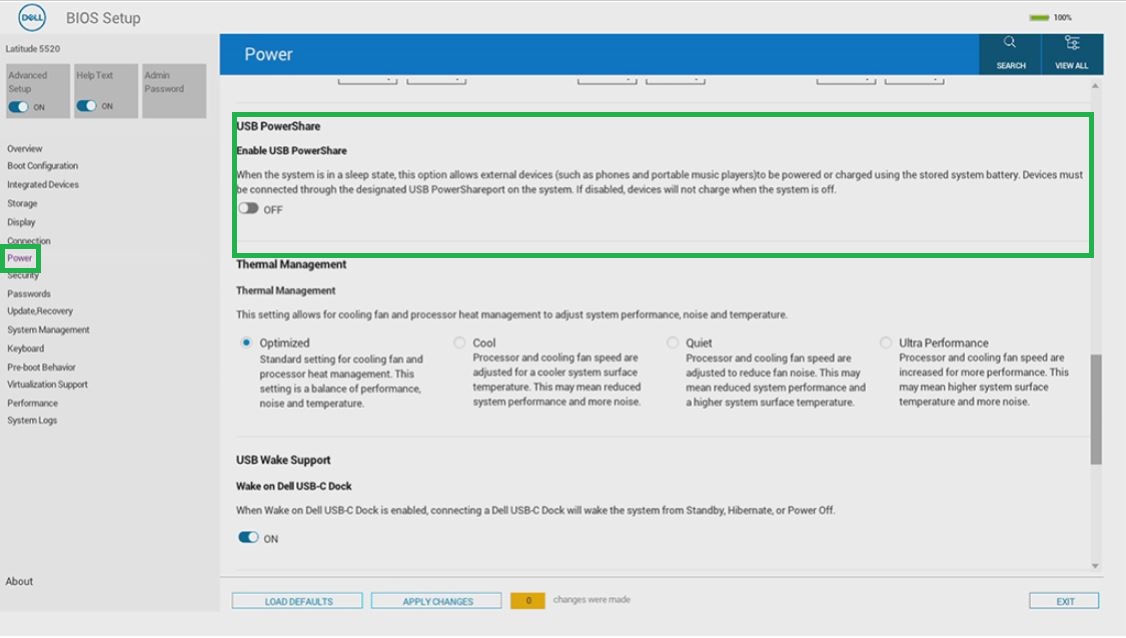
Newer Dell laptops use the Dell AgS BIOS. (Current Dell BIOS includes touch screen and touchpad capability outside of the operating system in use on the laptop.) Enable the USB PowerShare or Enable USB PowerShare setting under the Power settings menu for this type of BIOS:
Newer Dell laptops use the Dell AgS BIOS. (Current Dell BIOS includes touch screen and touchpad capability outside of the operating system in use on the laptop.) Enable the USB PowerShare or Enable USB PowerShare setting under the Power settings menu for this type of BIOS:
Run the Diagnostic Tests
Browse to the Dell Quick test Diagnostics page and follow the prompts, for help when having any issues with USB ports.
その他の情報
 Are you out of warranty? That is not a problem. Browse to the Dell.com/support website and enter your Dell Service Tag and view our offers.
NOTE: Offers are only available for US, Canada, UK, France, Germany, and China personal computer customers. Server and Storage products are not applicable.
対象製品
G Series, Alienware, Dell Laptops, Dell Plus, Dell Pro, Dell Pro Max, Dell Pro Plus, Dell Pro Premium, Inspiron, Latitude, Vostro, XPS, Mobile Workstations文書のプロパティ
文書番号: 000156341
文書の種類: How To
最終更新: 22 7月 2025
バージョン: 12
質問に対する他のDellユーザーからの回答を見つける
サポート サービス
お使いのデバイスがサポート サービスの対象かどうかを確認してください。