How to Check What Processor You Have in Your Computer
概要: Learn how to check what processor you have in your Dell computer. Follow simple steps for Windows and Linux to check the processor generation and model.
この記事は次に適用されます:
この記事は次には適用されません:
この記事は、特定の製品に関連付けられていません。
すべての製品パージョンがこの記事に記載されているわけではありません。
手順
Whether a processor (also known as a CPU) is from Intel, AMD, or Qualcomm, these instructions guide you through the process of identifying the processor.
Identifying your processor can be important for various reasons, such as:
- Identifying known issues
- Understanding workflow changes
- Verifying compatible resolutions
Learn how to identify your processor (Intel, AMD, or Qualcomm) on Windows or Linux. Click the appropriate option for instructions about how to check the processor that you have in your computer.
Windows
- Click the Start button.

- Type
aboutand then click About your PC.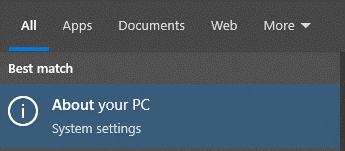
- Locate the Processor specifications to identify the processor that is used in your computer.
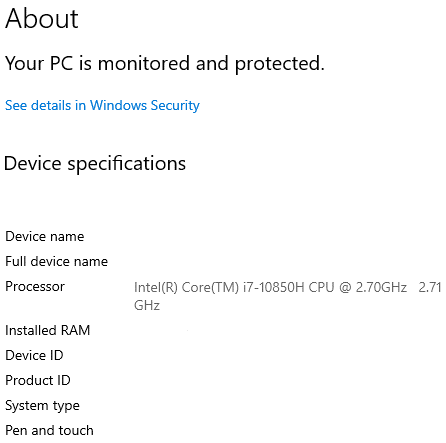 Note:
Note:- In this example image, the Processor value is
Intel(R) Core(TM) i7-10850H CPU @ 2.70GHz 2.71 GHz. The10that immediately follows thei7-indicates that the processor is a 10th generation processor. - For more information about an Intel processor, go to Intel Product Specifications
. Locate the search field in the upper-right corner of the page, type in the model of the Intel processor, and then select it in the search results. The processor code name can be found in the information under Essentials.
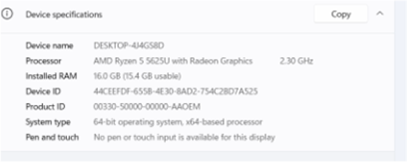 Note: In this example image, the Processor value is
AMD Ryzen 5 5625U with Radeon Graphics 2.30 GHz. The first number (5) that leads the5625Uindicates that the processor is a fifth-generation processor.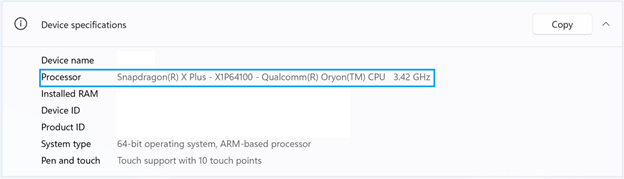 Note: In this example image, the Processor value is
Snapdragon(R) X Plus - X1P64100 - Qualcomm(R) Oryon(TM) CPU 3.42GHz. - In this example image, the Processor value is
Linux
- Press CTRL+ALT+T to open Terminal.
- Type
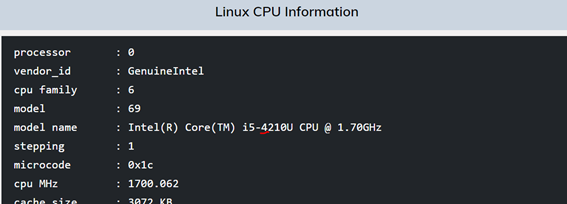
/proc/cpuinfoand then press Enter. - Locate the model name value to identify the processor that is used in your computer.
 Note:
Note:- In this example image, the model name value is
Intel(R) Core(TM) i5-4210U CPU @ 1.70GHz. The4that immediately follows thei5-indicates that the processor is a fourth-generation processor. - For more information about an Intel processor, go to Intel Product Specifications
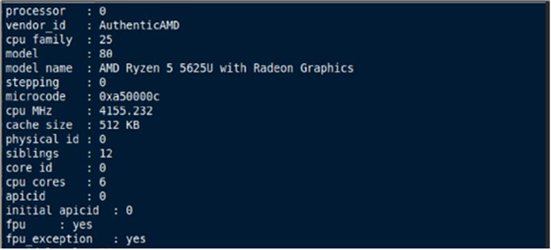 Note: In this example image, the model name value is
AMD Ryzen 5 5625U with Radeon Graphics. The first number (5) that leads the5625Uindicates that the processor is a fifth-generation processor. - In this example image, the model name value is
対象製品
Chromebox, Alienware, Dell All-in-One, Dell Pro All-in-One, Dell Pro Max Micro, Dell Pro Max Slim, Dell Pro Max Tower, Dell Pro Micro, Dell Pro Slim, Dell Pro Tower, Dell Slim, Dell Tower, Inspiron, Legacy Inspiron Models, Legacy Desktop Models
, OptiPlex, Vostro, XPS, Legacy XPS Models, G Series, Chromebook, G Series, Alienware, Dell Plus, Dell Pro, Dell Pro Max, Dell Pro Plus, Dell Pro Premium, Inspiron, Latitude, Dell Pro Rugged, Vostro, XPS, Legacy Laptop Models, Fixed Workstations, Mobile Workstations, Dell Pro Max Micro XE FCM2250
...
文書のプロパティ
文書番号: 000204117
文書の種類: How To
最終更新: 16 7月 2025
バージョン: 9
質問に対する他のDellユーザーからの回答を見つける
サポート サービス
お使いのデバイスがサポート サービスの対象かどうかを確認してください。