Das Dell Update Tool kann das BIOS auf Computern mit konfiguriertem BIOS-Administratorkennwort nicht aktualisieren
概要: Dieser Artikel enthält Informationen zum Aktivieren des BIOS-Upgrade über das Dell Update (DU)-Tool.
この記事は次に適用されます:
この記事は次には適用されません:
この記事は、特定の製品に関連付けられていません。
すべての製品パージョンがこの記事に記載されているわけではありません。
現象
Auf Dell Client-Computern, auf denen das BIOS mit dem Administratorkennwort konfiguriert ist, kann das DU-Tool das BIOS auf dem Computer nicht aktualisieren.
DU zeigt "Installation abgeschlossen: X (Anzahl der Updates) fehlgeschlagen", wobei das BIOS für die Installation ausgewählt wurde und fehlgeschlagen ist.
Dies ist ein Fehler, der sowohl im BIOS als auch im Betriebssystem auftritt (Abbildung 1).
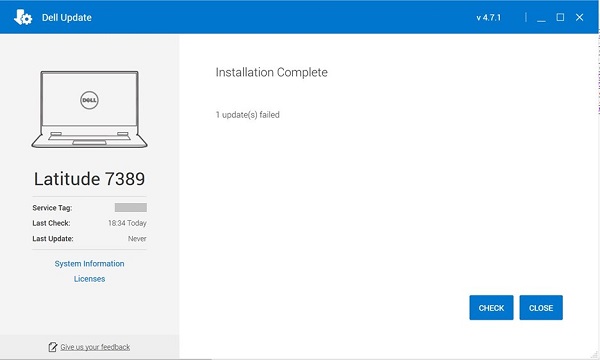
Abbildung 1: DU-Tool kann BIOS nicht aktualisieren.
Betroffene Produkte:
| Produktname | Modellname |
| Dell Gaming-Laptop | Dell G5 5505 |
| Dell Gaming-Laptop | Dell G15 5515 |
| Inspiron Desktop | Inspiron 5415 |
| Inspiron Desktop | Inspiron 3671 |
| Inspiron Desktop | Inspiron 3471 |
| Inspiron Desktop | Inspiron 22-3275 |
| Inspiron Desktop | Inspiron 3280 |
| Inspiron Desktop | Inspiron 24-3475 |
| Inspiron-Laptop | Inspiron 7425 |
| Inspiron-Laptop | Inspiron 5485 2-in-1-System |
| Inspiron-Laptop | Inspiron 5485 |
| Inspiron-Laptop | Inspiron 5585 |
| Inspiron-Laptop | Inspiron 3505 |
| Inspiron-Laptop | Inspiron 3502 |
| Inspiron-Laptop | Inspiron 5415 |
| Inspiron-Laptop | Inspiron 5515 |
| Inspiron-Laptop | Inspiron 7405 2-in-1-System |
| Inspiron-Laptop | Inspiron 3195 2-in-1-System |
| Inspiron-Laptop | Inspiron 5570 |
| Inspiron-Laptop | Inspiron 5770 |
| Inspiron-Laptop | Inspiron 3482 |
| Inspiron-Laptop | Inspiron 3481 |
| Inspiron-Laptop | Inspiron 3585 |
| Inspiron-Laptop | Inspiron 3582 |
| Inspiron-Laptop | Inspiron 3581 |
| Inspiron-Laptop | Inspiron 3584 |
| Inspiron-Laptop | Inspiron 3595 |
| Inspiron-Laptop | Inspiron 3785 |
| Inspiron-Laptop | Inspiron 3782 |
| Inspiron-Laptop | Inspiron 3781 |
| Inspiron-Laptop | Dell G3 3579 |
| Inspiron-Laptop | Dell G3 3779 |
| Inspiron-Laptop | Inspiron 3480 |
| Inspiron-Laptop | Inspiron 3580 |
| Inspiron-Laptop | Inspiron 3583 |
| Inspiron-Laptop | Inspiron 3780 |
| Inspiron-Laptop | Inspiron 5505 |
| Inspiron-Laptop | Inspiron 5405 |
| Inspiron-Laptop | Inspiron 5425 |
| Inspiron-Laptop | Inspiron 3525 |
| Inspiron-Laptop | Inspiron 3521 |
| Inspiron-Laptop | Inspiron 3515 |
| Inspiron-Laptop | Inspiron 3510 |
| Inspiron-Laptop | Inspiron 7415 |
| Vostro-Desktop | Vostro 3471 |
| Vostro-Desktop | Vostro 3671 |
| Vostro-Desktop | Vostro 3669 |
| Vostro-Desktop | Vostro 3668 |
| Vostro-Desktop | Vostro 3667 |
| Vostro-Desktop | Vostro 3268 |
原因
Die Funktion zum Konfigurieren des BIOS-Administratorkennworts wird nicht auf DU bereitgestellt.
解決方法
Führen Sie zum Aktivieren von BIOS-Upgrades über Dell Update eine der folgenden Lösungen aus:
- Entfernen Sie das konfigurierte BIOS-Kennwort auf dem Computer.
- Aktualisieren Sie das BIOS manuell:
Achtung: Dell Technologies empfiehlt, Geräte wie externe Festplatten, Drucker, Scanner usw. zu trennen, bevor Sie das BIOS aktualisieren.
Achtung: Bei Laptops von Dell muss der Akku eingesetzt und zu mindestens 10 % aufgeladen sein, bevor Sie mit dem BIOS-Update beginnen. Dell Technologies empfiehlt, den Laptop an Netzstrom anzuschließen, bevor Sie mit dem Updatevorgang beginnen.
Hinweis: Weitere Informationen zum Aktualisieren des BIOS auf einem Dell Computer finden Sie im Dell Artikel Anleitung zur BIOS-Aktualisierung.
Hinweis: Um das BIOS zu installieren, muss Ihr Benutzerkonto über Administratorrechte verfügen.
- So laden Sie das aktuelle BIOS herunter und installieren es:
- Navigieren Sie zu Dell Treiber und Downloads.
- Identifizieren Sie Ihren Dell Computer.
- Klicken Sie auf SupportAssist herunterladen und installieren, um Ihren Dell PC automatisch zu erkennen. Befolgen Sie die Anweisungen auf dem Bildschirm zur Installation von Dell SupportAssist. Weitere Informationen finden Sie im Dell Artikel Dell SupportAssist (ehemals Dell System Detect): Übersicht und allgemeine Fragen
- Geben Sie das Service-Tag des Laptops ein und klicken Sie auf Suchen.
- Alternativ können Sie auf Alle Produkte durchsuchen klicken und Ihren Dell Computer aus dem Katalog auswählen.
- Wählen Sie das Betriebssystem aus, das auf dem Dell Computer installiert ist.
- Wählen Sie unter Kategorie die Option BIOS aus.
- Suchen Sie das neueste System-BIOS.
- Klicken Sie auf Herunterladen und speichern Sie die Datei auf Ihrem Computer.
- Öffnen Sie den Datei-Explorer und navigieren Sie zum Speicherort, an dem die heruntergeladene Datei gespeichert ist.
- Doppelklicken Sie auf die BIOS-Setup-Datei und befolgen Sie die Anweisungen auf dem Bildschirm, um die Installation abzuschließen.
対象製品
Dell Update, Dell G3 3579, Dell G5 SE 5505, Dell G15 5515 Ryzen Edition, Dell G3 3779, Inspiron 3195 2-in-1, Inspiron 3480, Inspiron 3481, Inspiron 3482, Inspiron 5405, Inspiron 5415, Inspiron 14 5425, Inspiron 14 5485 2-in-1, Inspiron 14 5485
, Inspiron 7405 2-in-1, Inspiron 7415 2-in-1, Inspiron 14 7425 2-in-1, Inspiron 3502, Inspiron 3505, Inspiron 15 3510, Inspiron 15 3515, Inspiron 15 3521, Inspiron 15 3525, Inspiron 3580, Inspiron 3581, Inspiron 3582, Inspiron 3583, Inspiron 3585, Inspiron 3595, Inspiron 5505, Inspiron 5515, Inspiron 5570, Inspiron 15 5585, Inspiron 3780, Inspiron 3781, Inspiron 3782, Inspiron 3785, Inspiron 5770, Inspiron 3275, Inspiron 3280 AIO, Inspiron 3475, Inspiron 3471, Inspiron 3671, Vostro 3268, Vostro 3471, Vostro 3667, Vostro 3668, Vostro 3669, Vostro 3671
...
製品
Inspiron 3195 2-in-1, Inspiron 3480, Inspiron 3481, Inspiron 3482, Inspiron 5405, Inspiron 5415, Inspiron 7405 2-in-1, Inspiron 7415 2-in-1, Inspiron 3502, Inspiron 3505, Inspiron 15 3515, Inspiron 15 3521, Inspiron 15 3525, Inspiron 3580
, Inspiron 3581, Inspiron 3582, Inspiron 3583, Inspiron 3585, Inspiron 3595, Inspiron 5505, Inspiron 5515, Inspiron 5570, Inspiron 15 5585, Inspiron 3780, Inspiron 3781, Inspiron 3782, Inspiron 3785, Inspiron 5770, Inspiron 3275, Inspiron 3280 AIO, Inspiron 3475, Inspiron 3471, Inspiron 3671, Vostro 3268, Vostro 3471, Vostro 3667, Vostro 3668, Vostro 3669, Vostro 3671
...
文書のプロパティ
文書番号: 000206452
文書の種類: Solution
最終更新: 26 11月 2025
バージョン: 8
質問に対する他のDellユーザーからの回答を見つける
サポート サービス
お使いのデバイスがサポート サービスの対象かどうかを確認してください。