How to Locate the USB Dongle for the Dell Pro Keyboard and Mouse KM5221W
概要: Learn about how to locate the Dell Pro Keyboard and Mouse KM5221W USB dongle by following these step-by-step instructions.
この記事は次に適用されます:
この記事は次には適用されません:
この記事は、特定の製品に関連付けられていません。
すべての製品パージョンがこの記事に記載されているわけではありません。
手順
The Dell Pro Keyboard and Mouse KM5221W uses one common USB wireless dongle for both the keyboard and mouse.
Affected Keyboard:
- Dell Pro Keyboard and Mouse KM5221W
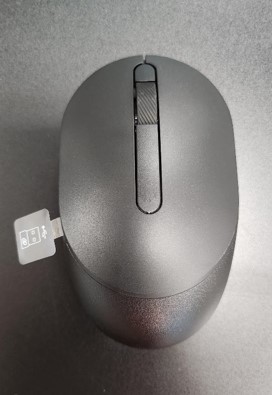
- When unboxing the KM5221W, look for the USB dongle label sticking out from the mouse.
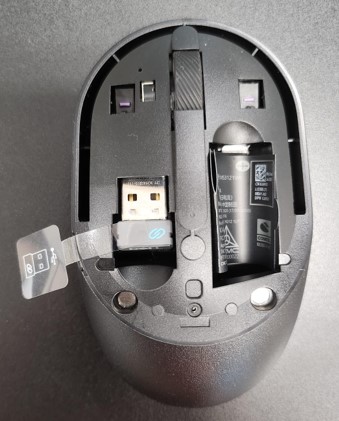
- Gently remove the mouse top cover and then locate the dongle.
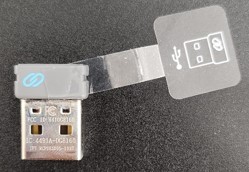
- Remove the USB dongle from the dongle storage within the mouse.
- Go to Support for Dell Pro Keyboard and Mouse KM5221W and reference the Dell Pro Keyboard and Mouse KM5221W Quick Setup Guide or the User Guide to complete the setup.
対象製品
Alienware, Dell All-in-One, Dell Pro All-in-One, Dell Pro Max Micro, Dell Pro Max Slim, Dell Pro Max Tower, Dell Pro Micro, Dell Pro Slim, Dell Pro Tower, Dell Slim, Dell Tower, Inspiron, OptiPlex, Vostro, XPS, G Series, Chromebook, G Series
, Alienware, Dell Plus, Dell Pro, Dell Pro Max, Dell Pro Plus, Dell Pro Premium, Inspiron, Latitude, Dell Pro Rugged, Vostro, XPS, Fixed Workstations, Mobile Workstations, Dell Pro Max Micro XE FCM2250, Dell Pro Keyboard and Mouse KM5221W
...
文書のプロパティ
文書番号: 000214907
文書の種類: How To
最終更新: 07 5月 2025
バージョン: 5
質問に対する他のDellユーザーからの回答を見つける
サポート サービス
お使いのデバイスがサポート サービスの対象かどうかを確認してください。