如何备份和还原 Dell Security Management Server
요약: 可以按照以下说明备份和还原 Dell Security Management Server 和 Dell Data Protection Enterprise Edition Server。
이 문서는 다음에 적용됩니다.
이 문서는 다음에 적용되지 않습니다.
이 문서는 특정 제품과 관련이 없습니다.
모든 제품 버전이 이 문서에 나와 있는 것은 아닙니다.
지침
可以备份和还原 Dell Security Management Server(以前称为 Dell Data Protection Enterprise Edition Server),以便:
- 迁移服务器。
- 对产品进行故障处理。
- 解决操作系统不兼容性。
本文介绍了备份和还原产品的步骤。
受影响的产品:
- Dell Security Management Server
- Dell Data Protection Enterprise Edition Server
受影响的版本:
- 8.0.0 及更高版本
成功完成备份后,管理员必须还原它。单击相应的功能以了解更多信息。
注意: 不需要备份或还原前端 Dell Security Management Server。
备份
Dell Security Management Server
注意: 备份应存储在外部源上,例如网络连接存储 (NAS)。
应该在后端 Dell Security Management Server 上为以下各项创建每周备份:
%ENV:SYSTEMDRIVE%\Program Files\Dell\Enterprise Edition\Compatibility Server\conf\server_config.xml%ENV:SYSTEMDRIVE%\Program Files\Dell\Enterprise Edition\Compatibility Server\conf\secretKeyStore%ENV:SYSTEMDRIVE%\Program Files\Dell\Enterprise Edition\Compatibility Server\conf\gkresource.xml
注意: 如果在安装过程中修改了默认路径,默认路径可能会有所不同。在创建备份任务之前,请确认这些文件的存储目录。
有关备份的详细信息,请参阅:
- 如何在 Dell Security Management Server 中备份和导入自定义合规性报告(如果正在使用自定义合规性报告器报告)。
- 如何为 Dell Data Security 服务器备份和还原 Advanced Threat Prevention 证书 (如果正在使用 Advanced Threat Prevention 的话)。
SQL 服务器
应该每晚在启用事务日志记录的情况下使用完整备份功能来备份 Dell Security Management Server SQL 数据库。有关详细信息,请参阅备份概述 (SQL Server)。

还原
- 全新安装先前安装的 Dell Security Management Server 或 Dell Data Protection | Enterprise Edition Server 的相同版本。在安装过程中,当系统提示您选择 SQL 数据库时,请选择 create a new database。
注:
- 有关更多信息,请参阅如何安装 Dell Security Management Server。
- 有关识别版本的更多信息,请参阅如何识别 Dell Data Security 服务器版本。
- 还原 Dell Security Management Server SQL 数据库。有关更多信息,请参阅还原和恢复概述 (SQL Server)。
- 配置已还原的 SQL 数据库以便与 Dell Security Management Server 配合使用。有关更多信息,请参阅如何为 Dell Security Management Server 配置 SQL。
- 停止 Dell Security Management Server 服务。有关更多信息,请参阅如何在Dell Security Management Server 中停止和启动服务。
- 还原备份的文件:
%ENV:SYSTEMDRIVE%\Program Files\Dell\Enterprise Edition\Compatibility Server\conf\server_config.xml%ENV:SYSTEMDRIVE%\Program Files\Dell\Enterprise Edition\Compatibility Server\conf\secretKeyStore%ENV:SYSTEMDRIVE%\Program Files\Dell\Enterprise Edition\Compatibility Server\conf\gkresource.xml
- 转至
%ENV:SYSTEMDRIVE%\Program Files\Dell\Enterprise Edition\Server Configuration Tool并运行 Server Configuration Tool (Credant.Configuration.exe)。单击 Database 选项卡,并填充字段。
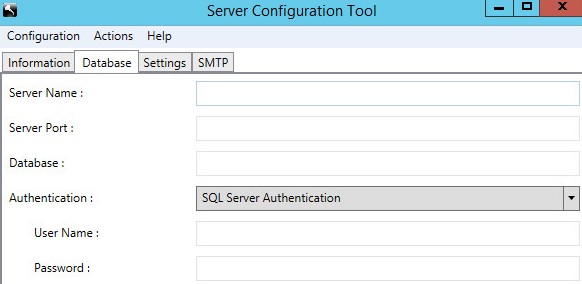
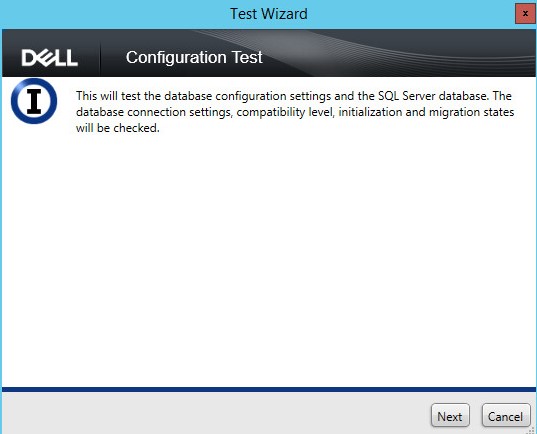
- 单击 Actions 菜单,然后选择 Test Database Configuration。

- 单击 Next。
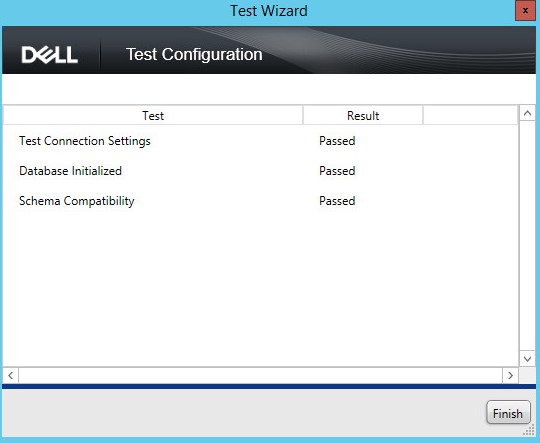
- 单击完成。
- 单击 Configuration 菜单,然后选择 Save。

- 单击 Configuration 菜单,然后选择 Exit。

- 启动 Dell Security Management Server 服务。有关更多信息,请参阅如何在 Dell Security Management Server 中停止和启动服务。
有关详细信息,请参阅:
- 如何在 Dell Security Management Server 中备份和导入自定义合规性报告 (英文版)(如果必须还原自定义合规性报告器报告)。
- 如何为 Dell Data Security 服务器备份和还原 Advanced Threat Prevention 证书 (如果必须还原 Advanced Threat Prevention 证书)。
추가 정보
비디오
해당 제품
Dell Encryption문서 속성
문서 번호: 000124922
문서 유형: How To
마지막 수정 시간: 20 7월 2026
버전: 11
다른 Dell 사용자에게 질문에 대한 답변 찾기
지원 서비스
디바이스에 지원 서비스가 적용되는지 확인하십시오.