如何備份與還原 Dell Security Management Server
요약: 您可以遵循以下指示,備份與還原 Dell Security Management Server 和 Dell Data Protection Enterprise Edition Server。
이 문서는 다음에 적용됩니다.
이 문서는 다음에 적용되지 않습니다.
이 문서는 특정 제품과 관련이 없습니다.
모든 제품 버전이 이 문서에 나와 있는 것은 아닙니다.
지침
Dell Security Management Server (先前稱為 Dell Data Protection Enterprise Edition Server) 可備份與還原以進行:
- 遷移伺服器。
- 故障診斷產品。
- 解決作業系統不相容的問題。
本文說明備份和還原產品的步驟。
受影響的產品:
- Dell Security Management Server
- Dell Data Protection Enterprise Edition Server
受影響的版本:
- 8.0.0 及更新版本
成功完成備份後,系統管理員必須將其還原。如需詳細資訊,請按一下適當的功能。
注意: 不需要備份或還原前端 Dell Security Management Server。
備份
Dell Security Management Server
注意: 備份應儲存在外部來源上,例如網路附加儲存 (NAS)。
後端 Dell Security Management Server 上應針對下列項目建立每週備份:
%ENV:SYSTEMDRIVE%\Program Files\Dell\Enterprise Edition\Compatibility Server\conf\server_config.xml%ENV:SYSTEMDRIVE%\Program Files\Dell\Enterprise Edition\Compatibility Server\conf\secretKeyStore%ENV:SYSTEMDRIVE%\Program Files\Dell\Enterprise Edition\Compatibility Server\conf\gkresource.xml
注意: 如果在安裝過程中修改,預設路徑可能會有所不同。在建立備份工作之前,請先確認儲存這些檔案的目錄。
如需關於備份的更多資訊,請參閱:
- 如何在 Dell Security Management Server 中備份和匯入自訂相容性報告 (如果自訂 Compliance Reporter 報告為使用中)。
- 如果 Advanced Threat Prevention 為使用中,如何備份和還原 Dell Data Security 伺服器的 Advanced Threat Prevention 憑證。
SQL 伺服器
Dell Security Management Server SQL 資料庫應使用啟用交易記錄的完整備份,於夜間進行備份。如需更多資訊,請參閱備份概觀 (SQL Server)。

還原
- 對相同版本的 Dell Security Management Server 或先前安裝的 Dell Data Protection | Enterprise Edition Server 執行清理安裝。在安裝期間,當系統提示您選取 SQL 資料庫時,請選取建立新資料庫。
註:
- 如需更多資訊,請參閱如何安裝 Dell Security Management Server。
- 如需關於識別版本的更多資訊,請參閱如何識別 Dell Data Security 伺服器版本。
- 還原 Dell Security Management Server SQL 資料庫。如需更多資訊,請參閱還原與復原概觀 (SQL Server)。
- 設定還原的 SQL 資料庫,以便與 Dell Security Management Server 搭配使用。如需更多資訊,請參閱如何為 Dell Security Management Server 設定 SQL。
- 停止 Dell Security Management Server 服務。如需更多資訊,請參閱如何在 Dell Security Management Server 中停止與啟動服務。
- 還原備份的檔案:
%ENV:SYSTEMDRIVE%\Program Files\Dell\Enterprise Edition\Compatibility Server\conf\server_config.xml%ENV:SYSTEMDRIVE%\Program Files\Dell\Enterprise Edition\Compatibility Server\conf\secretKeyStore%ENV:SYSTEMDRIVE%\Program Files\Dell\Enterprise Edition\Compatibility Server\conf\gkresource.xml
- 請至
%ENV:SYSTEMDRIVE%\Program Files\Dell\Enterprise Edition\Server Configuration Tool並運行 伺服器配置工具 (Credant.Configuration.exe)。按一下資料庫標籤,並填入欄位。
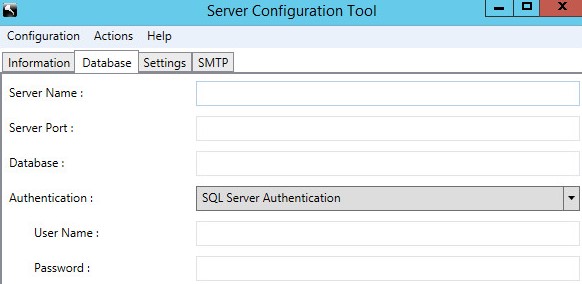
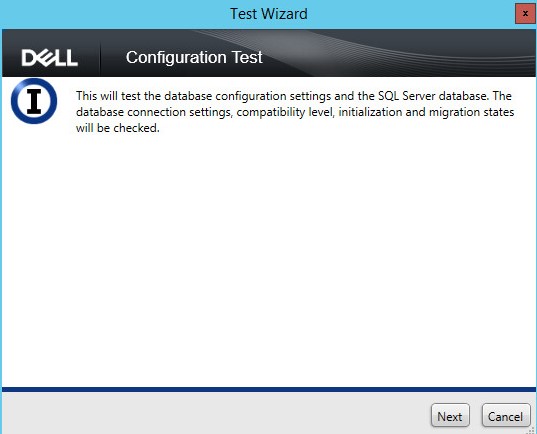
- 按一下動作功能表,然後選取測試資料庫組態。

- 按一下下一步。
- 按一下完成。
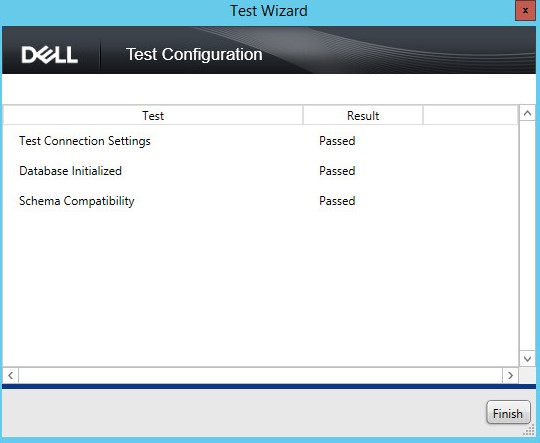
- 按一下組態功能表,然後選取儲存。

- 按一下組態功能表,然後選取退出。

- 開始 Dell Security Management Server 服務。如需更多資訊,請參閱如何在 Dell Security Management Server 中停止與啟動服務。
如需詳細資訊,請參閱:
- 如何在 Dell Security Management Server 中備份與匯入自訂相容性報告 (如果必須還原自訂 Compliance Reporter 報告)。
- 如何備份和還原 Dell Data Security 伺服器的 Advanced Threat Prevention 憑證 (如果必須還原 Advanced Threat Prevention 憑證)。
추가 정보
비디오
해당 제품
Dell Encryption문서 속성
문서 번호: 000124922
문서 유형: How To
마지막 수정 시간: 20 7월 2026
버전: 11
다른 Dell 사용자에게 질문에 대한 답변 찾기
지원 서비스
디바이스에 지원 서비스가 적용되는지 확인하십시오.