安裝 Dell Encryption Enterprise 時,VirtualBox 無法掛接 USB 裝置
요약: 當 Dell Encryption Enterprise (先前稱為 Dell Data Protection |Enterprise Edition) 已安裝 VirtualBox 無法掛接 USB 裝置。
이 문서는 다음에 적용됩니다.
이 문서는 다음에 적용되지 않습니다.
이 문서는 특정 제품과 관련이 없습니다.
모든 제품 버전이 이 문서에 나와 있는 것은 아닙니다.
증상
受影響的產品:
- Dell Encryption Enterprise
- Dell Data Protection | Enterprise Edition
受影響的版本:
- v11.0 和更舊版本
在與 VirtualBox 相同的基本作業系統上安裝 Dell Encryption Enterprise,會導致 VirtualBox 無法將 USB 裝置掛接至其虛擬機器。
원인
當 Dell Encryption Enterprise 安裝在端點上時,電腦會新增特定的篩選器驅動程式,以管理 USB 裝置。此篩選器驅動程式會導致 VirtualBox 無法掛接 USB 裝置,並出現如下錯誤:

해결
如果不使用 Dell Encryption External Media 加密 USB 裝置,可依照下列步驟,從登錄檔中手動移除新增的篩選器驅動程式:
- 使用系統管理帳戶登入端點
- 以滑鼠右鍵按一下 Windows 開始功能表,然後按一下執行。

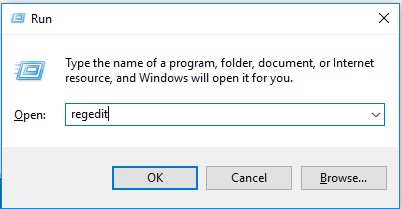
- 在「執行」UI 中,輸入 regedit,然後按下確定。這會開啟 Registry Editor。
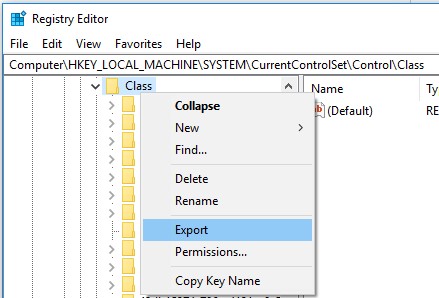
- 擴展路徑
HKLM\system\currentcontrolset\control\class並匯出備份。
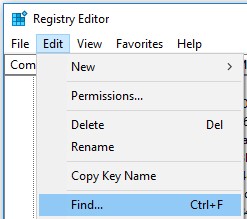
- 搜尋下列項目的所有項目:
CmgPCS在HKLM\system\currentcontrolset\control\class: Edit-> 找到。
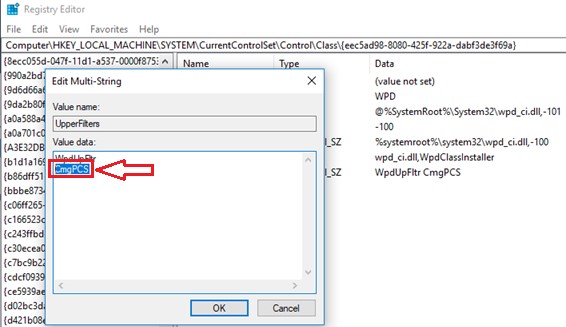
- 刪除所有的
CmgPCS條目來自 UpperFilters 和 LowerFilters 註冊表值。警告:請勿刪除整個 UpperFilters 和 LOWERFilters KEY,因為這會導致電腦在重新開機時無法使用,且無法復原。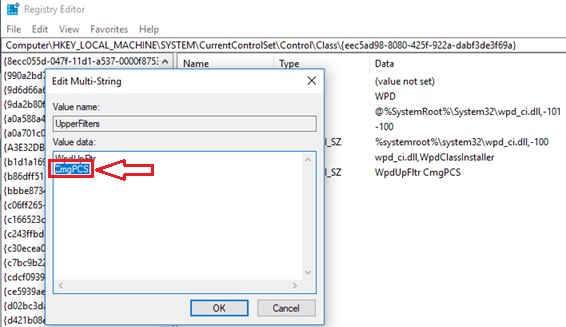
- 下載
Sysinternals Autoruns64從Microsoft https://docs.microsoft.com/en-us/sysinternals/downloads/.
- 開啟
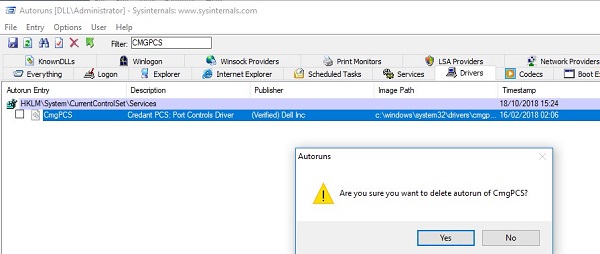
Autoruns64> 驅動程式並尋找CmgPCS並刪除該條目。
- 將端點重新開機。
해당 제품
Dell Encryption문서 속성
문서 번호: 000129605
문서 유형: Solution
마지막 수정 시간: 29 6월 2026
버전: 12
다른 Dell 사용자에게 질문에 대한 답변 찾기
지원 서비스
디바이스에 지원 서비스가 적용되는지 확인하십시오.