安装 Dell Encryption Enterprise 时 VirtualBox 无法挂载 USB 设备
요약: 当 Dell Encryption Enterprise(以前称为 Dell Data Protection |Enterprise Edition) VirtualBox 无法装载 USB 设备。
이 문서는 다음에 적용됩니다.
이 문서는 다음에 적용되지 않습니다.
이 문서는 특정 제품과 관련이 없습니다.
모든 제품 버전이 이 문서에 나와 있는 것은 아닙니다.
증상
受影响的产品:
- Dell Encryption Enterprise
- Dell Data Protection | Enterprise Edition
受影响的版本:
- v11.0 及更低版本
在与 VirtualBox 相同的基本操作系统上安装 Dell Encryption Enterprise 会导致 VirtualBox 无法将 USB 设备装载到其虚拟机上。
원인
在端点上安装 Dell Encryption Enterprise 时,会向计算机添加特定的筛选器驱动程序来管理 USB 设备。此筛选器驱动程序导致 VirtualBox 无法装载 USB 设备,并显示如下错误:

해결
如果不使用 Dell Encryption External Media 加密 USB 设备,则可以按照以下步骤从注册表中手动删除添加的筛选器驱动程序:
- 使用管理帐户登录端点
- 右键单击 Windows 的“开始”菜单,然后单击运行。

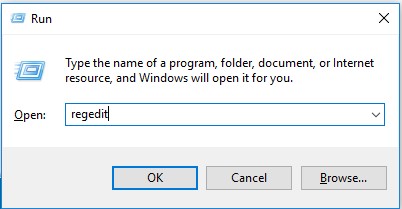
- 在“运行”UI 中,键入 regedit,然后按确定。这将打开 Registry Editor。
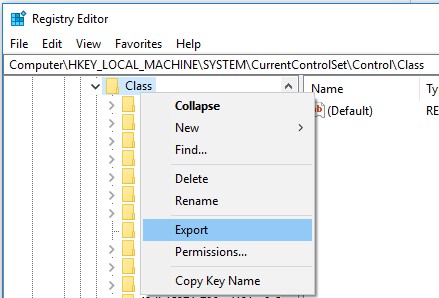
- 展开路径
HKLM\system\currentcontrolset\control\class并导出备份。
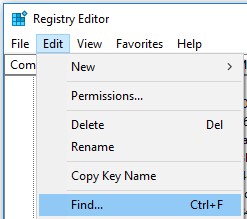
- 搜索
CmgPCS在HKLM\system\currentcontrolset\control\class: Edit-> 找到。
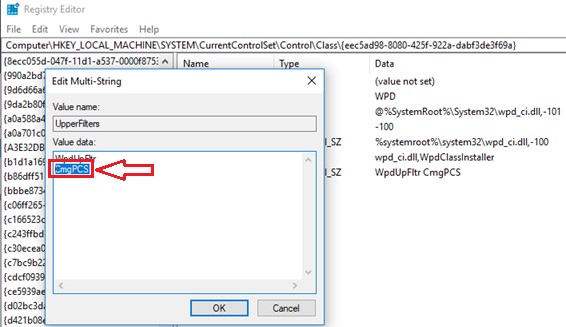
- 删除所有
CmgPCSUpperFilters 和 LowerFilters 注册表值中的条目。警告:请勿删除整个 UpperFilters 和 LowerFilters 键,因为这会导致计算机在重新启动时无法使用,并且无法恢复。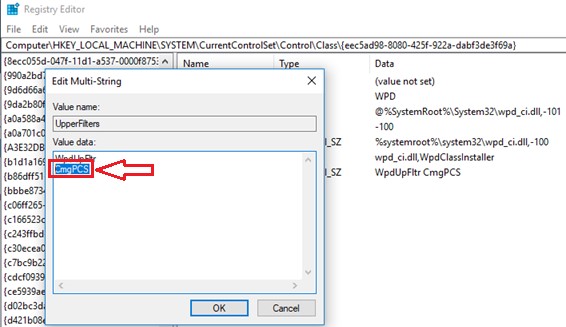
- 下载
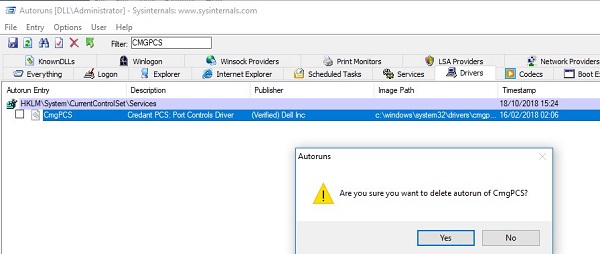
Sysinternals Autoruns64从 Microsoft https://docs.microsoft.com/en-us/sysinternals/downloads/.
- 打开
Autoruns64> 驱动程序并查找CmgPCS并删除条目。
- 重新启动端点。
해당 제품
Dell Encryption문서 속성
문서 번호: 000129605
문서 유형: Solution
마지막 수정 시간: 29 6월 2026
버전: 12
다른 Dell 사용자에게 질문에 대한 답변 찾기
지원 서비스
디바이스에 지원 서비스가 적용되는지 확인하십시오.