How to Identify and Configure 6, 8, and 10-Bit Color on a Dell Monitor
摘要: This article provides the latest information about identifying if your Dell monitor supports 6, 8, or 10-bit color depth and configuring it.
本文章適用於
本文章不適用於
本文無關於任何特定產品。
本文未識別所有產品版本。
說明
What Color Depth is my monitor using?
- Click the Start Menu icon on your Windows desktop and open the Settings screen using the cog icon in the Start Menu.
- Scroll down the Display screen until you locate the Advanced Display Settings link.

Figure.1 Display Settings Screen - Click the link to open the Advanced Display Settings screen.
- Select the display that you want to identify.
- You can use the bit depth value to identify what the monitor can support.
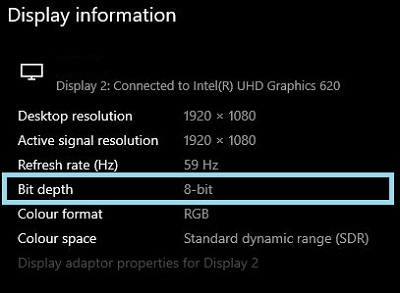
Figure.2 Advanced Display Settings Screen
Identifying if the monitor supports 6, 8, or 10-bit color
The User Manual of your Dell monitor provides information about what color depth that the monitor supports.
- Browse to: Dell User Manuals
- Click Browse all products.
- Go to Electronics and Accessories and then Monitors and Accessories.
- Select your monitor from the list.
- Click the Documentation tab.
- Locate and open the monitor User Guide.
- Under Monitor Specifications, you can find the supported Color Depth:
- 6-bit: 262 thousand colors
- 8-bit: 16.7 million colors
- 10-bit: 1.07 billion colors
Setting up 6, 8, or 10-bit color on your Dell monitor
If you have confirmed that your Dell monitor can support 6, 8, or 10-bit color, you can configure it by following this guide:
Identify and select the video or graphics card (GPU) that is installed in your computer:
AMD Graphics
- Open the AMD Control Panel.
- Select the display that you want to configure.
- Click the drop-down menu for Color Depth.
- Select the appropriate setting for that monitor type.
NVIDIA Graphics
- Open the NVIDIA Control Panel.
- Click Change Resolution under the Display heading.
- Select the display that you want to configure.
- Ensure that the correct resolution is set for the display type.
- Click the radio button next to Use NVIDIA Color Settings.
- Use the drop-down menu under Output Color Depth to select the appropriate setting for that monitor type.
受影響的產品
Alienware and Dell Gaming Monitors, C Series, D Series, E Series, P Series, S Series, SE Series, UltraSharp Premier (UP) Series, UltraSharp (U) Series文章屬性
文章編號: 000180526
文章類型: How To
上次修改時間: 27 6月 2025
版本: 6
向其他 Dell 使用者尋求您問題的答案
支援服務
檢查您的裝置是否在支援服務的涵蓋範圍內。