OptiPlex 3040 MFF Microphone Not Recognized
Summary: This article provides information about how to resolve an issue with the microphone not recognized on your Dell OptiPlex 3040 Micro Form Factor (MFF) system.
This article applies to
This article does not apply to
This article is not tied to any specific product.
Not all product versions are identified in this article.
Symptoms
OptiPlex 3040 MFF systems may encounter an issue with the microphone not getting recognized when it is connected to the system.

Figure 1: Microphone settings
Cause
Generally this issue is related to an audio configuration issue in the audio software settings.
Resolution
-
Right-click the Dell audio speaker icon and select Sound Manager.

-
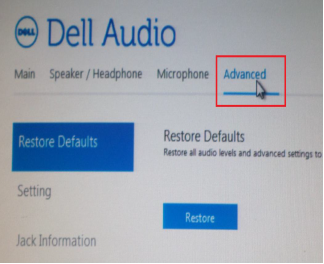
Click Advanced.
-
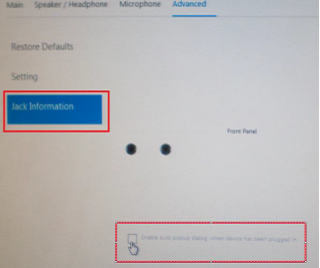
Click Jack Information and check the box next to Enable auto popup dialog when a device has been plugged on.
- Connect the microphone to the system.
- In the menu that appears, select Mic-In.
- Test the Microphone.
Affected Products
OptiPlex 3040 MicroArticle Properties
Article Number: 000149418
Article Type: Solution
Last Modified: 07 Oct 2024
Version: 7
Find answers to your questions from other Dell users
Support Services
Check if your device is covered by Support Services.