Hi! This is Mark from the Alienware Tech Support Team. Welcome to another 'Live From the Lab' video! This series highlights the basic troubleshooting steps for the most common problems You may encounter with the computer system.
The first video of the series explains the sequence the computer follows to start up, and What you can do if the first stage of this sequence fails. On Stage 1, the system powers up. Lights come on, and fans start spinning. On Stage 2, the system starts performing a series of tests To make sure everything is working fine.
If the computer is unable to complete any of these tests, then We are facing a 'No POST' situation. You can confirm a no POST situation if the computer turns on, but Never shows the Alienware logo or Windows loading screens. What should you do in this case before calling Technical Support? First, leave only the mouse, keyboard, monitor and speakers plugged into the computer.
In the case of notebook systems, Leave only the computer, itself, plugged into the power source. For desktops, confirm the monitor is connected to a known good power outlet. Check that the video cable is properly connected to the computer And to the monitor, itself. Verify that the monitor is turned on.
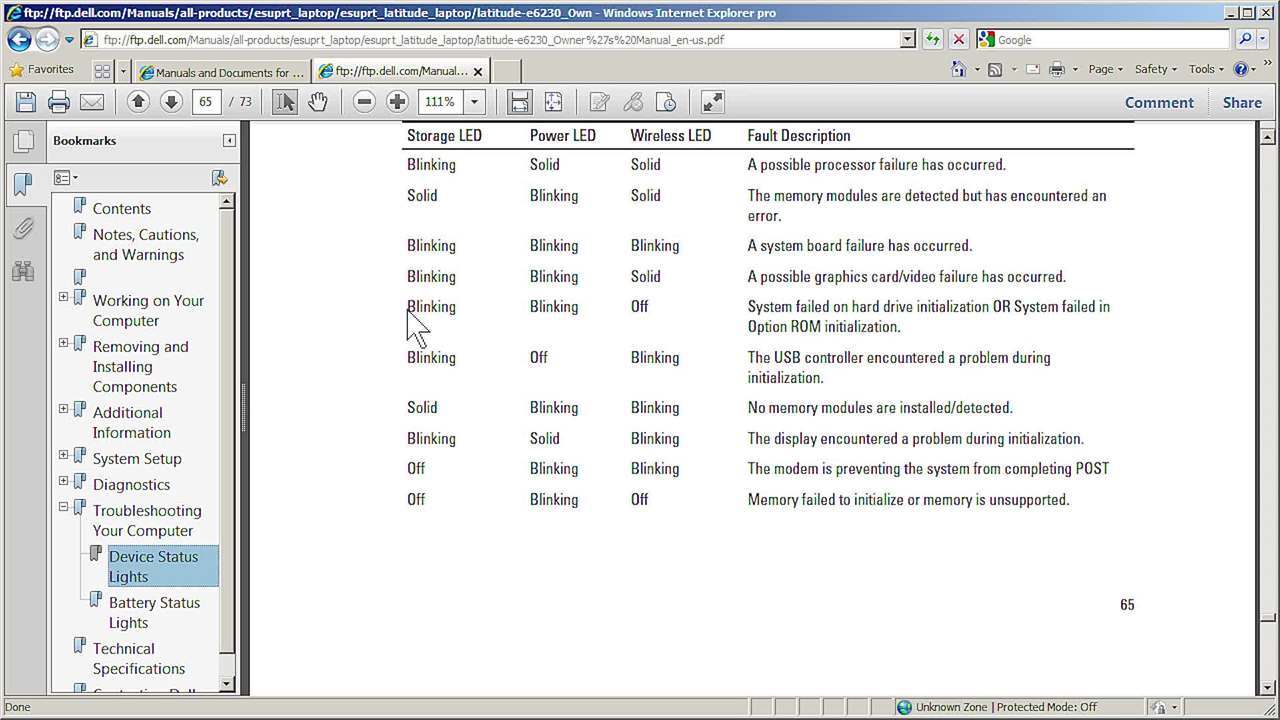
Then confirm if the computer is emitting any beep sounds. The series of beeps, known as 'Beep Codes,' may identify a problem. You can check the Beep Codes Table, and The possible cause of the problem with our knowledge base article 496582. The direct link is provided in the Comments section below. For Alienware M17x R1, M17x R2 and M15x notebooks, check the LED behavior, and Follow the steps listed on the LED error codes article 122438.
That link is also provided in the Comments section below. If there are no beep codes nor LED codes, and If you have an additional monitor that you know if working fine, Please try it out to confirm that the problem is not a video problem related to: A defective monitor in the case of desktop systems, or A defective LCD in the case of laptop computers.
If you have performed all of these troubleshooting steps, and the no POST problem persists, Please send us an email to: AWCC-Resolution_Experts@Dell.com Including your Service Tag, phone number and proper time to contact you. Be sure to check out the 'No Power' and 'No Boot' videos that are also part of this series as well. Remember to follow us on Facebook and Twitter, and Also to visit our support site.
Thanks for watching!