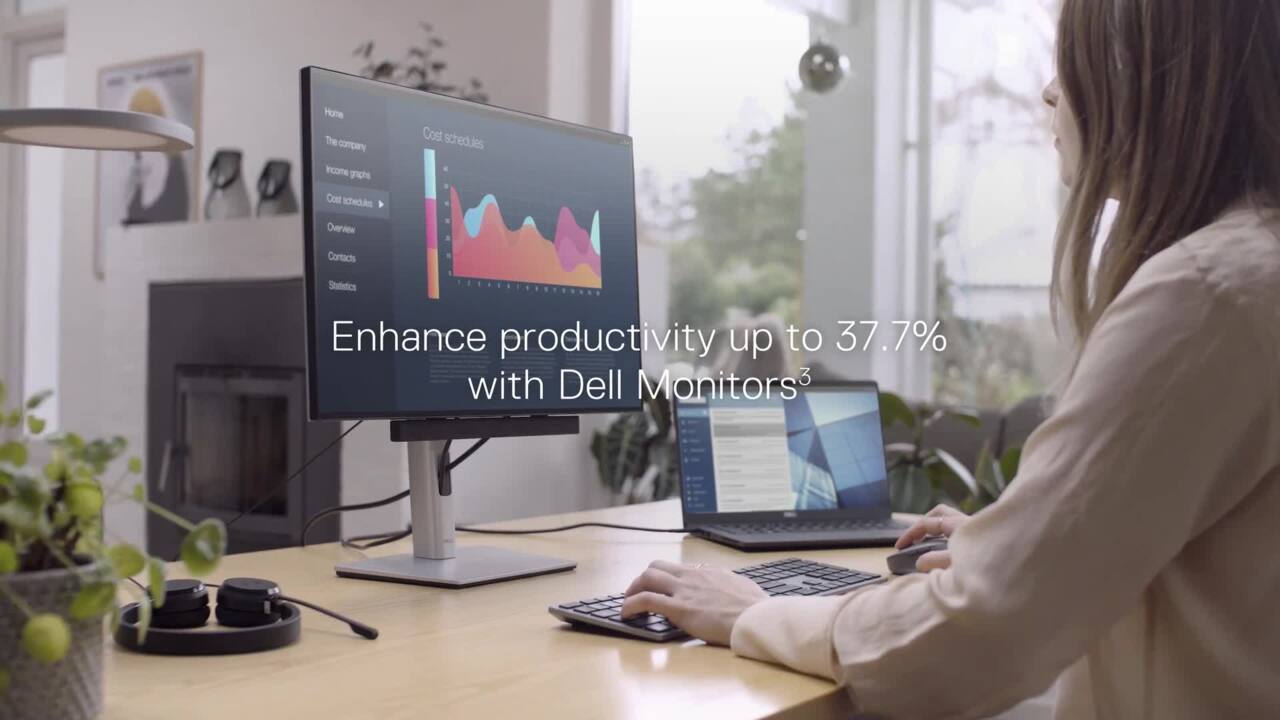
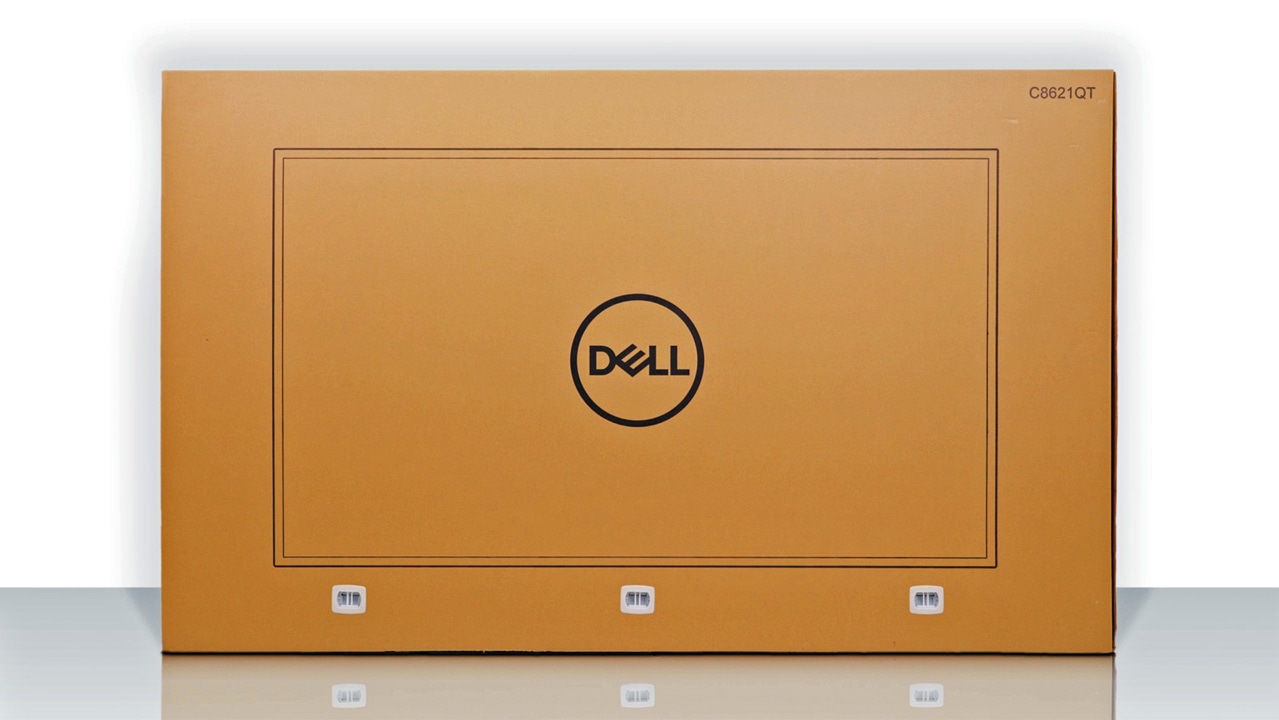
This video shows how to unbox and configure your del touch USB C hub monitor, P 2420 4h T to begin, peel a seal off and opened the box inside the box. You'll find a 24 inch display. A stand base, a stand riser, a cable cover a display port cable, A USB C to USB C cable, A USB C to USB A cable, A power cable, the safety environmental and regulatory information and a quick start guide. Now let's connect the stand assembly to the monitor and set it up, open the front flaps of the box and unwrap the packaging cover to access the back of the display. Now slide the head of the stand riser into the slots on the display and press the stand down until it snaps into place align and connect the stand base to the stand riser ensuring that the stand base's head is completely inserted into the stand riser slot.
Now open the screw handle under the stand base, turn it clockwise and tighten to ensure the stand riser is secured firmly to the stand base. Then close the screw handle, lift the monitor carefully while holding the stand riser, then place it on a level surface with a display facing down, slide one end of the USB C to USB C cable through the cable management slot on the stand riser and connect it to the USB C port on the monitor. Then slide the power cable through the same slot and connect it to the power port on the monitor.
Now route the cables through the cable retention clips on the monitor to organize them neatly and then slide the cable cover onto the slots on the display and push until it snaps into place, place the monitor upright on the table and remove the protecting covering. Then connect the other end of the USB C cable to the USB port on your computer. Connect the power cable from the monitor to a power source. Now press the power button on the back of the monitor to turn it on the articulating stand, helps in adjusting the display to a comfortable working position.
To use the touch screen, tilt the monitor forward or backwards to adjust for the best viewing angle. If you want, you can swivel a display in 30 degrees in either direction. Finally, the monitor slant adjust feature allows you to orient the display to your liking. For more information, see dell dot com forward slash support.