Nvidia Watermark On-Screen when the Alienware m16 R1, m18 R1 Laptops are Running dGPU Mode
Zusammenfassung: The following article provides information about a Nvidia watermark that is seen on-screen. The Alienware m16 R1 and m18 R1 laptops show the mark whenever they are running in discrete Graphics Processing Unit (dGPU) mode. ...
Dieser Artikel gilt für
Dieser Artikel gilt nicht für
Dieser Artikel ist nicht an ein bestimmtes Produkt gebunden.
In diesem Artikel werden nicht alle Produktversionen aufgeführt.
Symptome
Nvidia Watermark seen on Alienware m16 R1 and m18 R1 laptops
Alienware m16 R1, and m18 R1 laptop owners may see a red Nvidia watermark on the bottom-right corner of your screen. The watermark state's the following message:
NVIDIA CONFIDENTIAL 527.99 14940 10DE 27E0 C491023
The watermark can be seen under the following conditions:
- The laptop is running in discrete Graphics Processing Unit (dGPU) mode.
- The laptop is running a game.
- The laptop is running a benchmarking tool.
The watermark is not seen under the following conditions:
- The watermark is not displayed under the default graphics mode. The laptop arrives default set to Automatic or Dynamic Display Switch (DDS).
- The watermark goes away after the game or benchmarking tool is closed.
Ursache
If you are playing a game or running a 3D benchmark application, it drives the panel by dGPU and the red watermark appears on-screen. Engineering identified a package error with the Nvidia driver. (Version 527.99)
Lösung
Engineering confirms that there is no impact on the laptop by this message appearing on-screen. It is a false error.
The following guide takes you step-by-step through the resolution for this issue:
-
Ensure that current video driver is uninstalled from the laptop:
-
Once the laptop has booted into the Operating System, open the settings application.
Pressing the Win + I keys down simultaneously and then releasing them together is a keyboard shortcut to open the settings.
-
Click Apps.
-
Click Installed Apps or Apps & features and find and select the Nvidia driver (version 527.99) from the list.
-
Select the uninstall option to remove the driver. Restart the laptop once it completes the removal.

(Figure.1 Installed Apps)
-
-
Run a manual update of the drivers for your computer from the Dell Support site to the latest version available. (Ensure that you update the Nvidia Graphics driver to version 528.52 or newer.) See more about updating drivers on the following knowledge base article:
-
Confirm that the Nvidia Graphics driver is now version 528.52 or higher and test that the issue is resolved:
-
Right-Click on the windows desktop and select Nvidia Control Panel.
-
Click Help on the top menu and select System Information.
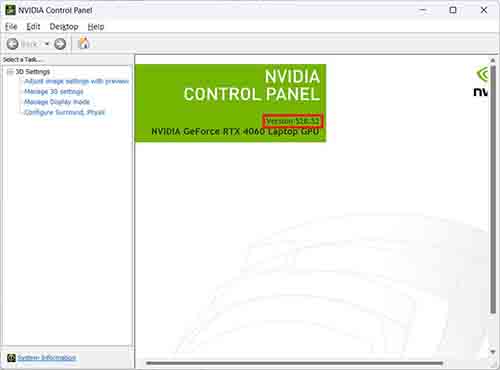
(Figure.2 Nvidia System Information)
-
Betroffene Produkte
Alienware m16 R1, Alienware m18 R1Artikeleigenschaften
Artikelnummer: 000211794
Artikeltyp: Solution
Zuletzt geändert: 17 Apr. 2023
Version: 2
Antworten auf Ihre Fragen erhalten Sie von anderen Dell NutzerInnen
Support Services
Prüfen Sie, ob Ihr Gerät durch Support Services abgedeckt ist.