PowerEdge: Ubuntu Installer Not Showing the Hard Drives While Creating Software RAID or LVM
Summary: Ubuntu 22.04 and 24.04 installation does not show the hard drives while creating software RAID or LVM.
Symptoms
The Ubuntu 22.04 and 24.04 installation does not show the hard drives in the Create software RAID or LVM console.
The drives are visible and showing fine in the storage configuration screen, but show a Blank Screen in the Create LVM or RAID window.
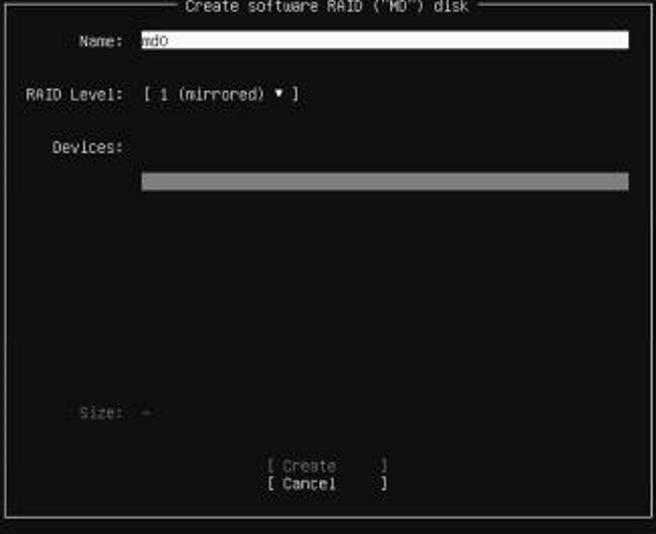
It allows the cursor to move allowing you to choose the drive, however nothing is visible to know what is available to choose.
Ubuntu version 25.04 works fine.
Cause
The issue is due to a long label (>50 Characters) on any of the drives attached to the server.
This issue can also be triggered for USB drives connected to server.
This issue is documented in the Canonical launchpad link for the RAID configuration list looks empty when the disk label is too long 
Resolution
The resolution for this issue is in the latest Subiquity version. See the Subiquity 25.04 release notes
Subiquity is an installer framework for Ubuntu.
The Subiquity version 25.04 is supported in Ubuntu 25.04, and in the previous versions. The fix is offered as a Subiquity update.
To address the issue in Ubuntu 22.04, follow the steps below to update Subiquity:
- Mount the Ubuntu 22.04 installer using bootable USB thumb drive or virtual media in ISO.
- Configure the IP for the server and confirm it can communicate to the Ubuntu repository. Press F2 in the installer to go to the terminal, and check the Internet connectivity if required.
- Confirm that the server can communicate with the Ubuntu repository in the below page.
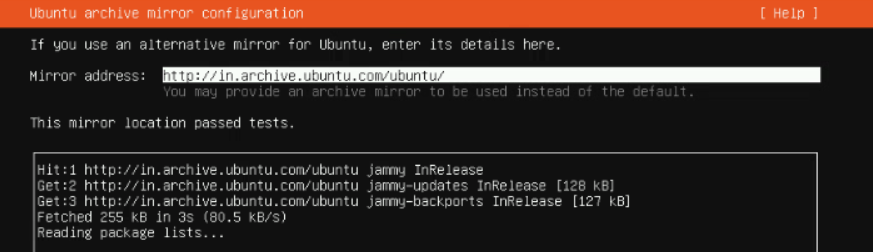
- On the next Storage Configuration page, press F2 to go to the terminal. Run the below command to use the new Subiquity version.
Command "sudo snap refresh subiquity --classic

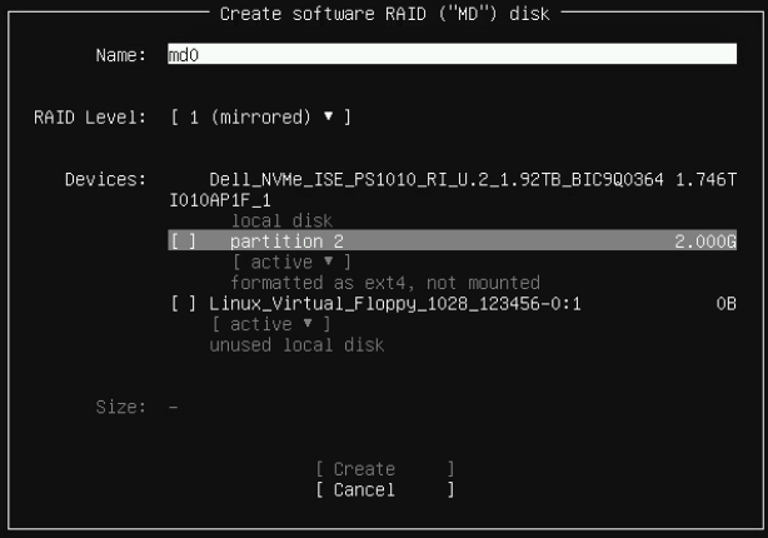
- Once the terminal is updated, it goes back to the Storage Configuration page. Now the drives are visible similar to the Image below: