SupportAssist OS Recovery Feature Not Supported in Windows 10S, 11S, and 11SE
Summary: The following article provides information about the SupportAssist Operating System (OS) Recovery software. It is not working with the Windows S and SE versions.
This article applies to
This article does not apply to
This article is not tied to any specific product.
Not all product versions are identified in this article.
Symptoms
SupportAssist OS Recovery software does not function with Windows S and SE versions.
Cause
SupportAssist OS Recovery is not supported in Windows S and SE versions.
Resolution
SupportAssist OS Recovery
SupportAssist OS Recovery is not supported on Windows OS versions: Win 10S, Win 11S, and Win 11SE.
BIOSConnect is enabled by default in the BIOS on these products for firmware updates.
If you invoke this function from the BIOS Bootup Menu, the BIOSConnect to activate the SupportAssist OS Recovery feature does not work.
You are presented with a loading window and must restart the computer without selecting BIOSConnect in the BIOS Bootup Menu to avoid this.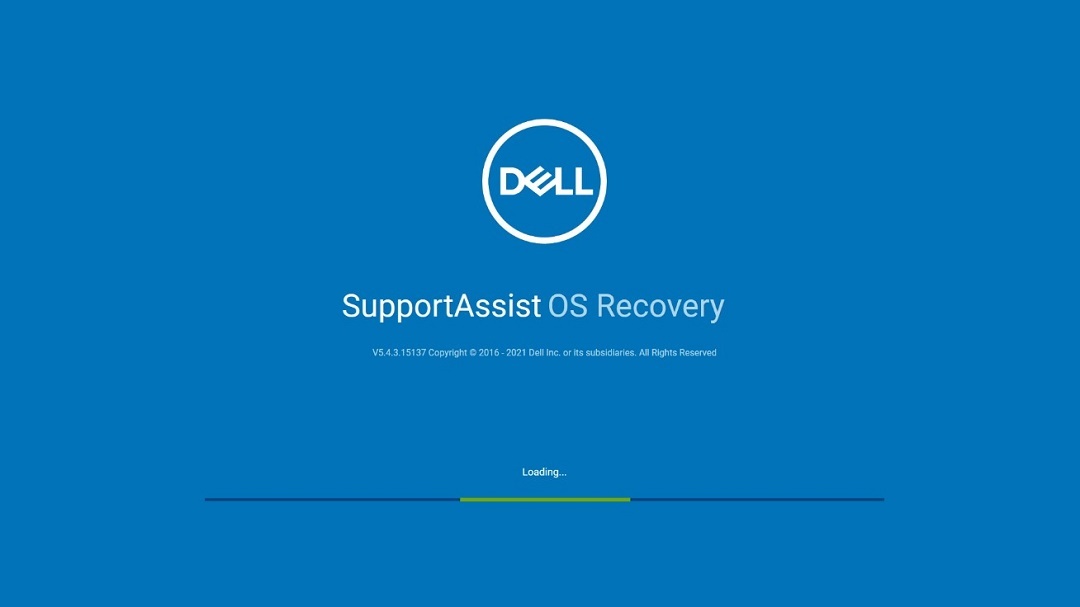
Figure 1
You can accidentally invoke BIOSConnect in the BIOS Bootup Menu, by selecting SupportAssist OS Recovery selection and pressing ENTER (Figure 2):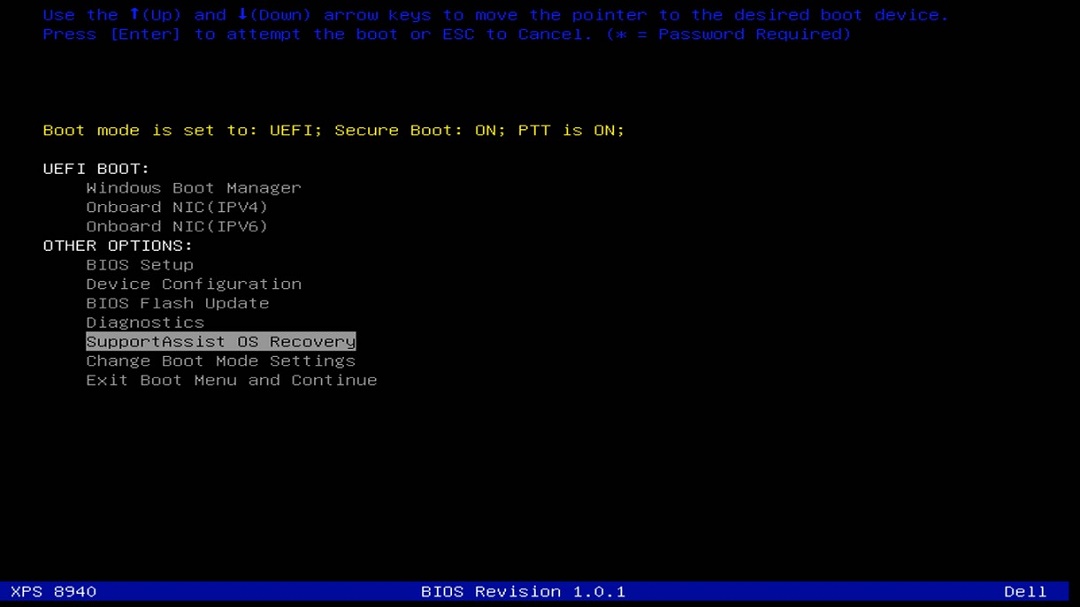
Figure 2
Workaround
The following workaround can be used to prevent this behavior.
- Press F12 during bootup to enter the BIOS onetime boot menu (Figure 3).
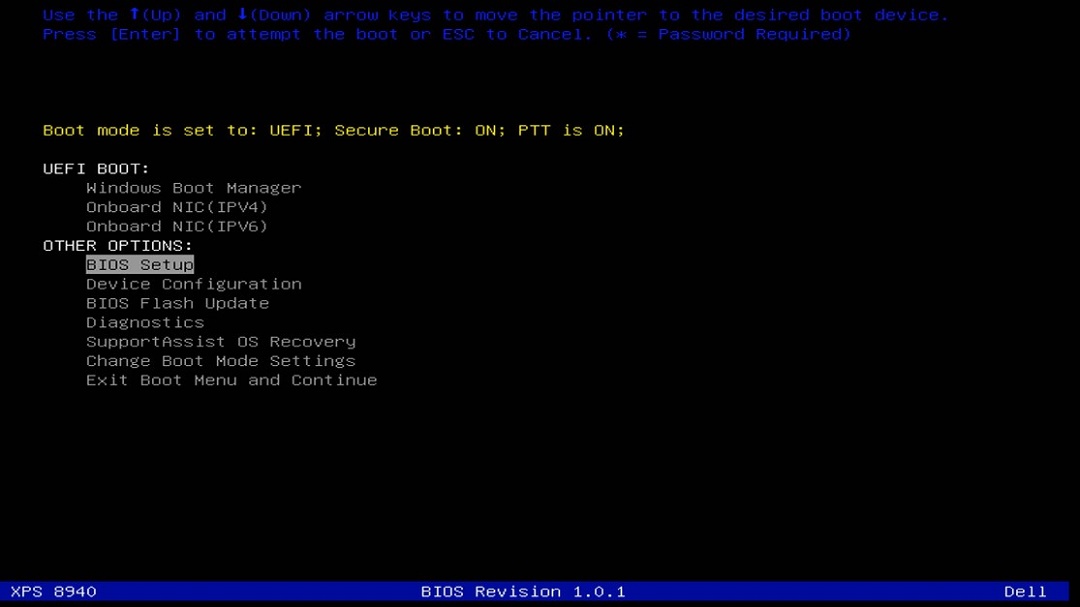
Figure 3Note: Your computer looks similar to one of the options available, Platform Name, and BIOS Revision on the one-time boot menu may vary from computer to computer. - Scroll down the one-time boot menu until you get to the BIOS Setup option. Select it and press Enter.
- Once in the BIOS setup screens, move down to the section entitled SupportAssist System Resolution and expand it to reveal its options.
- Open the sub section "SupportAssist OS Recovery" and clear this box to Disable this feature (Figure 4).
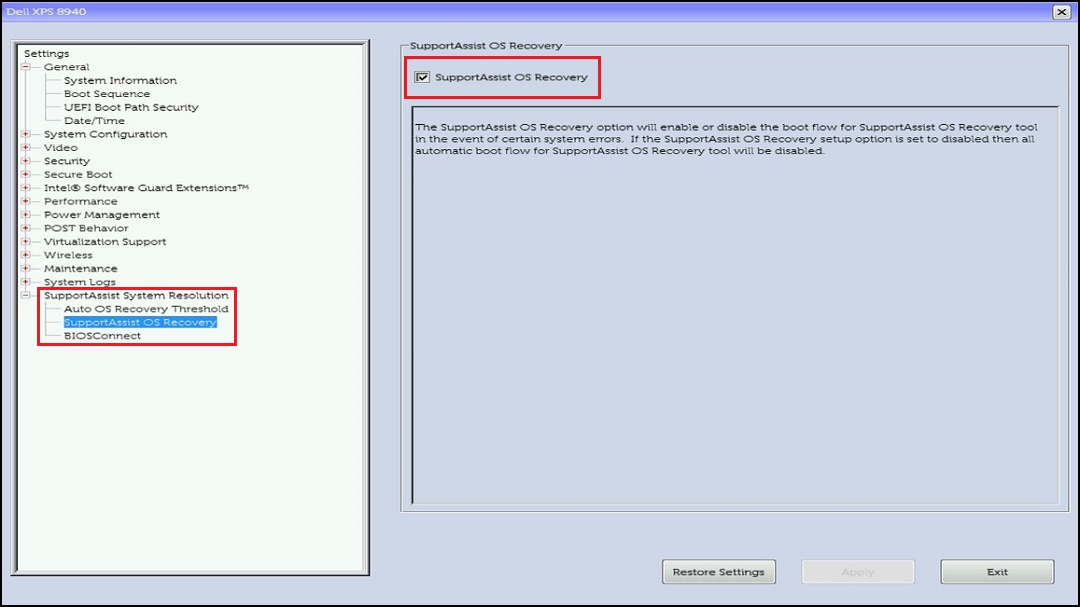
Figure 4Note: This picture has the box checked by default. Clear this box to Disable the SupportAssist OS Recovery feature. - Once Disabled, click Apply to save the BIOS settings and then Exit the BIOS in order to restart the computer. SupportAssist OS Recovery does not appear in the BIOS menu option anymore (Figure 5):
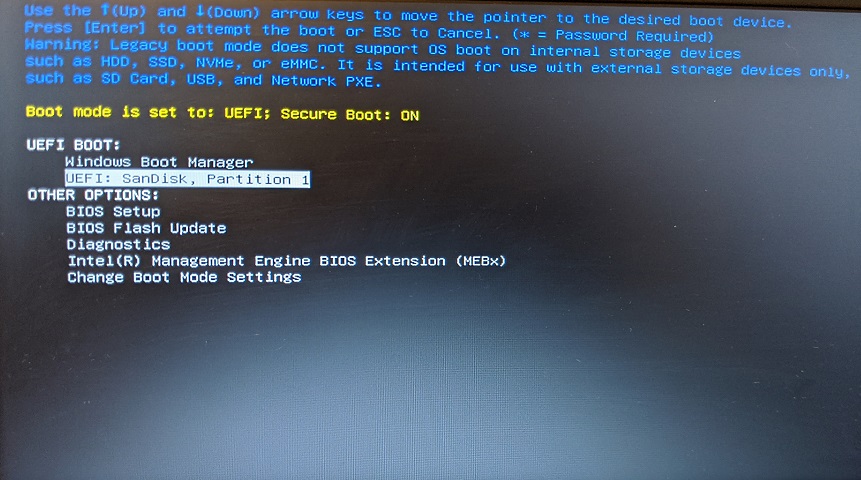
Figure 5
Resolution
This functionality is working as designed as Windows S is restricted to Windows store applications only.
Affected Products
SupportAssist OS RecoveryArticle Properties
Article Number: 000194975
Article Type: Solution
Last Modified: 21 Jul 2025
Version: 8
Find answers to your questions from other Dell users
Support Services
Check if your device is covered by Support Services.