Dell Optimizer Displays a Notification When a Zoom or Teams Call is Active, and the Call is Muted
Summary: This article provides information about a message displays when the user is on a Zoom or Teams call and the call is muted.
This article applies to
This article does not apply to
This article is not tied to any specific product.
Not all product versions are identified in this article.
Symptoms
Dell Optimizer users may receive a notification with the message "Your voice quality is poor, try moving closer to the mic or move to a quieter location" when on a Zoom or Teams call and the call has been muted (Figure 1).

(Figure 1. A notification with the message when on a Zoom or Teams call)
Cause
The third-party application (Zoom, Teams) is muted by the user, but the audio driver is not aware of the mute state of the application.
The hardware state of the microphone has not changed, and the microphone remains active.
The audio driver detects variance in the input signal from the microphone and has Dell Optimizer display the message (Figure 1).
Resolution
Laptop users may enable the hardware mute feature by pressing the F4 key (Figure 1). Doing so mutes the microphone at the hardware level. The audio driver will not receive any input from the microphone, and the notification will not be triggered.

(Figure 1. F4 key mutes the mic)
Alternatively, the notification can be turned off by setting Voice Quality Monitoring to OFF in the Dell Optimizer Audio page (Figure 2).
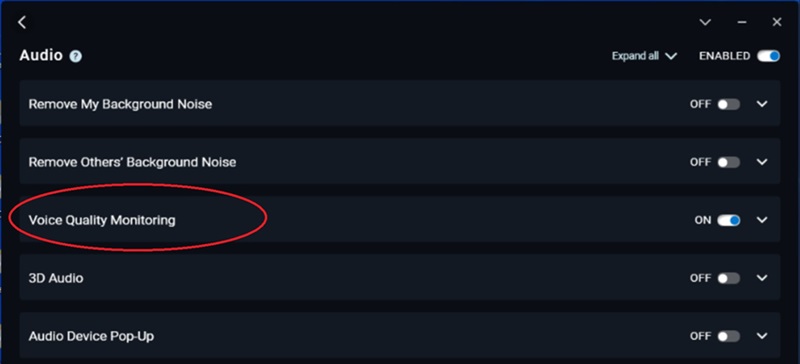
Figure 2. Setting Voice Quality Monitoring to OFF
Affected Products
Dell Optimizer, Latitude 9440 2-in-1Article Properties
Article Number: 000210956
Article Type: Solution
Last Modified: 24 Apr 2025
Version: 6
Find answers to your questions from other Dell users
Support Services
Check if your device is covered by Support Services.