How to Determine the Encryption Status of a Dell Encryption Managed Device
Summary: This article outlines the methods for determining the encryption status of Dell Data Security (formerly Dell Data Protection) products, managed by Dell Encryption.
Symptoms
Affected Products:
- Dell Encryption
- Dell Data Protection | Encryption
Cause
Not Applicable
Resolution
The information below outlines registry locations and commands that can help an administrator determine the protection status of devices that Dell Encryption manages through the endpoint itself. This information can be used to validate the status of the device and help determine issues with protected status on an endpoint.
The calculation of protected status for Dell’s Policy Based Encryption is based on the "sweep state" of both the device and any users on the computer. For more information about how protected status is calculated, reference: Troubleshooting Shield Protected Status.
Data for encryption status of the device is stored locally on the endpoint primarily in the registry. The primary location that is used for Policy Based Encryption data is HKLM\Software\Microsoft\Windows NT\CurrentVersion\Winlogon\CMGShield. Here are the primary keys for identifying the status:
- DCID (this is also the recovery ID): Key showing device has been activated.
- GKPort (default 8000): Key to control port used for policy updates.
- GK: Key to control check-in server.
- Server: Key for original activation server.
To validate the activation status of the device, we can query the device to check the contents of HKEY_LOCAL_MACHINE\SOFTWARE\Microsoft\Windows NT\CurrentVersion\Winlogon\CMGShield\RSST. Within this registry key, several keys detail the status of the device:
- _DEVICE_ - this is the activation status for the device. Any positive integer is an activated device.
- _INVALID_ - if this is present, the user that is logged in is not activated.
- <RandomCharacters> - the User Credant Identifier (UCID) is in this location. If this value is present and set to 1, then that specific user is activated and is within the Device Lease Period. The device lease period is a policy that defines the Dell Security Management Server, and the default value is 30 days.
Information pertaining to the current encryption sweep status of the device is located within the registry key HKLM\Software\Microsoft\Windows NT\CurrentVersion\Winlogon\CMGshield\SweepTimes. The values in this key can vary, and a unique user-based identifier is used to determine the sweep state for each user. Below is an example from a device:
[HKEY_LOCAL_MACHINE\SOFTWARE\Microsoft\Windows NT\CurrentVersion\Winlogon\CMGShield\SweepTimes]
"_SDENCR_SweepStop"=dword:00000001
"9P18NZD1SweepStop"=dword:00000001
"AllSweepsCompleted"=dword:00000001
"AllSweepsCompletedInXDays"=dword:00000001
"LastUpdate"="20180409 162157"
A break-down of these keys and their meaning and usage:
- _SDENCR_SweepStop
- A Value of 0 indicates that an encryption sweep affecting the System Data Encryption key is underway.
- A Value of 1 indicates that all System Data Encryption sweeps are complete.
- 9P18NZD1SweepStop
- The eight randomly generated characters are identifiers for specific users.
- When this key is set to 0, a sweep is in process for the user that the identifier correlates to.
- When set to 1, sweeps correlating to Common or User Encryption keys are completed on this endpoint.
- AllSweepsCompleted
- When set to 0, this indicates that there is an active encryption sweep affecting Common or User Encryption keys.
- When set to 1, sweeps correlating to Common or User Encryption keys are completed on this endpoint.
- AllSweepsCompletedinXDays
- When set to 0, encryption sweeps have not completed for all users that have logged in within the Dell Security Management Server (DSMS) defined Device Lease Period.
- When set to 1, encryption sweeps are completed for all users that have logged in within the defined Device Lease Period.
- LastUpdate - This is the last time that the internal database was polled for updates to the device sweep status within this registry entry.
Dell Encryption Self-Encrypting Drive Manager and Dell Full Disk Encryption management collect information that is based on the encryption percentage of the disk and the validation of the Pre-Boot Authentication (PBA) environment being present on the disk. These values are stored within the registry and can be found in HKLM\SYSTEM\CurrentControlSet\Services\DellMgmtAgent\Parameters" and "HKLM\Software\Dell\Dell Data Protection\.
The protected status of the device is determined on the encryption percentage of the disk. This processing is all done locally and is delivered to the server through regular polling intervals.
To determine the agent’s activation status, check the Agent ID registry key. If the key is populated, the device has successfully registered:
HKLM\Software\Dell\Dell Data Protection\
REG_SZ: AgentID
Value: <populated>
To determine if the Pre-Boot Authentication environment (PBA) is enabled on the endpoint, check the IsPBAActive registry key:
HKLM\SYSTEM\CurrentControlSet\Services\DellMgmtAgent\Parameters
DWORD: IsPBAActive
Value: 1 (1 is enabled, 0 or not present means no PBA)
To determine the installed product version, check the registry key:
HKLM\Software\Dell\Dell Data Protection\Branding
REG_SZ: EE
Value: <version #>
Agent version information can also be gathered through wmic calls by using the command:
Wmic path win32_product where (caption like '%%Dell Encryption%%') get version
Results should be displayed as:

Figure 1: (English Only) Type Wmic path win32_product where (caption like '%%Dell Encryption%%') get version
Encryption percentage information for Dell Full Disk Encryption is not able to be queried through registry. This information is populated within the DellAgent.log (stored in C:\ProgramData\Dell\Dell Data Protection\ if debug logging is enabled. To enable debug logging for Dell Full Disk Encryption, reference Increase Logging in Dell Encryption Enterprise and Dell Encryption Personal.
Example log line:
YYYY.MM.DD HH:MM:SS.MMM [ProcessID] (ThreadID) T FDE : SetEncryptionInfo - Set EncryptionPercentage to <Percentage>
Dell BitLocker Manager collects information that is based on the encryption percentage of the disk and the validation of Key Protectors being present for each managed volume. This data that the command line collects using either the manage-bde command, or the PowerShell command get-bitlockervolume.
The protected status of the device is determined on the encryption percentage of the disk. This processing is local to the endpoint and is delivered to the server through regular polling intervals.
The command manage-bde -status displays the status of BitLocker encryption for all volumes on the disk.
The output contains several values:
- Size - The amount of space on the volume.
- BitLocker Version - Version of BitLocker employed
- "Compatibility Mode" for BitLocker has a version of 1.0.
- "New Encryption Mode" for BitLocker (introduced in Windows 10 version 1511, aka Threshold 2) has a version of 2.0.
- Conversion Status - Status of the volume for encryption
- Percentage Encrypted - Percentage of the volume that has completed encryption.
- Encryption Method - Algorithm used to encrypt the volume.
- Protection Status - Details whether BitLocker is Enabled, Disabled, or Suspended.
- Lock Status - States whether the volume is locked or unlocked.
- Identification Field - Outputs any custom identification information for the organization.
- Key Protectors - The mechanism used to protect the volume, this can be TPM, Password, PIN, USB, or a combination of these items.
More information about the manage-bde command can be found here: https://docs.microsoft.com/en-us/windows-server/administration/windows-commands/manage-bde

Here are some example outputs from running the manage-bde -status command at certain intervals during the encryption:
Disk volumes that can be protected with
BitLocker Drive Encryption:
Volume C: []
[OS Volume]

Size: 59.40 GB
BitLocker Version: None
Conversion Status: Fully Decrypted
Percentage Encrypted: 0.0%
Encryption Method: None
Protection Status: Protection Off
Lock Status: Unlocked
Identification Field: None
Key Protectors: None Found
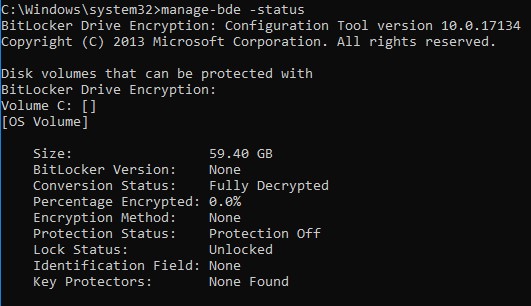
Figure 2: (English Only) Type manage-bde -status
Disk volumes that can be protected with
BitLocker Drive Encryption:
Volume C: []
[OS Volume]

Size: 59.40 GB
BitLocker Version: 2.0
Conversion Status: Used Space Only Encrypted
Percentage Encrypted: 100.0%
Encryption Method: XTS-AES 256
Protection Status: Protection On
Lock Status: Unlocked
Identification Field: Unknown
Key Protectors: TPM, Numerical Password
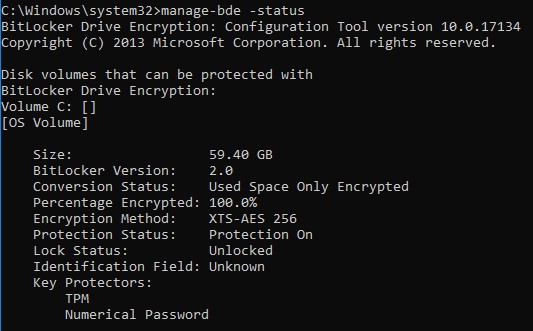
Figure 3: (English Only) Type manage-bde -status
The command of get-bitlockervolume | FL can be used to gather data on the status of BitLocker on the device.
The output contains several values:
- ComputerName - Name of the device that is being protected.
- MountPoint - Drive letter or location on the disk of the volume that is being managed.
- EncryptionMethod - Algorithm used to protect the data on the volume.
- AutoUnlockEnabled - Whether the AutoUnlock option is enabled.
- AutoUnlockKeyStored - Details if the AutoUnlockKey has been cached on the local computer, or if it is in a separate location.
- MetadataVersion - Details the version of BitLocker that is being used on this volume.
- "Compatibility Mode" for BitLocker has a version of 1.
- "New Encryption Mode" for BitLocker (introduced in Windows 10 version 1511, aka Threshold2) has a version of 2.
- VolumeStatus - Status of the volume (Decrypted, Encrypting, FullyEncrypted)
- ProtectionStatus - Details whether BitLocker is Enabled, Disabled, or Suspended.
- LockStatus - States whether the volume is locked or unlocked.
- EncryptionPercentage - Status in percentage of the Volume’s encryption.
- WipePercentage - Status in the percentage of the empty space on the drive that has been overwritten.
- VolumeType - The type of the volume, typically OperatingSystemDrive, or FixedVolume
- CapacityGB - Size of the managed volume
- KeyProtector - The mechanism used to protect the volume, this can be TPM, Password, PIN, USB, or a combination of these items.
More information about the get-bitlockervolume command can be found here: https://docs.microsoft.com/en-us/powershell/module/bitlocker/?view=win10-ps
Here are some example outputs from running the get-bitlockervolume | FL command at certain intervals during the encryption:
ComputerName: DESKTOP-T46E07P
MountPoint: C:
EncryptionMethod: None
AutoUnlockEnabled:
AutoUnlockKeyStored:
MetadataVersion: 0
VolumeStatus: FullyDecrypted
ProtectionStatus: Off
LockStatus: Unlocked
EncryptionPercentage: 0
WipePercentage: 0
VolumeType: OperatingSystem
CapacityGB: 59.39843
KeyProtector: {}
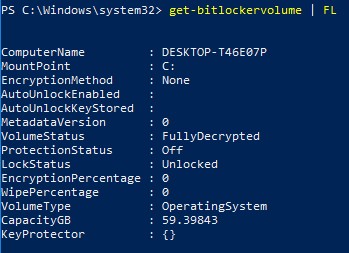
Figure 4: (English Only) Type get-bitlockervolume | FL
ComputerName: DESKTOP-T46E07P
MountPoint: C:
EncryptionMethod: XtsAes256
AutoUnlockEnabled:
AutoUnlockKeyStored: False
MetadataVersion: 2
VolumeStatus: FullyEncrypted
ProtectionStatus: On
LockStatus: Unlocked
EncryptionPercentage: 100
WipePercentage: 0
VolumeType: OperatingSystem
CapacityGB: 59.39843
KeyProtector: {Tpm, RecoveryPassword}
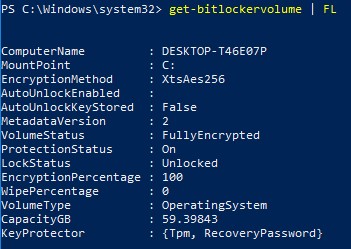
Figure 5: (English Only) Type get-bitlockervolume | FL
To contact support, reference Dell Data Security International Support Phone Numbers.
Go to TechDirect to generate a technical support request online.
For additional insights and resources, join the Dell Security Community Forum.