Dell AIOps (CloudIQ): General Procedures to Onboard PowerVault ME Series Arrays
Summary: Dell AIOps (formerly CloudIQ) is a cloud-based application that provides simple, proactive monitoring and troubleshooting of your Dell IT infrastructure including integration with VMware. It leverages machine learning to proactively monitor and measure the overall health of servers, storage, and switches through intelligent, comprehensive, and predictive analytics. Dell AIOps is available at no additional charge for Dell products covered with a valid ProSupport (or higher) contract. ...
This article applies to
This article does not apply to
This article is not tied to any specific product.
Not all product versions are identified in this article.
Instructions
Table of Contents
- Getting started.
- Enterprise business account registration
- Enable SupportAssist and CloudIQ on the PowerVault ME4 series.
- Enable SupportAssist and Dell APEX AIOps Infrastructure Observability or CloudIQ on the PowerVault ME5 series.
- Information required to onboard PowerVault ME series in Dell APEX AIOps Infrastructure Observability
- Onboarding the PowerVault ME series in Dell APEX AIOps Infrastructure Observability
- Additional information
Getting Started
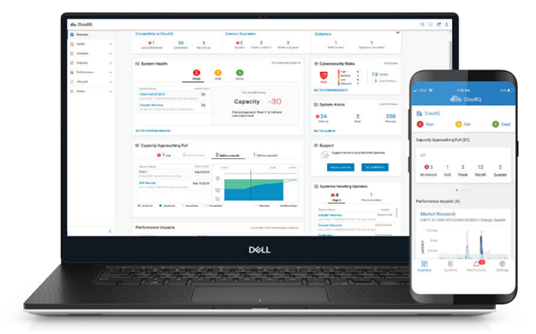
Dell AIOps (formerly CloudIQ) is a free service available to Dell infrastructure products (Servers, Storage, and Switches) customers with ProSupport or ProSupport Plus warranty cover. Administrators can view the health status and other metrics about their monitored Dell infrastructure product devices using Internet browser or smartphone app. Dell AIOps can be configured to send alerts or status reports to your email address. More information about the service can be found in Dell APEX AIOps Infrastructure Observability: A Detailed Review
Note: PowerVault Manager interface is Enable APEX AIOps Infrastructure Observability on ME5 Series controller firmware ME5.1.2.1.0-ME5.1.2.1.5. All PowerVault ME4 series firmware versions and PowerVault ME5 series firmware prior to the ME5.1.2.1.0 release can Enable CloudIQ. The command-line interface on both series products uses CloudIQ. Dell AIOps rebranding from CloudIQ by Dell in May 2024 is the same service. The names may be used interchangeably in this document.
To avail of this service using either Dell PowerVault ME4 or ME5 series
- PowerVault ME4 or ME5 series array must have a valid ProSupport or ProSupport Plus contract. To check entitlement enter your service tag at Dell Support.
- Enable and configure both Domain Name Server (DNS) support and SupportAssist on PowerVault ME series.
- PowerVault ME4 series administrators must enable SupportAssist to connect to a direct Dell endpoint connection. See PowerVault ME4: How to enable SupportAssist
- PowerVault ME5 series administrators can enable SupportAssist to connect to a Dell endpoint directly or use Secure Connect Gateway.
- To configure SupportAssist using a direct connection on PowerVault ME5 series, see PowerVault ME5: How to enable SupportAssist using direct connection
- To configure SupportAssist with a secure connect gateway on PowerVault ME5 series arrays, see PowerVault ME5: How to configure SupportAssist to Connect using Gateway Server
- If not done in the previous step, using PowerVault Manager, check the option to Enable APEX AIOps Infrastructure Observability or Enable CloudIQ depending on your product version.
- Log in to Dell AIOps (https://aiops.dell.com/)
Note: You must complete registration for a Dell support business account. If you have not registered, follow the instructions in How to Register for Access to Dell Technologies Online Support or Upgrade an Existing Account
- Onboard the PowerVault ME array in APEX AIOps (formerly CloudIQ). You must enter the Enclosure 0 worldwide name (WWN), Enclosure 0 service tag, and controller firmware version. Details to gather this are outlined in the Information required from the array to onboard PowerVault ME series in the Dell AIOps section of this article.
- Optional: Dell CloudIQ app is available for Android (Google Play) or IOS smartphones. (Apple Store)
Enterprise business account registration
- If an account is already created, no additional registration is required, you can log in to Dell AIOps. Depending on your PowerVault ME model, go to the Enable SupportAssist and CloudIQ on PowerVault ME4 or Enable SupportAssist and APEX AIOps/CloudIQ on PowerVault ME5 section and enable both SupportAssist and CloudIQ support on your PowerVault ME array.
- New or existing Dell customers must register an enterprise support business account. Follow Dell article, How to register for access to Dell Technologies Online Support or Upgrade an Existing Account.
Select the option "I am an employee of an organization that has purchased Dell enterprise products" in the Additional Access Rights Required page and click Submit.
Note: Registration may take longer to be authorized when the user is the first person registering from a company. In such cases, Dell customer service reconciles the exception by working with this first user. During the time of the exception process, users cannot log in to CloudIQ. If you receive the message "Invalid Account Type" when logging in for the first time. See Dell article APEX AIOps Observability: Invalid Account Type Message When Logging in
Obtaining assistance with account enablement, account login or account details updates. If you encounter account issues, click this Administrative Support link to engage the Dell Customer Services team to validate the settings and enable business user access.
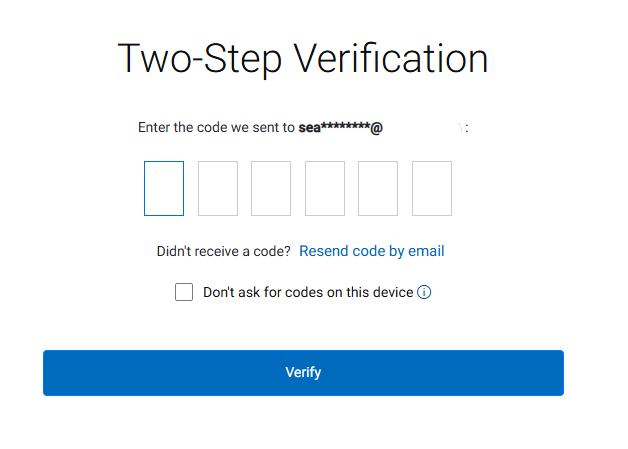
- To open an incident to resolve your account issue. Dell Sign-in uses two-factor authentication. Sign in using your email address, a Dell one-time Password is then emailed to your address. Enter this code within 10 minutes of receiving it and click Verify. If you do not want to supply a telephone number, you may chose skip.
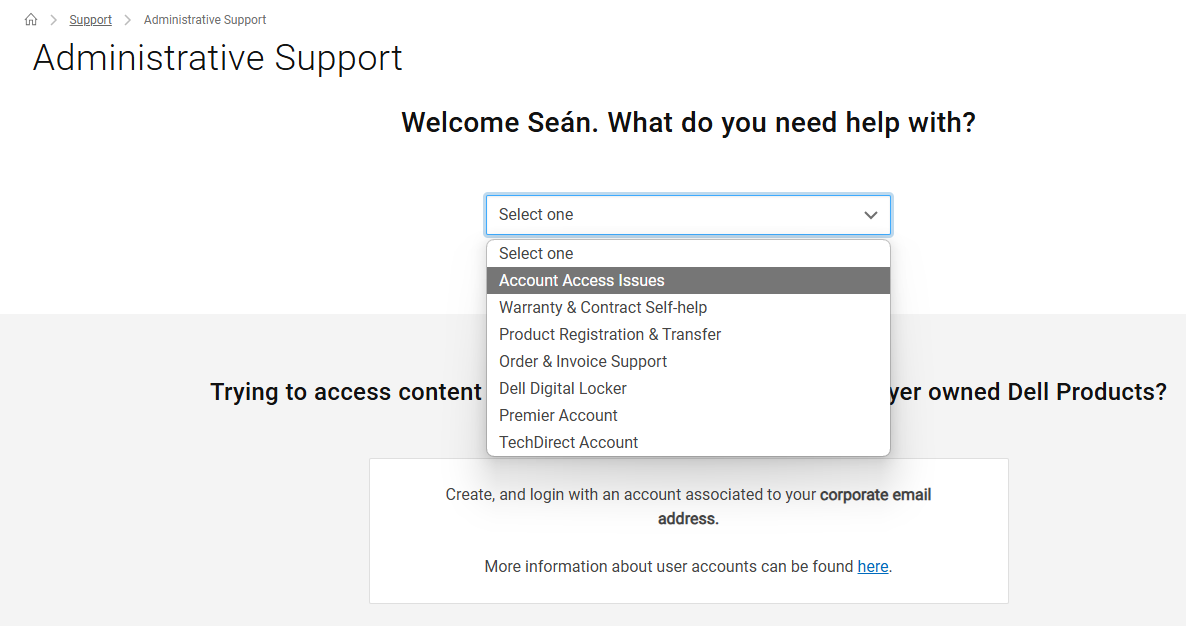
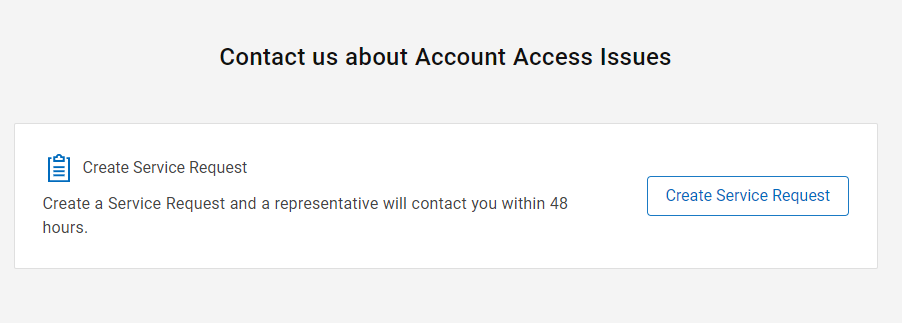
- Select Account Access Issues from the drop-down menu. You must be signed in to dell.com, or the Account Access Issues option is not shown in the drop-down menu options.
- Click Create Service Request.
- Provide the following information in the Create a Service Request dialog that appears.
- Phone number: <your contact number>
- Preferred contact method: Choose email or phone.
- URL you want to reach: https://aiops.dell.com/
- Request Summary: <add the following information>
- Purpose: Enable business user access for my account.
- PowerVault Service tag: <device 7 digit alpha-numeric service tag>
- Company Name: <provide your company or organization name>
- Equipment Site Address: <site address where equipment is installed>
Submit the request when complete.
- You receive an automated email response from Dell Technologies with the case number and links.
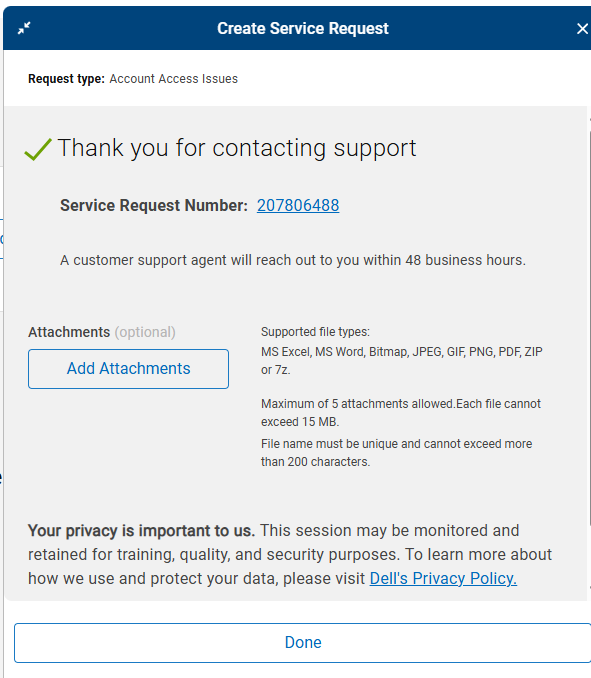
Note: Customer service response times can take between 24 to 48 hours over the course of standard business days to complete validation and enable the account. Follow up queries from Dell customer services may occur if additional information is required.
Note: Once the account is enabled, you can log in to Dell AIOps and onboard your PowerVault ME4 or ME5 series array.
Enable SupportAssist and CloudIQ on PowerVault ME4
- The System Settings panel provides options for you to quickly configure your system. Access the panel by doing one of the following:
- In the Home topic, select Action > System Settings, then click the SupportAssist tab.
- In the System topic, select Action > System Settings, then click the SupportAssist tab.
- Select the SupportAssist checkbox. The SupportAssist agreement is displayed.
- Read through the agreement, then acknowledge it by clicking Accept.
The system attempts to establish connectivity with the remote support server. Once connectivity is established, the system collects an initial full debug log dump and sends it to the SupportAssist server.
Note: If the system cannot contact the remote support server, an error message is displayed that contains details about the connection failure and provides recommended actions. Do not overlook that DNS configuration or endpoint connections cannot happen.
- In the Contact Information tab, type the primary contact information and select the preferred contact settings.
- To receive email messages when a storage system issue occurs, select the "Yes, I would like to receive email messages from SupportAssist when issues arise, including hardware failure notifications" checkbox.
- In the CloudIQ tab, check Enable CloudIQ and click Apply.

More details on configuring and troubleshooting SupportAssist on PowerVault ME4 series arrays are found in the following Dell articles:
- Article ME4: How to enable SupportAssist
- Article ME4: Last SupportAssist log upload failed, an MC internal error has occurred.
- Article CloudIQ: ME4 - How to troubleshoot CloudIQ upload failures
- Article PowerVault: How to Collect support logs for ME4 models
Enable SupportAssist and APEX AIOps Infrastructure Observability (CloudIQ) on PowerVault ME5 series.
- SupportAssist must be enabled and functioning in order to send performance telemetry data to the APEX AIOps (CloudIQ) service.
- The integrated SupportAssist feature on PowerVault ME5 series arrays can be configured to Connect Directly or Connect using Gateway Server to send telemetry data.
- Ensure Enable SupportAssist and Enable APEX AIOps or depending on version, Enable CloudIQ are checked.
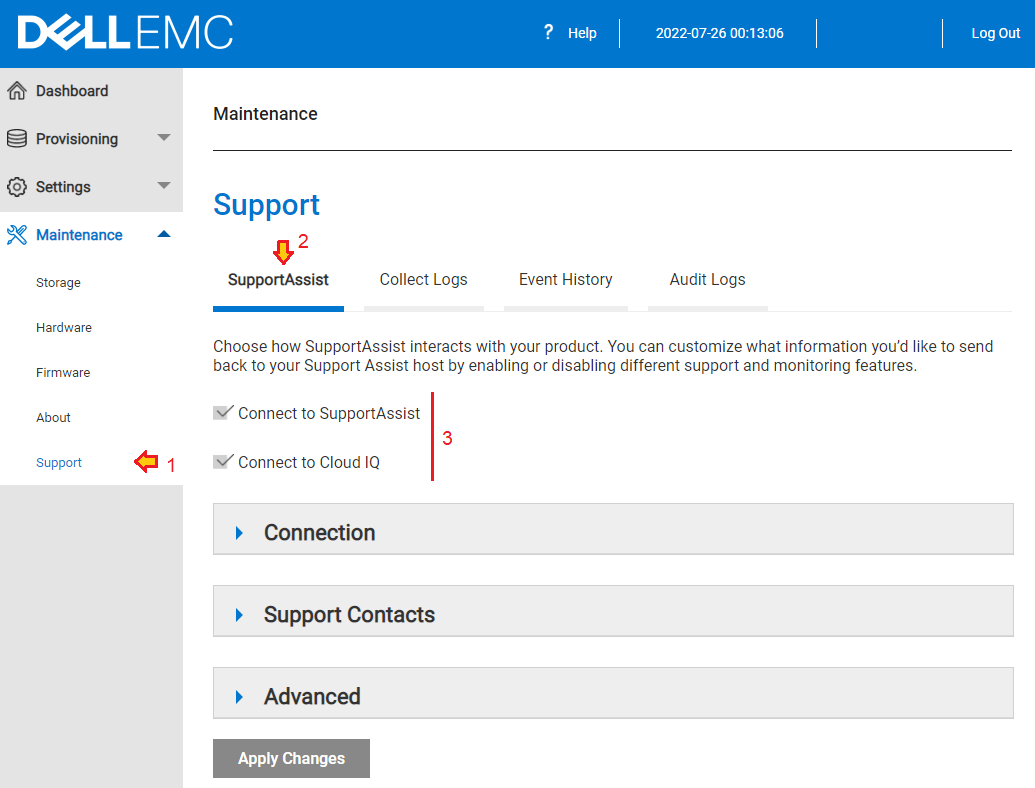
Enabling CloudIQ support on PowerVault ME5 prior to controller firmware ME5.1.2.1.0
Enabling APEX AIOps Infrastructure Observability support on PowerVault ME5 on controller firmware ME5.1.2.1.0 and later versions.
For more SupportAssist configuration and troubleshooting information, see the following articles:
- Article PowerVault ME5: How to enable SupportAssist using direct connection
- Article PowerVault ME5: How to configure SupportAssist to Connect using Gateway Server
- Article ME5: Alert: Lost connectivity to the Dell SupportAssist backend and Event: Scheduler - SupportAssist is not registered with the Dell backend.
- Article PowerVault ME5: Error setting primary Support Contact, Received a bad HTTP response
- Article ME5: How to collect PowerVault support logs
Information required from the array to onboard PowerVault ME series in Dell AIOps
To onboard the PowerVault ME series array within in CloudIQ, you need the following information when adding your PowerVault ME4 or ME5 series system.
- Enclosure 0 World Wide Name (WWN)
- Enclosure 0 Service Tag
- Controller module firmware bundle version
The information attributes can be obtained using PowerVault Manager, however, the quickest way to get this information is open an SSH session to a PowerVault ME controller management IP address using a terminal application such as PuTTY 
Type the following commands and copy the output to a text file for later reference.
- Record the Encl WWN value from enclosure 0,
show enclosures
# show enclosures
Encl Encl WWN         Name                  Location              Rack Pos  Vendor   Model            Top Level Assembly Part Number   EMP A CH:ID Rev   EMP B CH:ID Rev   Midplane Type  Health
-----------------------------------------------------------------------------------------------------------------------------------------------------------------------------------------------
0    500C0FF0F03123C                                             0    0    DellEMC  Array212SAS      ABCD122                          00:127      52A0  01:127      52A0   2U12-D-12G
-----------------------------------------------------------------------------------------------------------------------------------------------------------------------------------------------
Success: Command completed successfully. (2022-07-25 13:48:42)
- Record the Service Tag value for enclosure 0,
show service-tag-info
# show service-tag-info
Encl Service Tag
-----------------
0    ABCD122
-----------------
Success: Command completed successfully. (2022-07-25 13:52:44)
- Record the Bundle Version value,
show versions
# show versions
                Controller A Versions        Controller B Versions
                ---------------------        ---------------------
Bundle Version: GT280R010-01                 GT280R010-01
Build Date:     Mon Jul  4 04:06:18 MDT 2022 Mon Jul  4 04:06:18 MDT 2022

Success: Command completed successfully. (2022-07-25 13:57:55)
Onboarding PowerVault ME series in Dell APEX AIOps Infrastructure Observability
NOTE: Each team member that must view PowerVault ME or SC Series arrays must know the attributes to add the array to their view. This behavior is different to other Dell products such as PowerStore or Unity and this may change in future releases.
- Access Dell APEX AIOps service at Dell AIOps (https://aiops.dell.com/) with username (email) and password credentials.
To sign in, you are initially be redirected to the Dell.com account sign-in screen.
Dell Sign-in uses two-factor authentication. Sign in using your email address, a Dell one-time Password is then emailed to your address. Enter this code within 10 minutes of receiving it and click Verify.
- A series of introductory welcome screens displays the first time a new APEX AIOps user signs in:
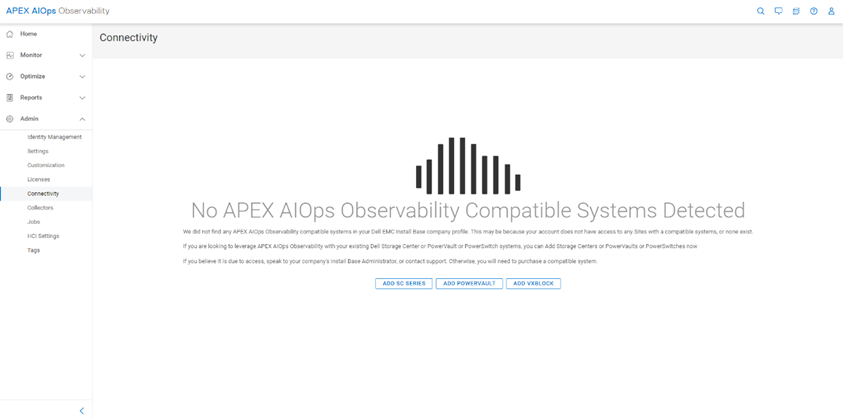
- If no systems were onboarded, the user is directed to the Connectivity page. If systems are onboarded, the user should go to the Admin > Connectivity page.
- Select ADD POWERVAULT from the Connectivity page.
- Step 1. SupportAssist - Instructions to enable CloudIQ in PowerVault Manager. Instructions are provided for both ME4 and ME5 series.
See the Information required to onboard PowerVault ME series in Dell AIOps section of this article.
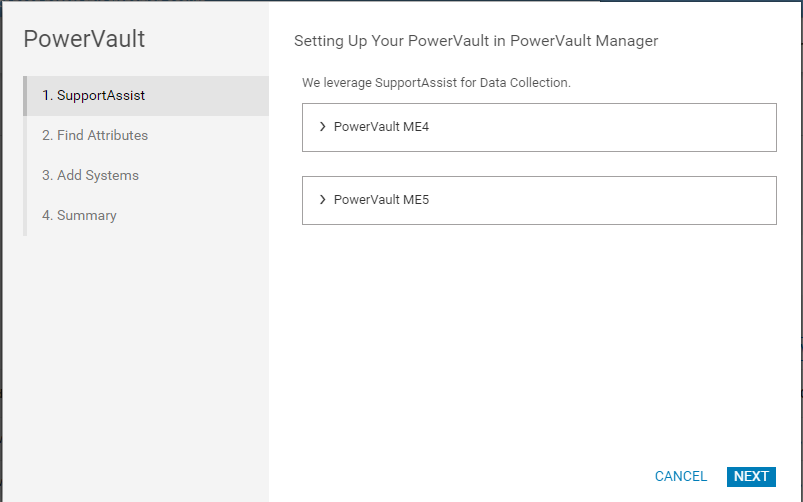
- Select Next once this step is completed in PowerVault Manager.
- Step 2 - Find Attributes.
Instructions on where to find the required attributes for onboarding are available for both ME4 and ME5 series.
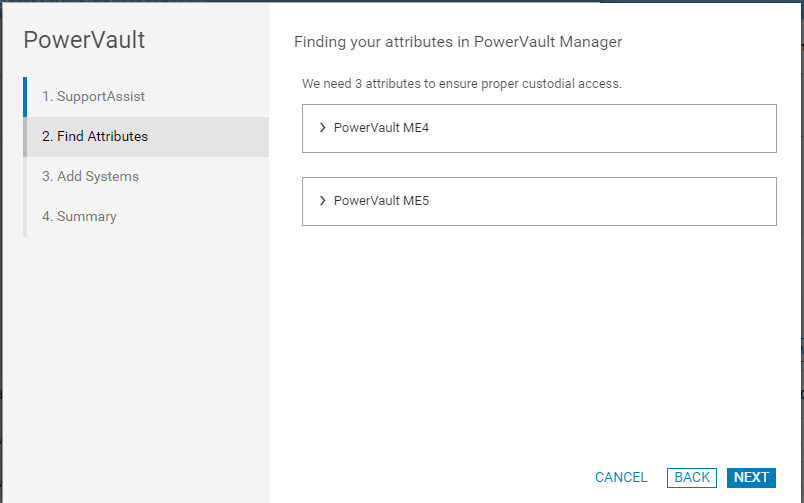
- Select NEXT once this step is completed in PowerVault Manager.
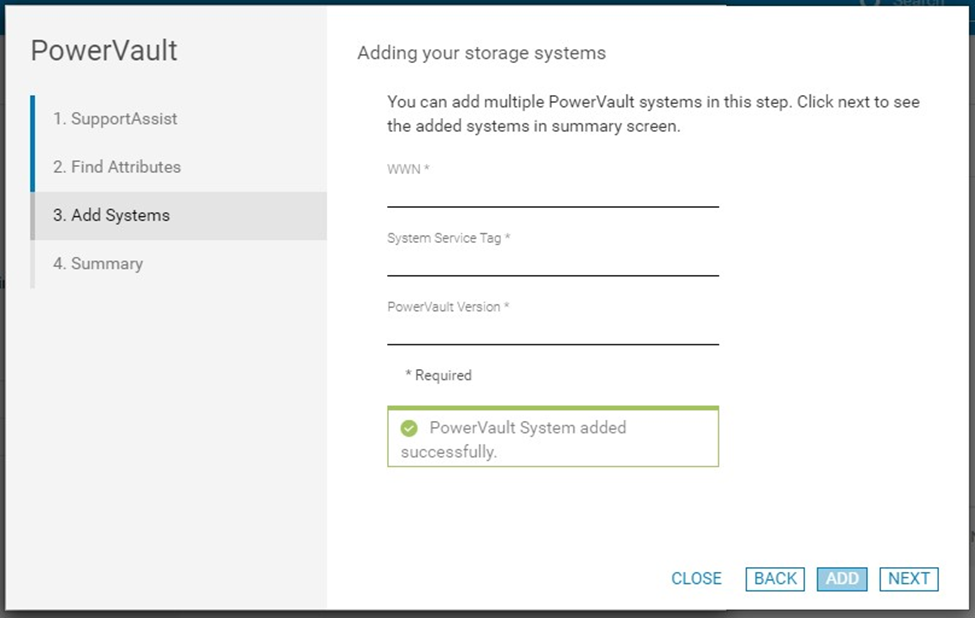
- Step 3 - Add Systems. Enter attribute information from your PowerVault ME series array and select ADD.
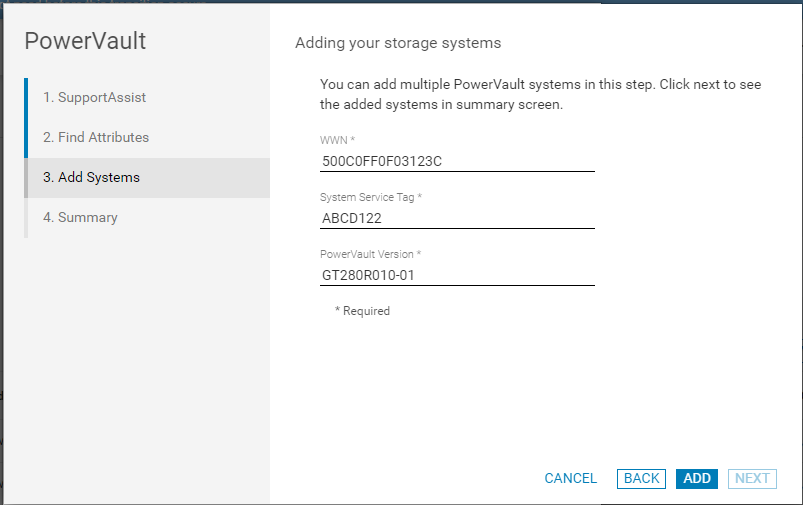
- After attributes are entered, the user is presented with a Success message when system is onboarded. The user can add more systems or select NEXT.
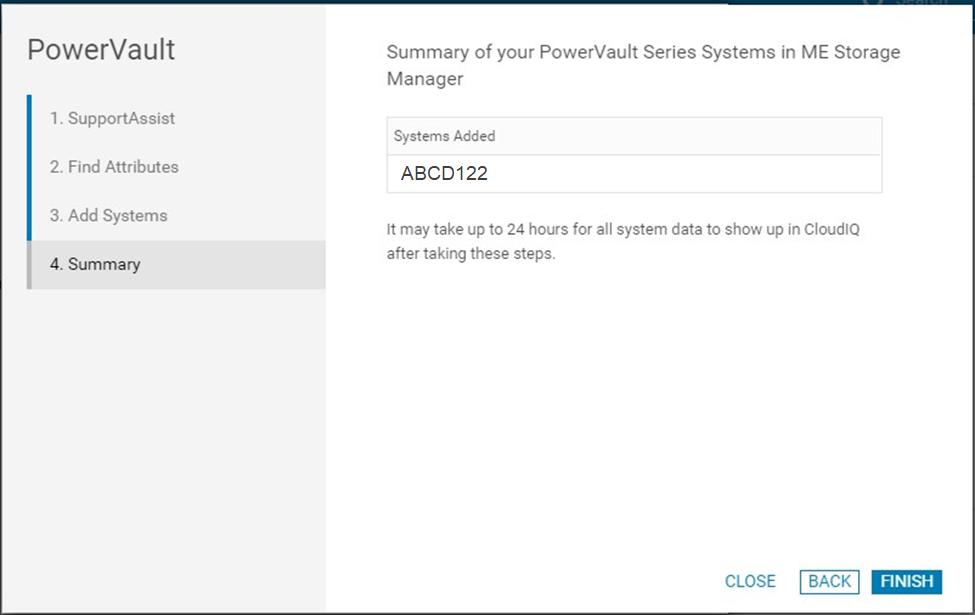
- Select FINISH on the Summary Screen.
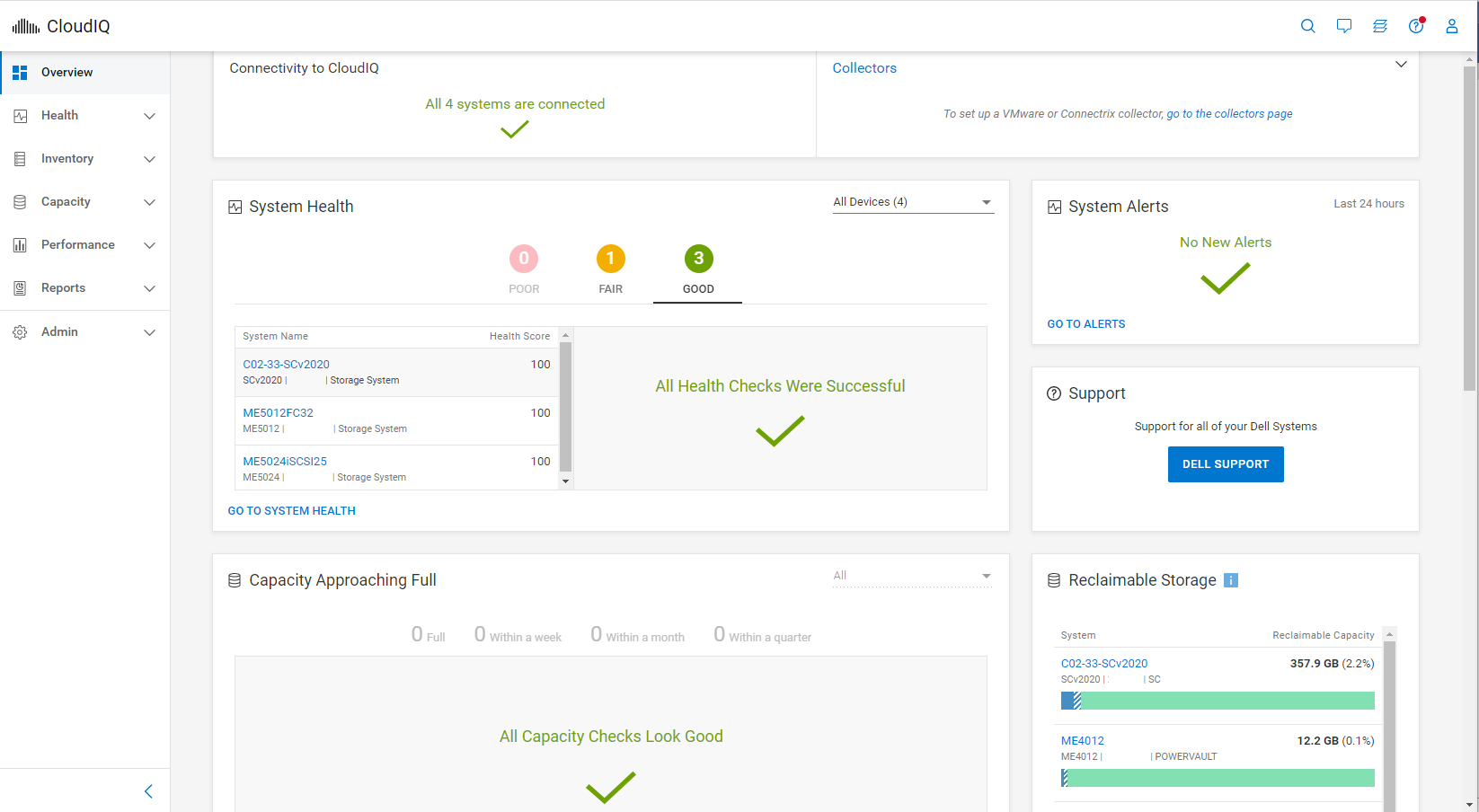
- The first time a PowerVault ME system is added to APEX AIOps (CloudIQ), it can take up to 4 hours for APEX AIOps to be fully onboarded. Once the process is complete, the system appears in APEX AIOps Infrastructure Observability.
- Users only see PowerVault ME systems which they have onboarded using APEX AIOps.
- Upon subsequent logins to APEX AIOps, the default page that users see is the APEX AIOps overview page.
Note: If a virtual machine is associated with a PowerVault array, there is no virtual machines tab available in APEX AIOps. This is a limitation. Dell Technologies recommend filling out "Give Us Feedback" from the APEX AIOps UI for future availability.
Additional information
No PowerVault system found with Service Tag <tag>.
If you receive this message when onboarding the PowerVault ME array to APEX AIOps, take the following steps:
- If this is the first time enabling APEX AIOps (CloudIQ) support on the array, wait up to 60 minutes after enabling SupportAssist. This is to allow the Dell backend time to process the initial telemetry.
- Ensure the attribute details that are entered for the ME array are correct see Information that is required to onboard PowerVault ME series in Dell APEX AIOps (CloudIQ).
- Using PowerVault Manager, ensure both Enable SupportAssist and Enable APEX AIOps Infrastructure Observability or Enable CloudIQ are checked.
- Test SupportAssist connection from PowerVault Manager to ensure that telemetry data can be sent to Dell from your PowerVault ME array.
- If this does not resolve the issue contact Dell PowerVault technical support.
Dell APEX AIOps Infrastructure Observability: A Detailed Review
For more information about the Dell APEX AIOps Infrastructure Observability, see Dell APEX AIOps Infrastructure Observability: A Detailed Review
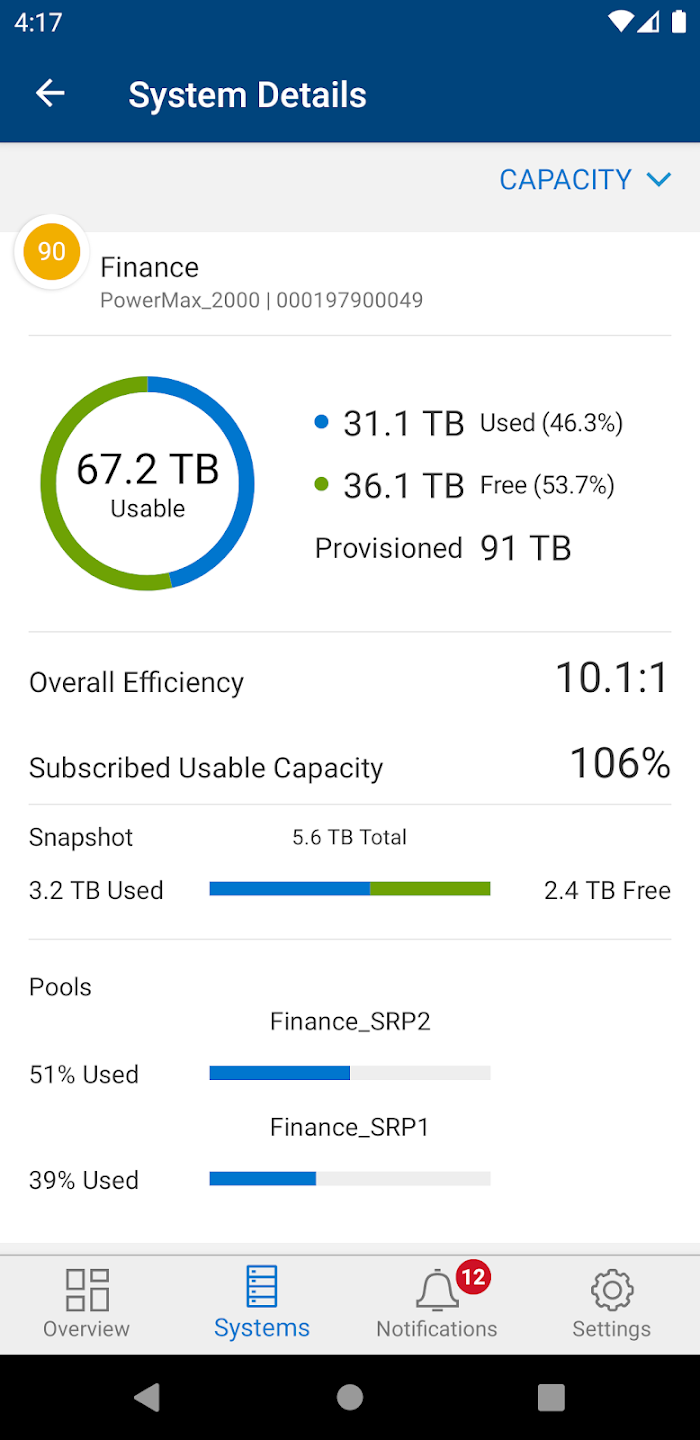
Dell CloudIQ is available as an app on smartphones.
|
CloudIQ also has a mobile application available for both iOS and Android phones. The mobile app has an Overview screen that shows similar information to the Overview Page in the browser version of the UI. It also includes support for Health, Capacity, and Performance details for the supported Dell storage platforms. The user can also configure push notifications to be updated in the app for any health change notifications. Users can see additional details of the health for any given system and can even text or email the recommended remediation to a colleague for help with performing the resolution. After you onboard your systems in CloudIQ desktop, a free download is available as Dell CloudIQ to install on Android systems using Google Play. Apple iPhone users can download Dell CloudIQ free from the Apple App Store. |
Additional Information
See Dell article CloudIQ Health Score in MyService360.
Affected Products
APEX, PowerVault, ME Series, APEX AIOps Infrastructure Observability, CloudIQProducts
SupportAssistArticle Properties
Article Number: 000022224
Article Type: How To
Last Modified: 17 Nov 2025
Version: 16
Find answers to your questions from other Dell users
Support Services
Check if your device is covered by Support Services.