NetWorker: How to Upgrade NetWorker and Best Practices Prior to Upgrade
Summary: How to Upgrade or Install NetWorker and Best Practices before Upgrade. Use the Solve Procedure Generator for the step-by-step process.
Instructions
Use the Procedure Generator:
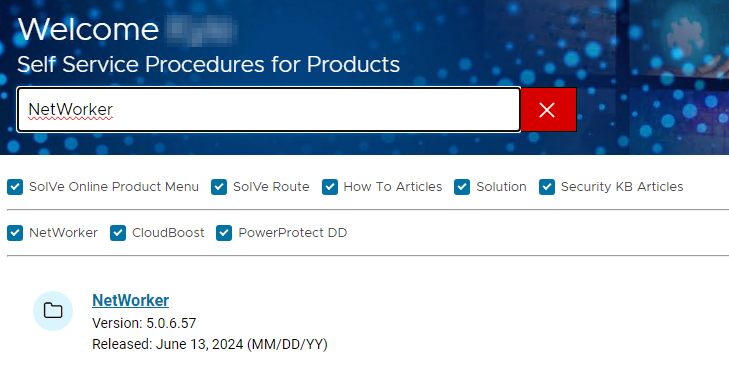
Since every machine and environment is a little different, follow the 'SolVe' NetWorker Procedure Generator. It is a useful tool for an install or upgrade. Install it on any Windows machine, a Laptop, or Desktop is fine. It installs a small executable.
Be sure to activate it for Free and chose the NetWorker package from the list. Solve generates a procedure tailored to your needs. Select the 'Upgrade' option and answer all the questions about your environment. Step-by-step instructions are provided to help accomplish your upgrade.
Upgrade the hosts in a data zone in the following order:
- NetWorker server
- NMC Server
- All NetWorker storage nodes
- NetWorker clients and application modules
TIPS for Upgrading:
- Download the latest NetWorker software directly from the Dell NetWorker product support page at: https://www.dell.com/support/home/product-support/product/networker/drivers (A valid Dell support account is required)
- Extract it to a commonplace in your LAN that is accessible from each of the machines that requires an upgrade. This assures that the same version is used everywhere.
- Upgrade each machine manually. Alternatively use 'The NetWorker Software Administration Wizard' to push your upgrade to numerous machines simultaneously.
The following tips should aid in ensuring a smooth upgrade:
Installation Guide:
- For NetWorker servers, clients, storage nodes, Management Console (NMC), and Web User Interface (NWUI) server's, see the version-specific NetWorker Installation Guide: https://www.dell.com/support/product-details/product/networker/docs
- For NetWorker Virtual Edition (NVE), see: NetWorker Virtual Edition: How To Upgrade NetWorker Software and NVE System
- For NetWorker VMware Protection (NVP) vProxy appliances, see: NVP vProxy: How To Upgrade the NVP vProxy Appliance using nsrvproxy_mgmt
Compatibility:
Hardware: Verify your NAS, SAN, Tape Library, Data Domain DDOS, Drivers, and Firmware of any devices that NetWorker might use is updated first. Verify that they are compatible with the new NetWorker or Module versions.
Software: Verify Compatibility between operating system versions such as Windows, Linux, or UNIX on Clients and Servers. Also verify their NetWorker versions are compatible to know what order to upgrade your computers. Also verify VMware versions if used. It is best to verify compatibility with databases and software modules for Exchange, SQL, NMM, Oracle, SAP, NMDA, VMware, Azure, and AWS as well.
For Software Compatibility, see the Online Compatibility Guide at the E-Lab Navigator. Now select the Data Protection and Availability Solutions by selecting > See more. NetWorker is listed under the Data Protection Suite.
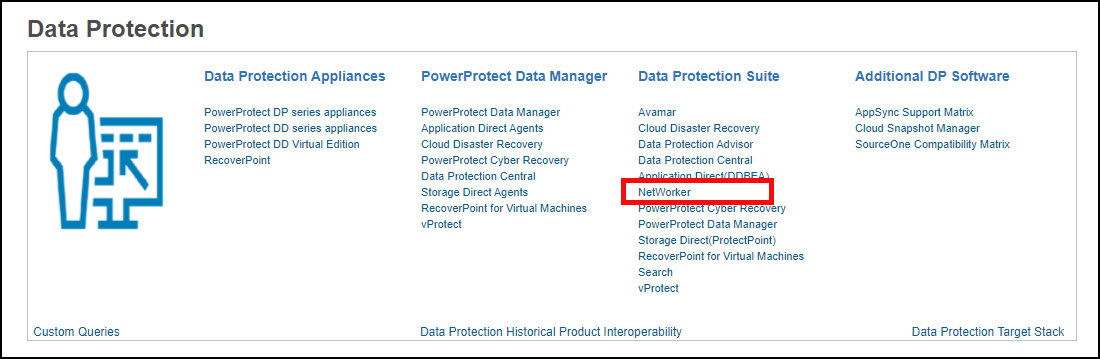
The NetWorker compatibility matrix is presented, select the NetWorker version planned for upgrade to see the full compatibility details:

Snapshots:
For NetWorker systems that are configured as Virtual Machines (VM), perform a virtual machine snapshot prior to performing the upgrade. This provides the ability to revert to the snapshot in the event of any critical issue observed during or after the upgrade.
Bootstrap:
Perform a Server backup using the Server Protection policy:

Collect the bootstrap save set details from an Administrative Command Prompt (Windows) or root SSH session (Linux)
mminfo -B
nve:~ # mminfo -B
      date     time       ssid        volume                     device                                access info
       06/19/24 10:02:24  3463636208  nve.amer.lan.dddefault.001 ddve01-bkp.amer.lan_Default_DD_Device ddve01.amer.lan:/nve/Default_DD_Device
       06/20/24 10:00:14  2993960430  nve.amer.lan.dddefault.001 ddve01-bkp.amer.lan_Default_DD_Device ddve01.amer.lan:/nve/Default_DD_Device
       06/21/24 10:00:14  2608170862  nve.amer.lan.dddefault.001 ddve01-bkp.amer.lan_Default_DD_Device ddve01.amer.lan:/nve/Default_DD_Device
       06/22/24 10:00:18  2239158514  nve.amer.lan.dddefault.001 ddve01-bkp.amer.lan_Default_DD_Device ddve01.amer.lan:/nve/Default_DD_Device
       06/23/24 10:00:28  1920477820  nve.amer.lan.dddefault.001 ddve01-bkp.amer.lan_Default_DD_Device ddve01.amer.lan:/nve/Default_DD_Device
       06/24/24 10:00:14  1601797102  nve.amer.lan.dddefault.001 ddve01-bkp.amer.lan_Default_DD_Device ddve01.amer.lan:/nve/Default_DD_Device
       06/25/24 10:00:17  1199230321  nve.amer.lan.dddefault.001 ddve01-bkp.amer.lan_Default_DD_Device ddve01.amer.lan:/nve/Default_DD_Device
       06/26/24 10:00:15  3917225711  nve.amer.lan.dddefault.001 ddve01-bkp.amer.lan_Default_DD_Device ddve01.amer.lan:/nve/Default_DD_Device
Procedure Generator:
Licensing:
You can call the Dell Licensing hotline at 800-782-4362 or email them at licensing@dell.com.
See LKB000129838: NetWorker Licensing Support.
Dependencies:
For NetWorker servers, clients, storage nodes, Management Console (NMC), and Web User Interface (NWUI) server's, see the version-specific NetWorker Installation Guide: https://www.dell.com/support/product-details/product/networker/docs
NetWorker 19.12.x (and prior) NetWorker, NMC, and NWUI servers required Java Runtime Environment (JRE) 1.8.x, or NRE 8.0.x versions.
NetWorker 19.13.x (and later) NetWorker, NMC, and NWUI servers require Java Development Kit (JDK) 17, or NRE 17.0.x versions.
NetWorker Runtime Environment (NRE): Introduction and Installation
Additional OS and package specific dependencies are detailed in the version-specific NetWorker Installation Guide.
Upgrade Software:
- Extract it to a common place in your LAN that is accessible from each of the machines that are to be upgraded. This assures that the same version is used everywhere.
- Upgrade each machine manually. Alternatively use 'The NetWorker Software Administration Wizard' to push your upgrade to numerous machines simultaneously.
Use the Latest Software.
End of life dates are detailed in the "EMCSoftwareReleaseandEndofServiceLifeNotifications" attachment in KB: Dell End-of-Life Product List for Converged Infrastructure and Storage